USB Player
Notes on Using USB Devices
- Proper operation cannot be guaranteed if a USB device with an HDD mass storage, or a CF or SD memory card, is connected using a USB adapter. Use USB devices with flash memory.
- Avoid electrostatic discharge when connecting and disconnecting USB devices. If connecting and disconnecting is repeated many times in a short period, this may cause problems with the device.
- To disconnect a USB device, select USB Menu → Disconnect USB using the MENU-TUNE knob.
- Correct operation cannot be guaranteed if the USB device connector is not made of metal.
- The connection to i-Stick type USB memory devices may be unreliable due to vehicle vibration, so correct operation cannot be guaranteed.
- Do not touch the USB device connector to other objects or body parts.
- A USB memory device will be recognized only if it is formatted with the FAT16/32 file system. Only devices with 512-byte/sector or 2048-byte/sector allocation can be used. NTFS and other file systems are not recognized.
- Depending on the type and capacity of the USB memory device and the type of files stored, the time required to recognize the files may vary. This does not indicate a problem with the device; wait until the files have been processed.
- Files on some USB memory devices may not be recognized due to compatibility issues, and card readers and USB hubs are not supported. Check the device operation before using it in the vehicle.
- When devices such as an MP3 player, mobile phone or digital camera are connected via the portable disk function, they may not operate correctly.
- Do not disconnect the USB memory device during playback. This may damage the USB device or adversely affect its operation.
- Connect and disconnect the USB memory device with the ignition off. If the USB memory device is connected while the ignition is on, the device may be damaged or malfunction in some cases.
Do not use the system's USB ports to charge USB devices, as the heat generated during such use may cause the system to malfunction or be damaged.
- If the USB mass storage device has a logical drive partitioned, only music files on the top-level logical drive can be played.
Therefore, music files intended for playback should be stored at the top level of the device. Music files from some USB memory devices may also not play normally if a separate drive is partitioned inside the USB device.
- Music files protected by DRM (Digital Rights Management) cannot be played.
- The system supports USB memory devices up to 16 GB, with limits of 999 files, 512 folders and 10 levels of folder structure. Correct operation of memory devices exceeding these limits cannot be guaranteed.
Notes on using music files from USB
- Damaged music files may be cut off during playback or may not play at all.
- Folders and music files are displayed in the order: Symbols → Numbers → Letters.
- A maximum of 64 characters is recognized in the names of folders and files stored in the Joliet system.
Information on MP3 (WMA) music files
- MP3 files with the following parameters can be played
- Bit rate: 8 kbps to 320 kbps
- Sampling frequency: 48 kHz, 44.1 kHz, 32 kHz (for MPEG-1)
24 kHz, 22.05 kHz, 16 kHz (for MPEG-2)
- The system displays MP3 (WMA) files with the file extensions .mp3 or .wma (lowercase) or .MP3 or .WMA (uppercase).
- The system displays MP3 file information such as album title, artist, etc., stored as ID3 tags (version 1.0, 1.1, 2.2, 2.3, 2.4).
- The lengths of file/folder names (including the four-character extension: .mp3) that can be used, depending on the recording type, are as follows:
- ISO 9660 Level 1: up to 12 characters
- ISO 9660 Level 2: up to 31 characters
- Joliet: up to 64 characters (1 byte)
- Windows long file names: up to 28 characters (1 byte)
- The system can play MP3 files that use VBR (variable bit rate) technology.
When playing VBR MP3 files, the remaining time shown may differ from the actual time.
Main buttons/knob
The main buttons and controls listed below are used to play music files from USB devices.
(9) CD/AUX button: Press this button when a USB device is connected to select USB playback mode.
(14) MENU-TUNE knob button
- Turn the knob to scroll through the track list, menus or MP3 (WMA) track information.
- Press the button to display the menu screen related to the current item or mode.
(8) Buttons SEEK

- Press one of these buttons to go to the previous or next track.
- Press and hold one of these buttons to fast-reverse or fast-forward the track, then release to resume playback at normal speed.
(7) INFORMATION [INFO] button
Displays information about the track being played.
(16) BACK button BACK
Deletes an entered entry or returns to the previous menu.
Connecting a USB memory device
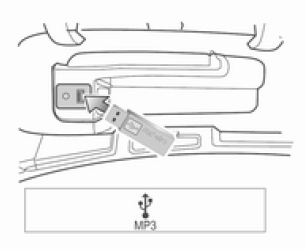
Pull open the cover above the dashboard and connect the USB memory device containing the music files to be played to the USB port.
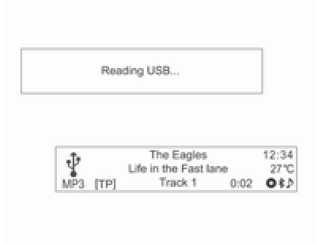
- Once the system has finished reading information from the USB memory device, playback starts automatically.
- If a USB memory device that cannot be read is connected, an error message appears and the system automatically switches to the previously used function or the FM radio station.
If a USB memory device intended for playback is already connected, press the CD/AUX button to select the USB player.
Playback automatically resumes from the point where it was last interrupted.
The USB player functions can then be operated in the same way as CD/MP3 playback.
Ending USB music playback: Press the RADIO BAND or CD/AUX button to select another function.
To stop playback and safely disconnect the USB memory device, go to USB Menu → Disconnect USB.
Using the USB menu: Shuffle/Repeat/Folders/Search...
The commands available in the USB Menu are similar to those in the CD Menu of the CD/MP3 player; only the Disconnect USB command has been added. See the description of CD/MP3 player functions available in the CD Menu.
USB Menu → Disconnect USB
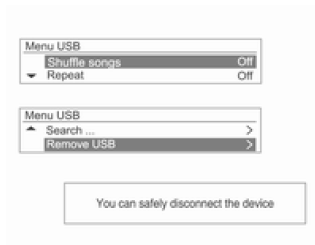
In playback mode, press the MENU-TUNE button to display the USB Menu. Turn the MENU-TUNE knob to select Disconnect USB, then press the MENU-TUNE button - a message will appear indicating that the USB device can be safely disconnected.
Disconnect the USB device from the USB port.
Return to the previously used function.
Test yourself
A quick Chevrolet Aveo quiz: every answer comes with an explanation and a link to the manual page.