Apple CarPlay®
Use this QR code to access the digital experience.

Uconnect seamlessly works with Apple CarPlay®, a smarter and safer way to use your iPhone® in the vehicle and keep your eyes on the road. Use your Uconnect touchscreen display, knobs and vehicle controls, as well as your voice with Siri, to access Apple Music®, Maps, Messages and more.
NOTE:
Feature availability depends on your wireless carrier and mobile phone manufacturer. Some Apple CarPlay® features may or may not be available in every region and/or language.
To use Apple CarPlay®, make sure you are using an iPhone® 5 or newer, Siri is enabled in the settings, and your iPhone® is unlocked the first time it is connected only, then perform the following procedure:
- Connect your iPhone® to one of the multimedia USB ports in the vehicle.
NOTE:
Be sure to use the factory Lightning cable included with the phone, as non-original cables may not work.
- Once the device is connected and recognized, drag and drop the Phone icon on the menu bar onto the Apple CarPlay® icon.
NOTE:
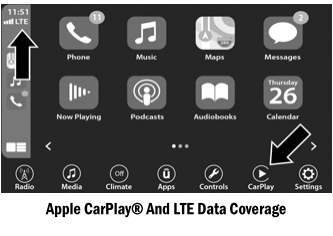
Apple CarPlay® launches immediately. You can also launch it by pressing the Apple CarPlay® icon on the touchscreen.
NOTE:
To use Apple CarPlay®, make sure cellular data is turned on and that you are within cellular coverage. Your data and cellular coverage are shown on the left side of the radio screen. Data plan rates apply.
Once Apple CarPlay® is installed and running on your Uconnect system, the following features can be used with your iPhone® data plan:
- Phone
- Music
- Messages
- Maps
Phone
 With Apple CarPlay®, press and hold the VR button on the steering wheel to activate a Siri voice recognition session. You can also press and hold the Home button in Apple CarPlay® to start a conversation with Siri. This allows you to make calls or listen to voicemail as usual, using Siri on your iPhone®.
NOTE:
Only a momentary press of the VR button on the steering wheel starts the built-in VR session, not the Siri session, and it will not work with Apple CarPlay®.
Music
 Apple CarPlay® allows you to access all your artists, playlists and music from iTunes® or any third-party audio app installed on your device. Using your iPhone® data plan, you can also select third-party audio apps, including music, news, sports, podcasts and more.
Messages
 Press and hold the VR button on the steering wheel to activate a Siri voice recognition session. Apple CarPlay® allows you to use Siri to send or reply to text messages. Siri can also read incoming text messages, but drivers cannot read messages, as everything is done by voice.
Maps
 Press and hold the VR button on the steering wheel until you hear a tone, or touch the microphone icon, to ask Apple® Siri to take you to your desired destination by voice. You can also touch the navigation icon in Apple CarPlay® to access Apple® Maps.
Apps
The Apple CarPlay® screen displays all compatible apps available for use each time it is launched. A compatible app must be downloaded, and you must log in to the app through your mobile device for it to work with Apple CarPlay®.
See http://www.apple.com/ios/carplay/ (USA) or https://www.apple.com/ca/ios/carplay/ (Canada) to view the latest list of available Apple CarPlay® apps.
Apple CarPlay® Voice Control
NOTE:
Feature availability depends on your wireless carrier and mobile phone manufacturer. Some Apple CarPlay® features may not be available in every region and/or language.
Apple CarPlay® lets you use your voice to interact with Siri through your vehicle's voice recognition system, and use your smartphone's data plan to project your iPhone® and a range of its apps onto the Uconnect touchscreen. Connect your iPhone® 5 or later to one of the multimedia USB ports using a factory Lightning® cable, then press the new Apple CarPlay® icon, which replaces the Phone icon on the main menu bar, to launch Apple CarPlay®. Press and hold the VR button on the steering wheel or press and hold the Home button in Apple CarPlay® to activate Siri, which recognizes natural voice commands for using your iPhone®'s features:
- Phone
- Music
- Messages
- Maps — if equipped
- Additional Apps — if equipped
NOTE:
Apple CarPlay® is a trademark of Apple® Inc. iPhone® is a trademark of Apple® Inc., registered in the U.S. and other countries. Apple® Terms of Use and Privacy Statement apply.
Test yourself
A quick Dodge Charger quiz: every answer comes with an explanation and a link to the manual page.