Using SYNC with Your Media Player
You can access and listen to music stored on your digital media player through your vehicle's speakers using the media menu or the system's voice commands.
You can also sort and play your music by different categories, for example by artist or by album.
SYNC supports almost all media players, including: iPod, Zune, "Plays from device" and most USB devices. SYNC also supports audio files in MP3, WMA, WAV and AAC formats.
Make sure the USB flash drive is formatted correctly and meets the following specifications:
- USB 2.0.
- Files must be in FAT16/32 format.
Note: The NTFS file format is not supported.
The audio file format on the USB flash drive must be:
- MP3.
- WMA files not protected by DRM.
- WAV.
- AAC.
Connecting Your Media Player to the USB Port
Note: If your media player has a power button, make sure the device is turned on.
Connecting Using Voice Commands
- Connect the device to your vehicle's USB port.
- Press the Voice button and, when the system is ready, say:

Words in square brackets [ ] are optional; you do not need to say them for the system to understand the command. For example, when ([USB] key | iPOD | [MP3] player) appears, you can say USB or USB key.
Connecting Using the System Menu
- Connect the device to your vehicle's USB port.
- Press the MEDIA button (located next to the audio screen) until an initialization message appears on the screen.

You can choose from the following functions:
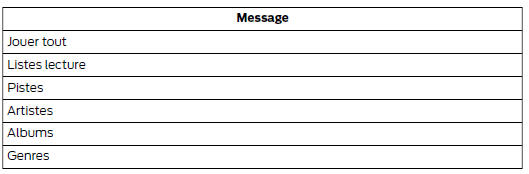

Who Is Singing? Command
At any time during playback, press the Voice button and ask the system who is singing. The system then reads the metadata tags of the current track, if they are filled in.
Media Voice Commands
 Press the
Voice button and, when the system is ready, say:

You can say any voice command shown in parentheses and separated by the | sign. For example, when (what is | what's) appears, say: what is or what's.
You must say all voice commands that appear outside of parentheses. For example, when "who plays this song (what is | what's) this title" appears, say: who plays this song or (what is | what's) this title.
Then say one of the following commands:
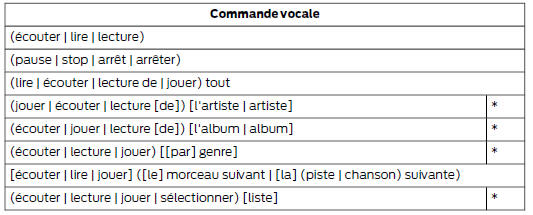

* This voice command is not available until indexing is complete.
Voice Command Guide
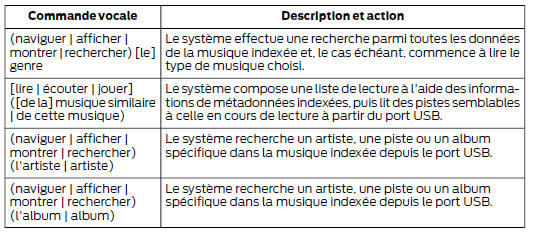
The system can also play music from your mobile phone via Bluetooth.
To activate Bluetooth Audio mode, press the MEDIA button (located next to the audio screen) or SOURCE, or press the Voice button, then when the system prompts you, say:

Then say one of the following commands:
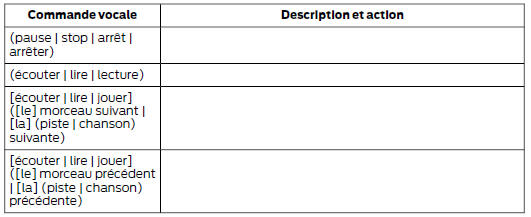
Media Menu Options
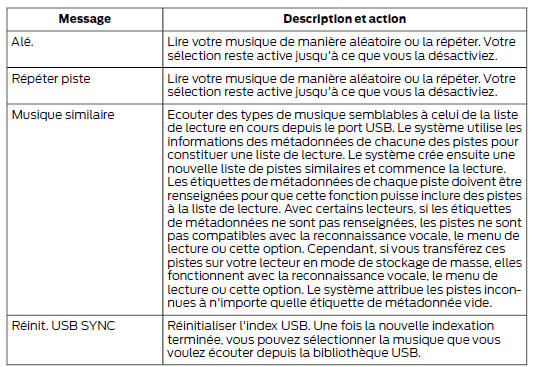
The media menu lets you choose how music is played (for example, by artist, genre, shuffle or repeat), as well as find similar music or reset the index of your USB devices.
Press AUX to select USB playback.

Then say one of the following commands:
Accessing Your USB Library
- Connect the device to your vehicle's USB port.
- Press the MEDIA button (next to the audio screen) to select USB playback.

If no media files are accessible, the screen displays a message that the device contains no files. If multiple media files are available, you can scroll and select the following options:
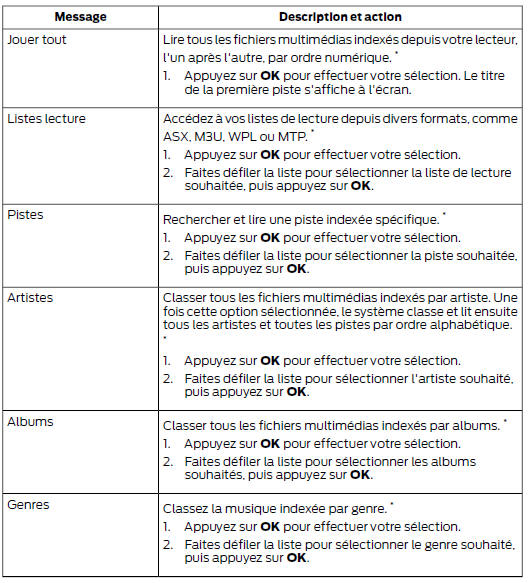
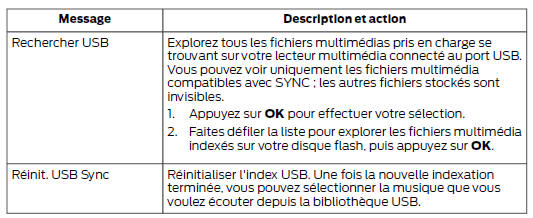
* You can use the buttons at the bottom of the audio screen to quickly jump to a category in alphabetical order. You can also use the number keypad letters to go directly to a location in the list.
Bluetooth Devices and System Settings
You can access these menus using the audio screen. See Using SYNC with Your Phone (page 297).
Test yourself
A quick Ford Mondeo quiz: every answer comes with an explanation and a link to the manual page.