Using SYNC with Your Phone
Hands-free calling is one of SYNC's main features. Although the system supports a wide range of functions, many of them depend on your cell phone's capabilities.
Most cell phones with Bluetooth wireless technology support at least the following functions:
- answering an incoming call;
- ending a call;
- using private mode;
- dialing a phone number;
- redialing a number;
- call waiting notification;
- caller ID.
Other functions, such as sending text messages via Bluetooth and automatic phonebook download, depend on your cell phone's features.
To check your cell phone's compatibility, refer to your phone's manual or visit your regional Ford website.
Initial Phone Pairing
Wirelessly pairing your cell phone to the system allows you to make and receive hands-free calls.
Note: You must turn the ignition on and turn on the audio unit. Note: To navigate the menus, press the up or down arrows on your audio system.
- Make sure Bluetooth is turned on on your cell phone before starting the search. See your phone's manual if necessary.
- Press the PHONE button.
When the audio screen shows that no phone is paired, select the add option.
Note: In some cases, the phone requires you to enter a PIN code. Enter the six-digit PIN code provided by the system on the audio screen. The screen tells you when pairing is successful.
Depending on your cell phone's features and your country, the system may ask whether you want to set this cell phone as your primary cell phone (that is, the cell phone the system tries to connect to automatically first when you turn the ignition on) or download your phonebook.
 The information screen can
display your cell phone's battery charge level as well as signal strength.
Pairing Additional Cell Phones
Wirelessly pairing your cell phone to the system allows you to make and receive hands-free calls.
Note: You must turn the ignition on and turn on the audio unit. Note: To navigate the menus, press the up or down arrows on your audio system.
- Make sure Bluetooth is turned on on your cell phone before starting the search. See your phone's manual if necessary.
- Press the PHONE button.
- Select the Bluetooth devices option.
- Press the OK button.
- Select the add option. This action starts the pairing process.
- When a message appears on the audio screen about starting pairing, search for SYNC on your device to begin the pairing process.
- Select SYNC on your cell phone.
- Wait until the PIN code appears on the phone screen.
Note: In some cases, the phone requires you to enter a PIN code. Enter the six-digit PIN code provided by the system on the audio screen. The screen tells you when pairing is successful.
The system may ask you questions, such as whether you want to set this phone as your primary cell phone or download your phonebook.
Cell Phone Voice Commands
 Press the voice button and,
when prompted, say:
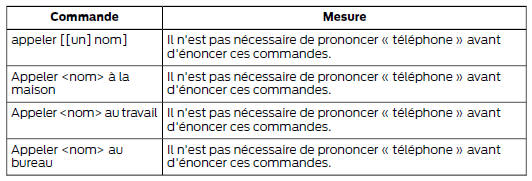
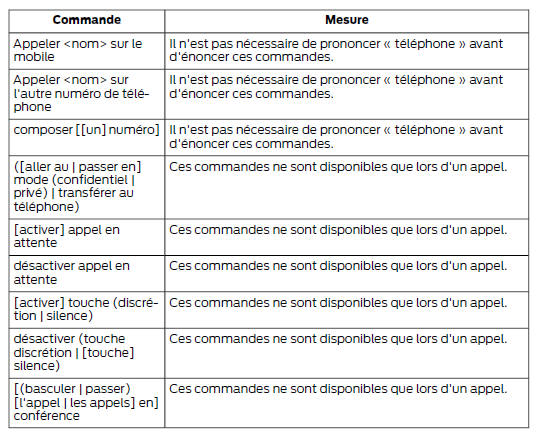
Phonebook Commands
When you ask the system to access a name or number from the phonebook, the requested information is shown on the audio screen.
Press the voice button and, when prompted, say:
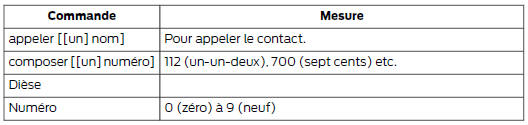
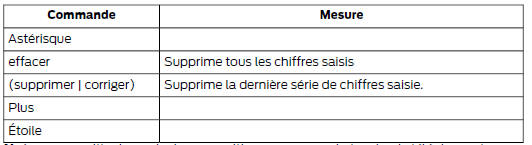
Note: To exit dialing mode, press and hold the phone button or any button on the audio unit.
Menu Commands
Press the voice button and, when prompted, say:

Words in parentheses or brackets are optional; you do not need to say them for the system to understand the command.
Transferring a Call
Press the voice button and, when prompted, say:

To erase the last digit spoken, say:

To erase all digits spoken, say:

To end a call, press the end call button on the steering wheel or select the end call option on the audio screen and press OK.
Receiving a Call
When you receive a call, you can:
- answer the call by pressing the accept call button on the steering wheel or by selecting the accept call option on the audio screen. Press OK.
- reject the call by pressing the reject call button on the steering wheel or by selecting the reject call option on the audio screen. Press OK.
- Ignore the call by doing nothing.
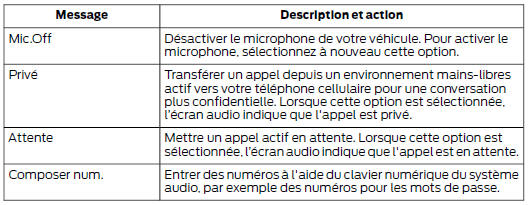
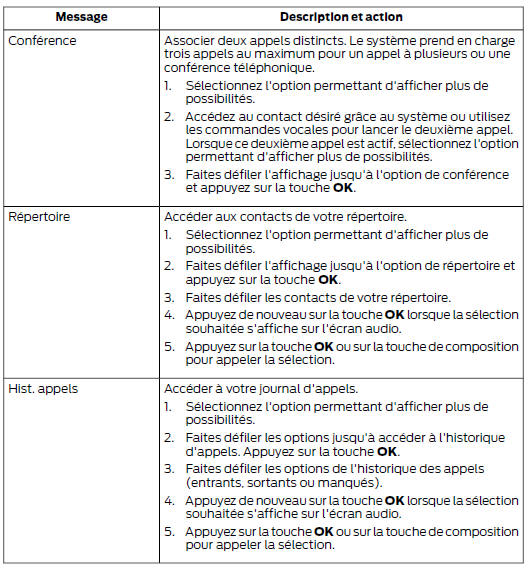
Cell Phone Options Available During an Active Call
During an active call, some additional menu options become available, such as placing a call on hold.
To access the menu, choose one of the options available at the bottom of the audio screen or select the option to show more choices.
Accessing Functions from the Cell Phone Menu
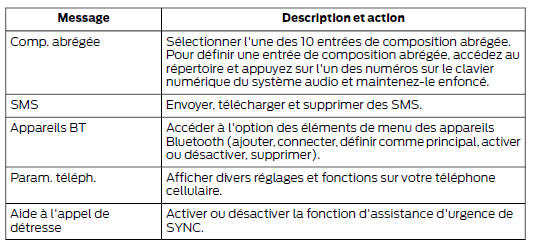
You can access call history, your phonebook, and sent text messages, as well as phone and system settings.
You can also access advanced features such as emergency assistance (Ford SOS).
The system automatically tries to download your phonebook and call history again each time your phone connects to the system.
You must turn on automatic download if your cell phone supports this feature.
Note: This feature depends on your cell phone.
Press the PHONE button to access the cellular phone menu.
Select one of the available options.

Text Messages (SMS)
The system allows you to send, receive, download and delete text messages (SMS). The system can also read received text messages aloud so that you can keep your eyes on the road.
Note: This feature depends on your cell phone.
Receiving a Text Message
When a new message arrives, a tone sounds and the display indicates that you have a new message.
Several options are available:
Select the listen option for the system to read the message aloud.
Select the view option to open the text message. Select the option to ignore the message, or do nothing, and the message is then stored in your message inbox. After making your selection, you can listen to the message, view other messages, or select the option to display more options.
Press the voice command button and say "Play Message".
Select the option to display more options and use the arrow buttons to scroll through the additional options.
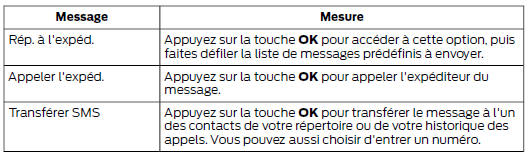
Note: To receive incoming text messages, your cellular phone must support text message downloading via Bluetooth.
You can choose from the following functions:
Sending, Downloading and Deleting Text Messages
Press the PHONE button.
Select the SMS option, then press the OK button.
You can choose from the following functions:
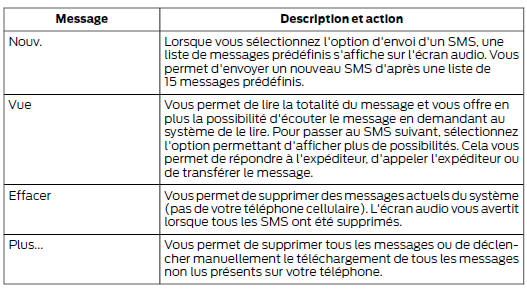
Sending a Text Message
Select the send option when the desired selection is highlighted on the audio display.
Select the confirm option when your contact's name appears, then press the OK button again to confirm to the system that you want to send this message. Each text message is sent with a preset signature.
Note: you can send text messages either by choosing a contact from the phonebook and selecting the text option on the audio display, or by replying to a received message in the inbox. Note: only one recipient is allowed per text message.
Accessing Your Cellular Phone Settings
These functions depend on your cellular phone. Your cellular phone settings allow you to access and change settings for functions such as adjusting the phone ringtone, text message notification, editing your phonebook and configuring automatic downloading.
Press the PHONE button.
Scroll through the menu until the phone settings option appears, then press the OK button.
Navigate the menu to select one of the following options:
| Message | Description and action |
| Set Primary | If you check this option, the system uses this cellular phone as the primary phone when several cellular phones paired with the system are available in your vehicle. You can change this option and set any of the paired cellular phones as primary (not only the active one) using the Bluetooth devices menu. |
| Phone Status | View the phone name, carrier name, phone number, signal strength and battery status. When you have finished, press the left arrow button to return to the phone status menu. |
| Ringtone Settings | Select the incoming call ringtone (one of the system tones or your cellular phone's ringtones). If your cellular phone supports in-band ringtone, it rings when you have selected the phone ringtone option.
|
| SMS Announce | Activate a tone to alert you when you receive a text message. Press the OK button to turn the tone on or off. |
| Phonebook Settings | Change the content of your phonebook (for example, add, delete or download entries). Press the OK button to make your selection and scroll through the options in the table below. |
To change the phonebook settings, choose from the following options:
| Message | Description and action |
| Add Contact | Transfer the desired contacts to your cellular phone. |
Refer to your phone manual for more information on transferring your contacts. Press the OK button to add other contacts from your phonebook.
When automatic download is disabled, your phonebook is not downloaded automatically each time your phone connects to the system.
You can access your phonebook, call history and text messages only when your paired phone is connected to the system.
Check or uncheck this option to automatically download your phonebook each time your phone connects to the system. The download time depends on your phone and the amount of data to be downloaded.
Bluetooth Devices
This menu gives you access to your Bluetooth devices. Use the arrow buttons to scroll through the menu options. It allows you to add, connect and delete devices and set a primary cellular phone.
Bluetooth Devices Menu Options
Press the PHONE button.
Scroll through the menu until the Bluetooth devices option appears, then press the OK button.
Navigate the menu to select one of the following options:
| Message | Description and action |
| Add | Pair additional cellular phones with the system.
|
Select Yes or No to confirm your answer.
*Some phones require you to enter a PIN code. Enter the six-digit PIN code provided by the system on the audio screen. The screen will tell you when pairing is successful.
System Settings
Press the MENU button.
Select the SYNC settings option, then press the OK button.
Navigate the menu to select one of the following options:
| Message | Description and action |
| Bluetooth Enabled | Check or uncheck this option to enable or disable the system's Bluetooth interface. Select this option, then press the OK button to change the status of the option. |
| Restore Defaults | This setting does not delete indexed information (phonebook, call history, text messages and other registered devices). |
Select this option and confirm your choice when prompted on the audio screen. Restores the factory default settings.
Select this option and confirm your choice when prompted on the audio screen. The screen will show when the operation is complete and the system returns you to the previous menu.
Install on SYNC: Select this option and confirm your choice when prompted on the audio screen. The USB device must contain a valid SYNC application or update to complete an installation successfully.
Press the OK button to make your selection.
Press the OK button and use the up and down arrow buttons to browse folders and files. Use the left and right arrow buttons to enter and exit a folder. Media content can be selected directly from this menu for playback.
Test yourself
A quick Ford Mondeo quiz: every answer comes with an explanation and a link to the manual page.