SYNC Applications and Services
A list of available applications is displayed. Each application may have its own specific settings.
Press the MENU button to access the system menu.

SYNC Emergency Assistance
WARNINGS
- For this feature to work, your cell phone must be equipped with Bluetooth technology and be compatible with the system.
- Always place your cell phone in a safe location inside your vehicle. Failure to do so may result in serious injury or damage to the cell phone, which would prevent this feature from working properly.
- If the feature is not turned on before a collision, the system will not attempt to place an emergency call, which could delay help and potentially increase the risk of serious or fatal injury.
If a collision triggers the deployment of an airbag or the cutoff of the fuel supply, the system can contact emergency services by dialing 112 (the wireless emergency number that works in most European countries) using a paired phone connected to the system. For more information on the system and SYNC Emergency Assistance, visit the Ford website for your region.
Note: Before selecting this feature, you must read the SYNC Emergency Assistance privacy statement later in this section to learn important information it contains.
Note: When you turn this feature on or off, the setting applies to all paired cell phones. If you have turned this feature off and a previously paired phone connects when you switch the ignition on, it triggers either a voice prompt, a message or icon on the display, or both. Note: Each cell phone works differently. Although this feature works with most cell phones, some may have difficulties when using it. Note: See the information on airbag deployment. See Supplemental Restraint System (page 30).
Turning SYNC Emergency Assistance on and off
Press the MENU button, then select:

Display Options
If you turn this feature on, a confirmation message appears on the display.
If you turn this feature off, a dialog box appears on the display so you can set a voice reminder.
Turning it off with a voice reminder triggers a visual and voice reminder when your cell phone connects and your vehicle starts.
Turning it off without a voice reminder triggers only a visual reminder, with no voice reminder, when your phone connects.
To make sure SYNC Emergency Assistance works correctly:
- The system must have power and operate correctly at the time of a collision and while the feature is being turned on and used.
- You must have turned the feature on before the collision.
- You must have a cell phone connected to the system.
- In some countries, a valid, registered and funded SIM card may be required to make an emergency call.
- A connected cell phone must be able to place and maintain an outgoing call at the time of a collision.
- A connected cell phone must have adequate network coverage, a sufficiently charged battery and a strong enough signal.
- Your vehicle battery must be charged.
Note: This feature only works in European regions or countries where SYNC Emergency Assistance can call local emergency services.
See the regional Ford website for more details.
In the Event of a Collision
Note: Not every collision triggers airbag deployment or fuel supply cutoff (which can activate SYNC Emergency Assistance). However, if SYNC Emergency Assistance is triggered, the system attempts to contact emergency services. If the connected cell phone is damaged or has disconnected from the system, the system searches for and tries to connect to one of the previously paired cell phones. The system attempts to dial 112.
Before the call:
- If you do not cancel the call and it connects, an introductory message is read to the emergency operator.
During the call:
- SYNC Emergency Assistance uses information provided by the vehicle's GPS or cellular network, when available, to determine which language to use. The system alerts the emergency operator of the collision and delivers the introductory message. This may include the GPS coordinates of your vehicle.
- The language the system uses to interact with your vehicle occupants may differ from the language used to deliver the relevant information to the emergency operator.
- Once the introductory message has been delivered, the phone line opens so you can speak hands-free with the emergency operator.
- As soon as the line connects, be ready to immediately give your name, your phone number and your location.
Note: While providing information to the emergency operator, the system plays a message indicating that it is sending important information. It then tells you when the line is open so you can begin hands-free communication. Note: During an Emergency Assistance call, a priority emergency screen is displayed. It shows the GPS coordinates of the vehicle if they are available. Note: GPS location information may not be available at the time of the collision, in which case Emergency Assistance still attempts to place an emergency call. Note: Emergency services may not receive the GPS coordinates, in which case hands-free communication with an emergency operator is available. Note: The emergency operator may also receive information from the mobile phone network, such as the mobile phone number, the location of the mobile phone and the name of the mobile phone service provider, regardless of SYNC Emergency Assistance.
Emergency Assistance may not work if:
- your mobile phone or the Emergency Assistance hardware system was damaged during the collision;
- the vehicle or system battery power is cut off;
- your mobile phone is ejected from the vehicle during a collision;
- you do not have a valid, registered SIM card with credit in your mobile phone;
- you are in a country or region in Europe where the SYNC Emergency Assistance feature cannot place the call. See the regional Ford website for more details.
Important Information About Emergency Assistance
At this time, Ford SOS does not call emergency services in the following countries: Albania, Belarus, Bosnia and Herzegovina, Macedonia, Netherlands, Ukraine, Moldova and Russia.
See the regional Ford website for the most up-to-date information.
Privacy Statement for Emergency Assistance
When you turn on Emergency Assistance, it may inform emergency services that your vehicle has been involved in a collision with an airbag deployment or fuel pump shutoff activation.
This feature can provide your location information to the emergency operator, as well as other details about your vehicle or the collision, to help them determine the most appropriate emergency services.
If you do not want this information shared, turn the feature off.
SYNC AppLink
The system allows voice and manual control of smartphone applications that are compatible with SYNC AppLink. Once an application works with AppLink, you can control its main functions using voice commands and manual controls.
Note: You must pair and connect your smartphone to SYNC to access AppLink. Note: iPhone users must connect the phone to the USB port. Note: Android users must connect the phone to SYNC via Bluetooth. Note: For more information on available applications, compatible smartphones and troubleshooting tips, visit the Ford website. Note: Make sure you have an active account for the application you downloaded. Some applications work automatically without any setup. Others ask you to set your personal preferences and customize your experience by creating stations or favorites. We recommend doing this at home or outside your vehicle.
Accessing Applications Using the SYNC Menu
Scroll through the list of available applications and press OK to select an application. Once an application is running through SYNC, press the right arrow button to access the application menu. From there, you can access various application functions, such as thumbs up and thumbs down. Press the left arrow button to exit the application menu.
Press the MENU button, then select:
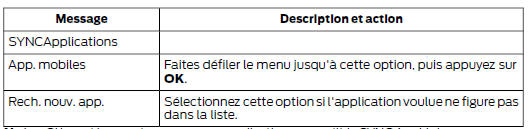
Note: If the system does not find any SYNC AppLink-compatible applications, make sure the required application is running on the mobile device.
Accessing Applications Using Voice Commands
Press the Voice button and, when the system is ready, say:
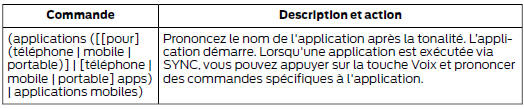
The following voice commands are always available:
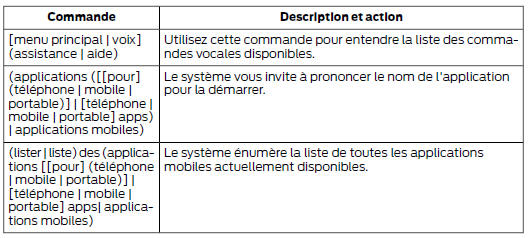
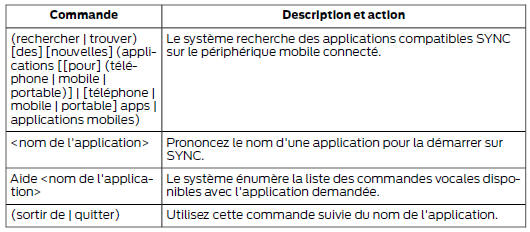
Turning Context Notifications On and Off
Some applications may send context notifications. A context notification is an alert announced by voice and/or shown on the display by an application running in the background. This can be especially useful for news or location applications.
Press the MENU button, then select:

Activating SYNC Mobile Applications
To use the system, you must agree to send and receive application updates and authorization information through the data plan associated with the connected device.
Data is sent to Ford in the United States through the connected device.
Information is encrypted and includes your VIN, the SYNC module number, anonymous usage statistics and debugging information. Updates may be installed automatically.
Note: You must activate mobile applications for each connected device the first time you select a mobile application using the system. Note: Standard data rates apply. Ford is not responsible for any additional charges that may be billed by your service provider when your vehicle sends or receives data via the connected device. This includes any additional roaming charges outside of a home network while driving in certain areas.
Application Status
You can check the current status of an application in the settings menu.
There are three possible statuses:
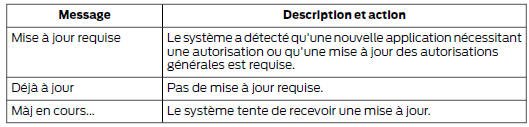
Options in the settings menu:

Application Permissions
Permissions are divided into groups. You can grant permissions to these groups individually. You can change the status of a permission group at any time when you are not driving, using the settings menu.
When you start an application using SYNC, the system may ask you to grant certain permissions, for example:
- To allow your vehicle to provide vehicle information to the application, including but not limited to: fuel level, fuel consumption, engine speed, battery voltage, odometer, VIN, outside temperature, gear position, tire pressure, ambient temperature, date and time.
- To allow your vehicle to provide driving characteristics information, including but not limited to: MyKey, seat belt status, engine speeds, braking events, brake pedal switch, acceleration, accelerator pedal position, clutch pedal switch, trip length, trip duration, trip cost, percentage of engine run time and percentage of time at speed.
- To allow your vehicle to provide location information, including: GPS and speed.
- To allow the application to send contextual notifications using the vehicle display and voice functions while it runs in the background.
Note: You only need to grant permissions the first time you use an application with SYNC. Note: We are not responsible for damage or privacy violations resulting from the use of an application or from the transmission of vehicle data that you have authorized us to provide to an application.
Test yourself
A quick Ford Mondeo quiz: every answer comes with an explanation and a link to the manual page.