Personalized Profile and Vehicle Settings
Link the registered Digital Key to a personalized profile. Then, when you lock or unlock the door using the Digital Key with NFC function, or unlock the door remotely using the Bluetooth connection with the Digital Key, the vehicle will apply the personalized settings of the user profile. Profile linking and personalization are available for Driver 1 and Driver 2.
Profile Link/Unlink
Profile Link
1. Select "Settings" -> "User Profile" -> "Profile Settings" -> "Link Digital Key (Smartphone)" in the infotainment system menu.
2. Unlock and place the smartphone on the wireless charger as indicated by the message. The link starts automatically.
3. The profile link starts with a message.
4. If you select Link, the Digital Key of the registered phone and the user profile are linked.
5. The linking process is completed with a message.
Unlink Profile
1. Select the Digital Key information in the vehicle settings menu of the infotainment system. The profile can only be unlinked if it is linked.
2. The profile unlinking is completed with a message.
Information
If you link Driver 1 and Driver 2 to the same smartphone, the smartphone Digital Key always operates as Driver 1.
If you unlink Driver 1, the personalization function will operate as Driver 2.
PRECAUTIONS for Linking and Unlinking the Vehicle Profile
When linking or unlinking the Digital Key profile, observe the following precautions.
- The profile link can be used with the Digital Key. (Infotainment System: Vehicle Settings Mode -> Digital Key -> Enable Digital Key)
- The profile link information is retained even if you disable the Digital Key function.
- Only a smartphone with the Digital Key app can be used to link the profile. (Linking with an NFC card is not possible.)
- The profile link only works when the smartphone and Digital Key are registered to the vehicle. A smartphone with the Digital Key of another vehicle cannot link the profile.
- If you remove the smartphone from the wireless charger before the profile link is completed, the link will not work.
- To unlink the profile, the smartphone does not need to be placed on the wireless charger.
Vehicle Personalization Operation
The personalization function linked to the Digital Key operates under the following conditions:
- Lock or unlock the doors by touching the driver's door handle with the smartphone linked to the profile. (Personalization does not operate when locking or unlocking the front passenger door.)
- Remote door unlocking using the Digital Key app on the smartphone linked to the profile.
The profile linked to the Digital Key can be changed manually on the infotainment system settings screen.
Precautions for Linking and Unlinking the Digital Key Profile
The profile operation in accordance with the door lock/unlock system is as follows.
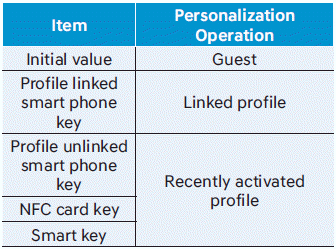
- The personalization function using the Digital Key can be controlled after linking the Digital Key in the profile menu of the infotainment system.
- You must use the personalization function while the vehicle is stopped safely.
Vehicle Personalization Using the Digital Key
The following personalization functions are available in the vehicle.
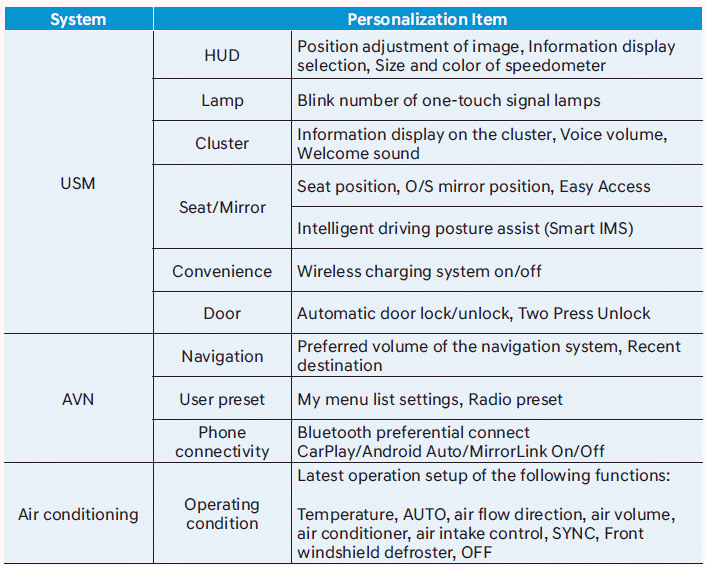
For more information on personalization, refer to the infotainment system manual.
CAUTION
If you leave the Digital Key after locking or unlocking the doors or starting the vehicle with the Smart Key, the doors may be locked by the central lock. Always carry the Digital Key with you.
Test yourself
A quick Hyundai Santa Fe quiz: every answer comes with an explanation and a link to the manual page.