Around View Monitor Settings
Camera Settings
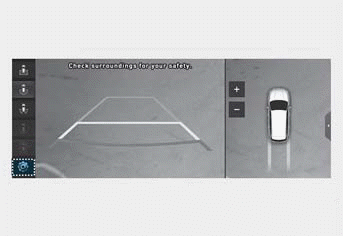
To change the surround view monitor display content or display settings, press the settings icon ( ) on the screen while the rear view monitor is on, or select Setup > Vehicle > Driver Assistance > Parking Safety > Camera Settings from the settings menu on the infotainment system while the engine is on.
- If Display Content is selected, you can change the settings for the Top View Parking Guide or Rear View Parking Guide.
- If Display Settings is selected, you can change the screen brightness and contrast.
Parking Guide Top View
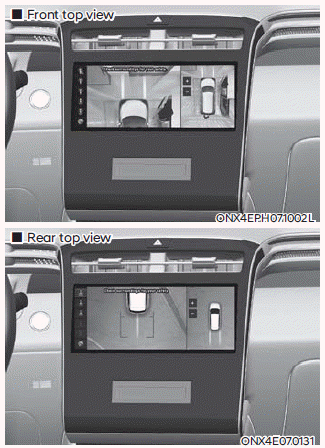
If the Top View Parking Guide is selected, the parking guide lines will appear on the right side of the surround view monitor screen when the front top view and top rear view are displayed.
Information
The horizontal top rear view guide line shows the rear door opening distance of approximately 6.6 ft (2 m) from the vehicle.
Parking Guide Rear View
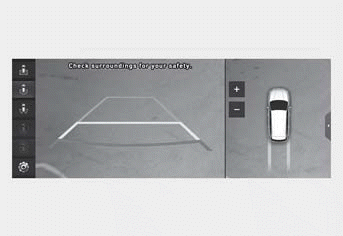
If Rear View Parking Assist is selected, a parking guide line appears on the right side of the Surround View Monitor screen when the rear view is displayed.
Information
The horizontal rear view guide lines indicate distances of approximately 1.6 ft (0.5 m), 3.3 ft (1 m), and 7.6 ft (2.3 m) from the vehicle.
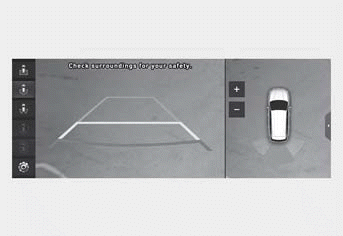
- With the ignition ON, select Settings > Vehicle > Driver Assistance > Parking Safety > Parking Distance Warning Auto On (for Infotainment type system) from the settings menu to use the feature.
If Parking Distance Warning Auto On is selected, the parking distance warning appears on the right side of the Surround View Monitor screen. - The warning appears only when Parking Distance Warning is turned on.
Automatic Around View Monitor Activation
With the ignition ON, select Settings > Vehicle > Driver Assistance > Parking Safety > Surround View Monitor Auto On (for Infotainment type system) from the settings menu to use the feature. If Surround View Monitor Auto On is selected, the front view parking assist display appears when the Parking Distance Warning sounds while driving in D (Drive).
Information
You can select Driving Safety Priority for the Surround View Monitor from the settings menu. For more information, refer to the "Driver Assistance Settings" section in this chapter.
Test yourself
A quick Hyundai Tucson LM quiz: every answer comes with an explanation and a link to the manual page.