External audio device
Connection
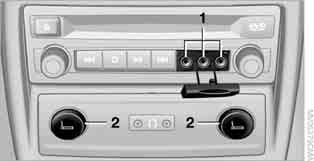
Audio and video cable connection sockets:
when connecting, pay attention to the color of the sockets.
Yellow socket: video. White socket: audio – left. Red socket: audio – right.
2 Power supply for the external device: sockets with removable covers, see also page 133.
Playback
1. Switch on the external device and start playback.
2. Press the source menu button on the remote control.
3. Select "AUX".
4. Press the button .

If the connected device, such as an MP3 player, does not output a video signal, the message "No video signal" appears on the screen
(No video signal). However, the sound of the device is still played.
External device settings
1. During playback, press the button .
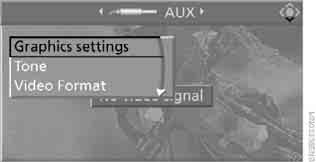
2. Making settings using the remote control:
► "Graphics settings":
► "Brightness", "Colour" and "Contrast" of the picture.
► "NTSC colours" (NTSC colours): for NTSC devices, the color tone can be adjusted.
► "Standard" (Standard): the rear-seat DVD system can be set to the TV standard of the external device; see also the owner's manual of the external device.
► "Reset": standard parameter values are restored.
► "Tone":
► "Treble / Bass" (Treble / Bass) and "Balance" (Balance left / right): adjusted separately for the left and right headphones (including infrared headphones).
► "Reset" (Reset): the standard settings are restored.
► After moving to the upper field, other settings can be made.
"Tone" (Tone): adjusts the volume of the external device to match the volume of the CD/DVD player.
"Language" (Language): menu language of the DVD system.
"Display": backlight brightness of the display.
► "Video Format" (Video format):
► "Standard" (Standard).
► "Zoom": picture full screen.
Test yourself
A quick BMW X3 quiz: every answer comes with an explanation and a link to the manual page.