General operation
By successive presses of the MODE key, access the following displays:

 RADIO / MUSIC MEDIA / VIDEO
 PHONE (If call in progress)
 FULL SCREEN MAP
 NAVIGATION (If guidance in progress)
 SETUP:
- access to the “SETUP” menu: languages * and voice functions *, voice initialisation (section 09), date and time *, display, units and system settings.
* Depending on model.
 Long press: access to GPS coverage and demonstration mode.
To clean the screen, it is recommended to use a soft non-abrasive cloth (eyeglass cloth) without any additional product. TRAFFIC:
- access to the “Traffic” menu: display current traffic alerts.
 MEDIA:
- DVD-Audio menu
- DVD-Video menu
 Press OK to access
shortcut menus depending on the screen display. NAVIGATION (IF GUIDANCE IN PROGRESS):

1. Stop guidance 1. Repeat instruction 1. Divert route
2. Cancel
2. Increase detour
2. Decrease detour
2. Recalculate
2. Move map
2. Browse route
1. Route info2. View destination
2. Trip info3. Guidance criteria
3. Exclusion criteria
3. Number of satellites
3. Number of stops
2. Browse route
2. Move map
1. Voice message 1. Guidance options2. Route guidance criteria
2. Taking traffic into account
2. Avoidance criteria
2. Recalculate route
PHONE: 1. Hang up 1. Hold 1. Call 1. DTMF tones 1. Handset mode 1. Mic off MUSIC MEDIA PLAYERS: 1. Traffic information (TA) 1. Playback mode2. Normal
2. Random
2. Intro
1. Select source RADIO: 1. In FM mode2. Traffic info (TA)
2. RDS
2. Radiotext
2. Regional mode
2. AM band
1. In AM mode2. Traffic info (TA)
2. Refresh AM list
2. FM band
FULL SCREEN MAP: 1. Stop guidance / Resume guidance 1. Destination / Add stop 1. Points of interest 1. Location info
2. Options
3. Guide to
3. Call
3. Store location
3. Move map
1. Map settings2. Flat map
2. Perspective
2. 3D map
2. North-up
2. Heading-up
1. Move map DVD AUDIO (LONG PRESS): 1. Stop 2.Group
3.Group 1 .2/n
2.Playback mode
3.Normal / Random / Intro
1. TA2. Select source
DVD VIDEO (LONG PRESS): 1.Playback
2.Stop
2.DVD menus
3.DVD menu
3.DVD main menu
3. Title list
3. Chapters
2. DVD options3. Audio
3. Subtitles
3. Angle
Examples: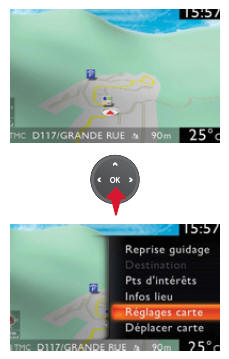
NaviDrive 3D IS:
- the map setting that allows the map to be displayed flat, in perspective, or in 3D.

- the system configuration using voice commands.
Test yourself
A quick Citroen C5 quiz: every answer comes with an explanation and a link to the manual page.