Audio system
Audio unit
In this manual: Audio system
17steps
~102min
4/5difficulty
Done 0 of 17
DANGER
Driver distraction can cause loss of vehicle control, resulting in the risk of accidents and personal injury. We strongly recommend exercising extreme caution when using any device that may take your attention away from the road. The driver's primary responsibility is the safe operation of the vehicle. Do not use hand-held devices while driving. Always use hands-free devices where possible. Be aware of local laws and regulations that may restrict the use of electronic devices while driving.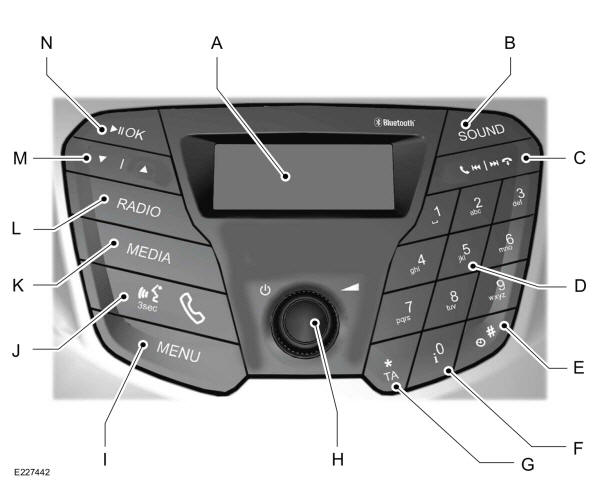
- Display: shows the status of the currently selected mode.
- SOUND: press this button to adjust the audio settings for bass, treble, balance and fade.
- Seek up: press this button to go to the next station in the radio frequency band or the next track. Seek down: press this button to go to the previous station in the radio frequency band or the previous track. In USB and Bluetooth audio modes, press the buttons to go to the next or previous track. C. Call and end call: press this button to make or end a call.
- Number keypad: press a button to select a previously stored station. To store a station, press and hold the button until the audio returns. In PHONE mode, use these buttons to dial the number.
- Clock: press this button to select the clock setting.
- Information: press this button to access full information if the display does not show it all.
- TA: press this button to turn traffic announcements on or off, and to cancel an announcement during an active traffic message.
- On, Off and Volume: press this button to switch the audio system on and off. Turn the knob to adjust the volume.
- MENU: press this button to access various audio system functions, depending on the selected mode.
- Voice and Phone: press this button to give voice commands for your mobile phone, or to access the phone's Bluetooth function by selecting PHONE, then MENU. Press the button again to display the phone name, signal strength and battery charge level.
- MEDIA: press the button to access Bluetooth streaming audio, USB or auxiliary input playback.
- RADIO: press the button to select different radio bands. Press it to cancel the menu or scroll the list.
- Up and down arrows: press a button to scroll through the options on the screen. In radio mode, press it to tune manually.
- OK, Play and pause: press the button to confirm selections on the screen. Press it to play or pause a track during playback from compatible external devices.
Sound button
Allows you to adjust the audio settings (for example: treble, bass, fade and balance).
- Press the AUDIO button repeatedly to scroll through the settings.
- Use the up and down arrow buttons to select the desired level.
- Press the OK button to confirm the new settings.
Press the RADIO button to select the available wavebands (AM, FM1, FM2).
You can use this button to return to radio reception after listening to another audio source.Test yourself
A quick Ford Ka quiz: every answer comes with an explanation and a link to the manual page.
Was this page helpful?