How to Use Aha Radio
Aha Radio is an application that gives access to web-based content such as internet radio stations and podcasts.
Stay up to date with your friends through updates from Facebook and Twitter.
By using locally available services, you can search for nearby services and destinations and get local information in real time.
For details about Aha Radio, see http://www.aharadio.com/.
* Aha, the Aha logo and Aha graphic design are trademarks or registered trademarks of Harman International Industries, Inc., and their use requires permission.
CAUTION
The Aha service may vary depending on the country in which the user is located. In addition, this service is not available in some countries.
To start Aha via a Bluetooth device, follow these steps:
Install the Aha app on your device.
Create an Aha account for your device.
Log in to Aha using your device.
Select a preset station on the device.
Playback
Select the icon on the
home screen and display the Entertainment function screen. When aha is selected, the following icons appear at the bottom of the center display. The icons shown vary depending on the selected station.
Icons other than those shown below may also be displayed.
| Icon | Function |
 | Displays the Entertainment function menu. Use this button to switch between the different audio sources. |
 | Displays the main menu. |
Use this icon to switch to other stations.


Records voice.
Records voice and posts it as a playable track on Facebook and other social networks.

Indicates approval of the current content.

Indicates disapproval of the current content.


Displays a destination found using locally available services in the navigation system.

You can call the phone number of a location found using locally available services. This function is available only when the device is connected as a phone.


*1 Some stations may use different versions of the terms expressing approval or disapproval (Like and Dislike), depending on the station type or service provider.
Main menu
Select the icon .
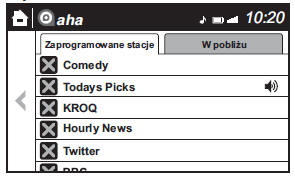
Switch the tab and select the station category.
| Tab | Function |
| Preset stations | Displays a list of stations preset on the device. |
Select the name of a preset station to play it.
Information relevant to destinations found near the vehicle's position is provided.
You can select preset desired categories using the settings filter on the device.CAUTION
Locally available services may vary, as this function depends on the content provided by Radio Aha.
Example of use (Locally available services)
1. Select the desired station from the Nearby tab in the main menu.
Playback of destination names or addresses starts in the order of the destination name list.
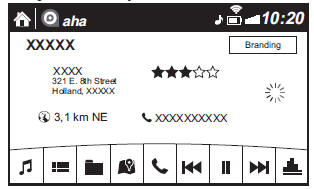
2. When the
icon is selected, the location of the currently displayed destination is shown in navigation (navigation system only).
3. When the
icon is selected, a connection can be made to the currently displayed destination.
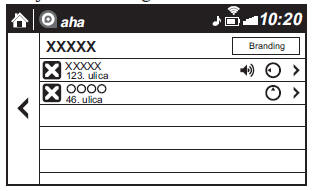
4. Select the icon icon is selected to display the list of
available options.
Another destination can be selected from the list.
Shout Stream
Some social networks, e.g.
Facebook or Caraoke, support recording and sharing voice messages using a function called "Shout Stream".
1. Select the icon icon and start the
countdown (3, 2, 1, 0). Recording starts when the counter shows zero.
2. Records your voice.
3. Select Save to save the recording in memory or post it online.
CAUTION
Recording time depends on the station (maximum 30 seconds).
Recording stops automatically after the specified recording time has elapsed.
You can post the recording online or delete it later.
Test yourself
A quick Mazda 2 quiz: every answer comes with an explanation and a link to the manual page.