Bluetooth
Bluetooth hands-free system description
After connecting a device (mobile phone) via radio waves to the car audio system, which also supports Bluetooth technology, calls can be made and received using the voice dial button, the answer call button, or the end call button among the audio system switches, as well as the center display. For example, calls can be made even when the device (mobile phone) is in a coat pocket, without the need to use the telephone handset directly.
Bluetooth Audio function description
After pairing a portable audio device equipped with Bluetooth with the car audio system, you can listen to music stored on the paired portable audio device through the car speakers. Bluetooth devices do not need to be connected to an external input jack in the vehicle. Once programmed, you can use the audio system controls to play/pause tracks.
CAUTION
For your safety, the mobile phone can only be paired while the vehicle is stationary. If the vehicle starts moving, the pairing procedure will be interrupted.
Before starting the pairing procedure, park the vehicle in a safe place.
The operating range of a Bluetooth-equipped device is approximately 10 meters or less.
Basic audio system functions can be operated using voice commands, even if Bluetooth is not connected.
CAUTION
Some mobile Bluetooth devices are not compatible with this vehicle.
For information on Bluetooth device compatibility, consult an Authorized Mazda Dealer, the Mazda online support center or the Mazda phone center: Phone: (Germany) 0800 4263 738 (8:00–18:00 CET) (Except Germany) 00800 4263 7383 (8:00–18:00 CET) (Worldwide) +49 (0) 6838 907 287 (8:00–18:00 CET) Internet: http://www.mazdahandsfree.com
Required Bluetooth Specification (Recommended)
Type A/Type B: Ver. 2.0
Type C/Type D: Ver. 1.1/1.2/2.0 EDR/2.1 EDR/3.0 (compatible)
Hands-Free Kit Components
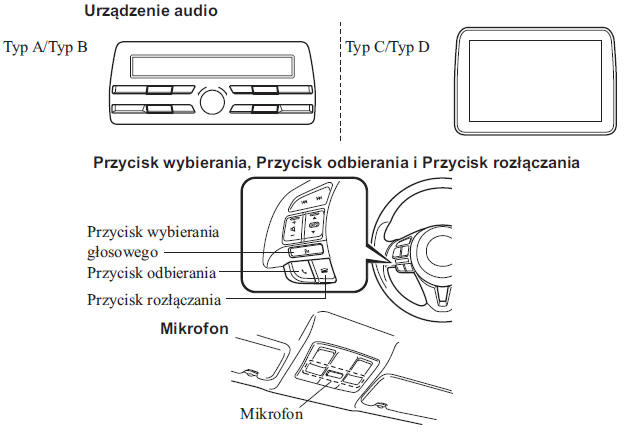
Microphone (hands-free kit)
The microphone is used when giving voice commands or making a call using the hands-free system.
Voice recognition button, Talk button and End button (hands-free kit)
Basic Bluetooth hands-free functions, such as making and answering calls, can be performed using the voice recognition, talk and end buttons located on the steering wheel.
Control Panel (Type C/Type D)
The control panel is used to adjust the volume and operate the display. Tilt or turn the control knob to move the cursor. Press the control knob to select an icon.
Volume Adjustment
The audio system power/volume knob*1 or the volume knob on the control panel*2 is used to adjust the volume. Turn the knob clockwise to increase the volume and counterclockwise to decrease it.
The volume can also be adjusted using the volume control button on the steering wheel.
*1 Type A/Type B
*2 Type C/Type D
CAUTION
If the volume level is lower compared to other audio system modes, increase the volume on the connected device.
(Type C/Type D)
The call volume, as well as the voice guidance and ringtone volume, can be set in advance.
1. Select the icon on the
home screen and display the communication screen.
2. Select Settings .
3. Adjust the Phone and VR and ringtone volume using the slider.
Preparing the Bluetooth Mobile Device (Type A/Type B)
Preparing the Bluetooth Hands-Free Kit
Setting the Programming Code
The 4-digit code for programming your mobile phone (pairing) can be set in advance.
CAUTION
The initial setting is "0000".
1. Briefly press the talk button or the voice recognition button.
2. Say: [beep] "Setup" 3. Prompt: "Select one of the following: Pairing options, confirmation prompts, language, password, select phone or select music player." 4. Say: [beep] "Pairing options" 5. Prompt: "Select one of the following: Pair, Edit, Delete, List, or Set pin Code." 6. Say: [beep] "Set pin code" 7. Prompt: "Your current pin code is XXXX. Do you want to change it to a different pairing pin code?" 8. Say: [beep] "Yes" 9. Prompt: "Please say a 4-digit pairing code".
10. Say: [beep] "YYYY" 11. Prompt: "YYYY is this correct?"
12. Say: [beep] "Yes" or "No" 13. If "Yes", go to step 14. If "No", the procedure returns to step 9.
14. Prompt: "Your new pairing pin code is YYYY. Use this pin code when pairing devices to the Hands free system. Do you want to pair a device now?" 15. Say: [beep] "Yes" or "No" 16. If "Yes", the system switches to device registration mode. If "No", the system goes to standby.
Pairing a Device
To use the Bluetooth hands-free kit, a Bluetooth-equipped device must be paired with the Bluetooth system as described below.
Up to seven wireless Bluetooth devices, including mobile phones, can be paired with the vehicle.
CAUTION
A device can only be paired while the vehicle is stationary. If the vehicle starts moving, the pairing procedure will be interrupted.
Pairing while driving is dangerous. Complete this procedure before setting off on your journey.
Park in a safe place before starting the pairing procedure.
If a Bluetooth device has already been paired with the vehicle as a Bluetooth audio device, it does not need to be paired again as a phone. Similarly, if it has been paired as a phone, it does not need to be paired again as a Bluetooth audio device.
Since the operating range of a Bluetooth-equipped device is approximately 10 meters, a device located within 10 meters of the vehicle may be detected and paired unintentionally while pairing another device.
1. Turn on the Bluetooth function on the device.
CAUTION
Refer to the device's owner's manual for operating instructions.
2. Briefly press the talk button or the voice recognition button.
3. Say: [beep] "Setup" 4. Prompt: "Select one of the following: Pairing options, confirmation prompts, language, password, select phone or select music player." 5. Say: [beep] "Pairing options" 6. Prompt: "Select one of the following: Pair, edit, delete, list, or set pin code." 7. Say: [beep] "Pair"
8. Prompt: "Start the pairing process on your Bluetooth device. Your pin code is 0000 (XXXX). Input this on your Bluetooth device. See device manual for instructions." 9. Use your mobile phone to search for the Bluetooth device (peripheral device).
CAUTION
Refer to the device's owner's manual for operating instructions.
10. Select "Mazda" from the list of devices found by your mobile phone.
11. Enter the 4-digit pairing code on the device.
12. Prompt: "Please say the name of the device after the beep".
13. Say: [Beep] "XXXX - - -" (Say "device tag", any device name of your choice).
Example: "Stan's device".
CAUTION
Say the name of the device to be paired within 10 seconds.
If two devices are to be paired, they must not be paired under the same or a similar name.
14. Prompt: "Adding XXXXXX - - - (e.g. "Stan's phone") (device name). Is this correct?" 15. Say: [Beep] "Yes" 16. Prompt: "Pairing complete"
Once the device has been programmed, the system recognizes it automatically. When the Bluetooth hands-free system is switched on again, or when it is first activated after turning the ignition switch from OFF to ACC, the system will announce "XXXXXX - - - (e.g.
"Stan's device") (device name) is connected".
CAUTION
After the pairing procedure is complete, the B symbol appears on the display.
Some Bluetooth audio devices need a certain amount of time before the B symbol is displayed.
A device can also be programmed using the audio system controls.
Depending on the device, the programming status may be erased after some time. If this happens, repeat the entire procedure starting from step 1.
Reading registered devices
The Bluetooth hands-free system can read out the list of devices registered in the system.
CAUTION
Use this function only when the vehicle is stationary. It is too distracting to perform while driving, and you may make too many mistakes.
1. Briefly press the talk button or the voice recognition button.
2. Say: [Beep] "Setup" 3. Prompt: "Select one of the following: Pairing options, confirmation prompts, language, password, select phone or select music player." 4. Say: [Beep] "Pairing options" 5. Prompt: "Select one of the following: Pair, edit, delete, list, or set pin code." 6. Say: [Beep] "List" 7. Prompt: "XXXXX..., XXXXX..., XXXXX... (e.g. Device A, device B, device C)" (readout of device names registered in the hands-free system).
While the requested item is being read out, briefly press the voice recognition button and say one of the following voice commands to execute it.
- "Select phone": Selects the device (mobile phone) by briefly pressing the voice recognition button.
- "Select music player": Selects the device (audio player) by briefly pressing the voice recognition button.
- "Edit": Edits the device by briefly pressing the voice recognition button.
- "Continue": Continues the readout.
- "Delete": Deletes the registered device by briefly pressing the voice recognition button.
- "Previous": Returns to the previous device by briefly pressing the voice recognition button.
8. Prompt: "End of list, would you like to start from the beginning?" 9. Say: [Beep] "No" 10. Prompt: "Returning to main menu."
Selecting a device
If several devices have been paired, the Bluetooth system will connect to the one paired last. If you want to connect to a different paired device by default, the connection settings must be changed. The changed order of programmed devices is stored and is not erased even after the ignition is switched off.
(Mobile phone)
1. Briefly press the talk button or the voice recognition button.
2. Say: [Beep] "Setup" 3. Prompt: "Select one of the following: Pairing options, confirmation prompts, language, password, select phone or select music player." 4. Say: [Beep] "Select phone" 5. Prompt: "Please say the name of the device you would like to select.
Available devices are XXXXX... (e.g.
device A), XXXXX... (e.g.
device B), XXXXX... (e.g.
device C) Which device please?" 6. Say: [Beep] "X" (say the number of the mobile phone you want to connect).
7. Prompt: "XXXXX... (e.g.
device B...) (name of the registered device) is this correct?" 8. Say: [Beep] "Yes" 9. Prompt: "XXXXX... (e.g.
device B...) (device name) selected".
(Audio player)
1. Briefly press the talk button or the voice recognition button.
2. Say: [Beep] "Setup" 3. Prompt: "Select one of the following: Pairing options, confirmation prompts, language, password, select phone or select music player."
4. Say: [Beep] "Select music player" 5. Prompt: "Please say the name of the device you would like to select.
Available devices are XXXXX... (e.g.
device A), XXXXX... (e.g.
device B), XXXXX... (e.g.
device C) Which device please?" 6. Say: [Beep] "X" (say the number of the audio player you want to connect).
7. Prompt: "XXXXX... (e.g.
device B...) (name of the registered device) is this correct?" 8. Say: [Beep] "Yes" 9. Prompt: "XXXXX... (e.g.
device B...) (device name) selected".
CAUTION
After the connection with the selected device is established, the symbol or appears on the display.
Some Bluetooth audio devices need a certain amount of time before the symbol or is displayed.
The audio player can also be selected using the controls on the panel.
Deleting a device
Registered devices (mobile phones) can be deleted individually or all at once.
CAUTION
Use this function only when the vehicle is stationary. It is too distracting to perform while driving, and you may make too many mistakes.
1. Briefly press the talk button or the voice recognition button.
2. Say: [Beep] "Setup" 3. Prompt: "Select one of the following: Pairing options, confirmation prompts, language, password, select phone or select music player." 4. Say: [Beep] "Pairing options" 5. Prompt: "Select one of the following: Pair, edit, delete, list, or set pin code."
CAUTION
A registered device (mobile phone) can be deleted using the list of registered devices.
6. Say: [Beep] "Delete"
7. Prompt: "Please say the name of the device you would like to delete.
Available devices are XXXXX... (e.g.
device A), XXXXX... (e.g.
device B), XXXXX... (e.g.
device C), or all. Which device please?" 8. Say: [Beep] "X" (say the number of the device to delete).
CAUTION
Say "All" to delete all devices (mobile phones).
9. Prompt: "Deleting XXXXX... (e.g.
device B...) (Name of registered device). Is this correct?" 10. Say: [Beep] "Yes" 11. Prompt: "Deleted" Editing registered devices 1. Briefly press the call answer button or the voice recognition button.
2. Say: [Beep] "Setup" 3. Prompt: "Select one of the following: Pairing options, confirmation prompts, language, password, select phone or select music player." 4. Say: [Beep] "Pairing options" 5. Prompt: "Select one of the following: Pair, edit, delete, list, or set pin code." 6. Say: [Beep] "Edit" 7. Prompt: "Please say the name of the device you would like to edit.
Available devices are XXXXX... (e.g.
device A), XXXXX... (e.g. device B), XXXXX... (e.g.
device C) Which device please?" 8. Say: [Beep] "X" (say the number of the device to edit).
9. Prompt: "New name please?" 10. Say: [Beep] "XXXXX... (e.g. device C)" (say the device name; any name for the device).
11. Prompt: "XXXXX... (e.g.
device C) (Device name). Is this correct?" 12. Say: [Beep] "Yes" 13. Prompt: "New name saved."
Preparing Bluetooth Audio
Setting the Bluetooth audio device
Pairing, changing settings, deleting and displaying information about paired Bluetooth audio devices can be performed.
1. Each press of the menu button ( changes the mode.
).
Select "BT SETUP".
Type A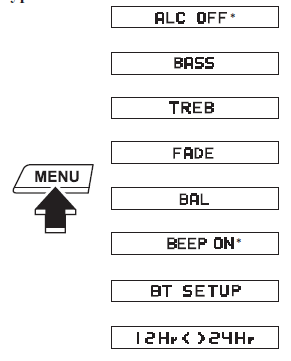
Type B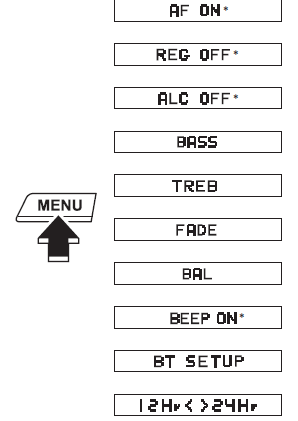
* The indications change depending on the selected system operating mode.
2. Turn the sound adjustment knob and select the desired mode.
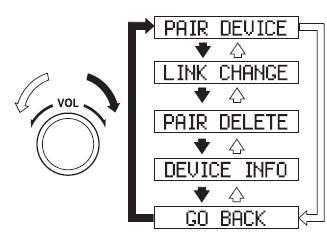
| Display | Operating mode | Function |
| PAIR DEVICE | Pairing mode | Pairing a Bluetooth audio device |
| LINK CHANGE | Changing the connection settings | Changing the default Bluetooth device |
| PAIR DELETE | Deleting a paired device | Deleting a registered Bluetooth device |
| DEVICE INFO | Displaying device information | Displaying information about a Bluetooth device in the vehicle |
3. Press the knob to select the mode.
Pairing a Bluetooth audio device
Every portable Bluetooth audio device must be paired with the Bluetooth system before it can play through the vehicle speakers.
Up to seven wireless Bluetooth devices, including mobile phones, can be paired with the vehicle.
CAUTION
If a portable Bluetooth device has already been paired with the system as a mobile phone, there is no need to pair it again as a Bluetooth audio device. Likewise, if a mobile phone has been paired as a portable Bluetooth audio device, there is no need to pair it again as a phone.
The device can be programmed using the voice recognition system.
For information on operating the Bluetooth audio device, refer to its supplied owner's manual.
Some Bluetooth audio devices have a four-digit PIN code. Check this information in the device's owner's manual, as the pairing procedure differs depending on whether the device has a PIN code or not.
Pairing a Bluetooth audio device with a four-digit PIN code.
1. Using the sound adjustment knob, select the "PAIR DEVICE" pairing mode in "BT SETUP". (For more details, see "Setting the Bluetooth audio device").
2. Press the knob to select the mode.
After "ENTER PIN" is displayed on the information display for about three seconds, "PIN 0000" will be displayed and the PIN code can be entered.
3. Enter the PIN code of your Bluetooth audio device by pressing the preset buttons 1 to 4 while "PIN 0000" is displayed.
Press preset button 1 to enter the first digit, 2 for the second, 3 for the third and 4 for the fourth. For example, if the PIN is "4213": press preset button 1 four times (1, 2, 3, 4), button 2 twice (1, 2), button 3 once (1) and button 4 three times (1, 2, 3). If "PIN 0000" disappears before you finish entering the code, repeat the procedure from step 1.
CAUTION
Some devices accept a specific programming code (usually "0000" or "1234").
If programming cannot be completed, check the owner's manual of the portable audio device and try the above codes if necessary.
4. Press the sound adjustment knob when the entered PIN code is displayed.
"PAIRING" will flash on the display.
5. Start pairing mode on the portable Bluetooth audio device while "PAIRING" is flashing on the display.
6. When pairing is completed, after 10-30 seconds "
" and "PAIR SUCCESS" will be displayed, then "PAIR SUCCESS" is shown for about three seconds, after which the display returns to normal operating mode.
CAUTION
Some Bluetooth audio devices need a certain amount of time before the symbol "
"
is displayed.If pairing fails, "Err" is displayed for three seconds.
Pairing cannot be performed while driving. If you try to pair a device while driving, "PAIR DISABLE" will be displayed.
If seven Bluetooth audio devices are already paired with the vehicle, another device cannot be paired and "MEMORY FULL" will be displayed.
Delete one of the paired devices to pair another one.
Pairing a Bluetooth audio device without a four-digit PIN code.
1. Using the sound adjustment knob, select the "PAIR DEVICE" pairing mode in "BT SETUP". (For more details, see "Setting the Bluetooth audio device").
2. Press the knob to select the mode. After "ENTER PIN" is displayed on the information display for about three seconds, "PIN 0000" will be displayed and the PIN code can be entered.
3. Press the sound adjustment knob when "PIN 0000" is displayed. "PAIRING" will flash on the audio system display.
4. Start pairing mode on the portable Bluetooth audio device while "PAIRING" is flashing on the display.
5. If the Bluetooth audio device requires a PIN code, enter "0000".
6. When pairing is completed, after 10-30 seconds ""
and "PAIR SUCCESS" will be displayed. "PAIR SUCCESS" stays on the display for about three seconds, after which the display returns to normal operation.
CAUTION
If pairing cannot be completed, try entering the code "1234". See the portable device's user manual for the correct PIN code.
Some Bluetooth audio devices need a certain amount of time before the symbol "
"
is displayed.If pairing fails, "Err" is displayed for three seconds.
Pairing cannot be performed while driving. If you try to pair a device while driving, "PAIR DISABLE" will be displayed.
If seven Bluetooth audio devices are already paired with the vehicle, another device cannot be paired and "MEMORY FULL" will be displayed.
Delete one of the paired devices to pair another one.
Selecting a device
If several devices have been paired, the Bluetooth system will connect to the one paired last. If you want to connect to a different paired device by default, the connection settings must be changed. The changed order of programmed devices is stored and is not erased even after the ignition is switched off.
1. Using the audio parameter settings knob, select the link change mode "LINK CHANGE" in "BT SETUP". (For details, see "Setting up the Bluetooth audio device".)
2. Press the knob to select the mode.
3. The name of the currently connected Bluetooth audio device will be displayed.
If no Bluetooth audio device is connected, the name of the first previously paired device will be displayed.
4. Turn the audio parameter settings knob to select the name of the device you want to connect.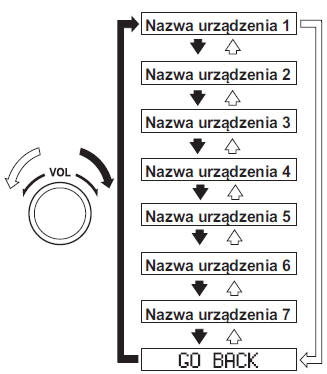
5. Press the audio parameter settings knob to confirm the device you want to connect.
The symbol " " disappears, and the
"PAIRING" message on the audio system display starts flashing.
CAUTION
If you press the audio settings knob while "GO BACK" is displayed, the display will return to "LINK CHANGE".
6. When the connection is successfully completed, the "" is displayed again together with
"LINK CHANGED". "LINK CHANGED" is displayed for about three seconds, after which the display returns to normal operation.
CAUTION
Some Bluetooth audio devices need a certain amount of time before the " " symbol is displayed.
If the default paired device was a mobile phone, the Bluetooth system will connect it.
If you want to use a Bluetooth audio device that was previously paired with the Bluetooth system, its settings must be changed.
If an error occurs while connecting the audio device, "Err" will flash on the display for three seconds, after which the display returns to "LINK CHANGE". In this case, check the pairing status of the Bluetooth audio device and its location in the vehicle (it should not be in the trunk or in a metal container), and try to connect it again.
The audio device can also be selected using the voice dialing system.
Checking the currently connected device
Activate the default device setting mode. (See the section "Changing the default Bluetooth audio device".)
The name of the currently connected device will be displayed first in the list.
Deleting a device
1. Using the audio parameter settings knob, select the device delete mode "PAIR DELETE" in "BT SETUP". (For details, see "Setting up the Bluetooth audio device".)
2. Press the knob to select the mode.
3. The name of the first previously paired device will be displayed.
4. Turn the audio parameter settings knob to select the name of the paired device you want to delete.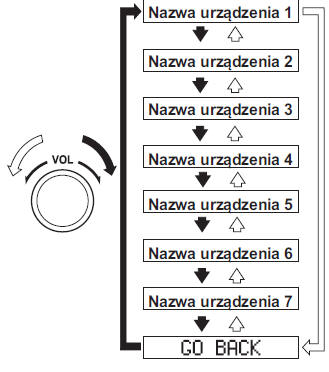
CAUTION
Only the names of paired devices are displayed. If only one device has been paired, only the name of that device will be displayed.
5. If you select an item other than "GO BACK" and confirm by pressing the knob, "SURE? NO" will be displayed.
6. Turn the audio settings knob clockwise until "SURE? YES" is displayed.
CAUTION
The message displayed depends on whether you turn the audio settings knob clockwise or counterclockwise.
Clockwise: "SURE? YES" is displayed
Counterclockwise: "SURE? NO" is displayed
7. Press the audio parameter settings knob to confirm your selection.
CAUTION
Select "GO BACK" and press the audio parameter settings knob to return to "PAIR DELETE".
8. After the device has been deleted, "PAIR DELETE" will be displayed for three seconds, after which the display returns to normal operation.
CAUTION
If an error occurs while deleting a paired device, "Err" will flash on the display for three seconds, after which the display returns to "LINK DELETE".
Displaying Bluetooth audio device information
1. Using the audio parameter settings knob, select the information display mode "DEVICE INFO" in "BT SETUP". (For details, see "Setting up the Bluetooth audio device".)
2. Press the knob to select the mode.
3. The name of the connected Bluetooth device will be displayed.
4. Turn the audio settings knob to select the Bluetooth device information you want to display.
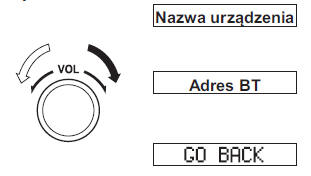
CAUTION
If you press the audio settings knob while "GO BACK" is displayed, the display will return to "DEVICE INFO".
Available language (Type A/Type B)
The following languages are available: English, French, Spanish, Italian, German, Dutch and Portuguese. If the language is changed, all prompts are spoken in the newly selected language, and voice commands must also be given in that language.
CAUTION
After changing the language, the settings stored in the device's memory are retained.
Phonebook entries are not deleted, but each language has a separate phonebook.
Therefore, entries made in one language must be re-entered into the phonebook in another language.
The following operations must be performed before starting to drive. Less frequently used functions are too distracting while driving until you are familiar with how the system works.
(Method 1)
1. Briefly press the talk button or the voice recognition button.
2. Say: [beep] "Setup" 3. Prompt: "Select one of the following: Pairing options, confirmation prompts, language, password, select phone or select music player." 4. Say: [beep] "Language" 5. Prompt: "Select a language: English, French, Spanish, Italian, German, Dutch or Portuguese".
6. Say: [beep] "French" (Say the name of the desired language: "English", "French", "Spanish", "Italian", "German", "Dutch" or "Portuguese").
CAUTION
Another available language can be selected at this step by saying its name in its original pronunciation.
7. Prompt: "French selected. Is this correct?" 8. Say: [beep] "Yes" 9. Prompt: "Please wait. Switching to French phonebook. French selected." (spoken in the newly selected language).
(Method 2)
1. Briefly press the talk button or the voice recognition button.
2. Say: [Beep] "French" (Say the name of the desired language: "English", "French", "Spanish", "Italian", "German", "Dutch" or "Portuguese"). (Change the desired language by saying the name of that language.)
CAUTION
Another available language can be selected at this step by saying its name in its original pronunciation.
3. Prompt: "Would you like to change the language to French (Desired language)?" 4. Say: [Beep] "Yes" 5. Prompt: "Please wait. Switching to French phonebook. French selected." (spoken in the newly selected language).
This section explains the basic principles of voice recognition operation.
Activating Voice Recognition
To display the Main Menu: Briefly press the answer call button or the voice dial button.
Turning Off Voice Recognition
Use one of the following methods:
- Press and hold the voice dial button.
- Press the end call button.
Skipping Voice Prompts (for faster operation)
Press and release the voice dial button.
CAUTION
The Bluetooth hands-free system starts working a few seconds after the ignition switch is turned to ACC or ON (takes less than 15 seconds).
When operating the audio system or air conditioning while using the Bluetooth hands-free system, beeps or voice prompts (audio system) may not be audible.
Tutorial
The tutorial explains how to use the Bluetooth hands-free system.
To start the tutorial, follow these steps: 1. Briefly press the answer call button or the voice dial button.
2. Say: [Beep] "Tutorial" 3. Follow the prompts to receive the desired instructions.
Commands that can be used at any time during voice recognition mode
"Help" or "Go Back" are commands that can be used at any time during voice recognition mode.
Using the Help Function
The Help function informs the user of all voice commands available under the current conditions.
1. Say: [Beep] "Help" 2. Follow the prompts to receive the desired instructions.
Returning to the Previous Operation
This command lets you return to the previous operation while in voice recognition mode.
Say: [Beep] "Go Back" To prevent deterioration of voice dialing and voice quality, observe the following tips:
- Voice recognition cannot be performed while a voice prompt or beep is being output. Wait until the voice prompt or beep has finished before speaking your command.
- Using dialect or slang will prevent the hands-free system from recognizing phrases. Use phrases worded as voice commands.
- You do not need to speak directly into the microphone or move close to it.
CAUTION
If the voice dialing system does not perform satisfactorily, see "Voice Training Function (User Registration)" (Type A/Type B) on page 5-110.
See "Troubleshooting" on page 5-150.
Security Settings (Type A/Type B)
If a password has been set, the system cannot be operated without entering the password.
CAUTION
Use this function only when the vehicle is stationary. It is too distracting to perform while driving, and you may make too many mistakes.
Setting the Password
1. Briefly press the talk button or the voice recognition button.
2. Say: [Beep] "Setup" 3. Prompt: "Select one of the following: Pairing options, confirmation prompts, language, password, select phone or select music player." 4. Say: [Beep] "Password" 5. Prompt: "Password is disabled.
Would you like to enable it?" 6. Say: [Beep] "Yes" 7. Prompt: "Please say a 4-digit password. Remember this password. It will be required to use this system".
8. Say: [Beep] "XXXX" (Say the 4-digit password, "PCode").
9. Prompt: "Password XXXX (Password, PCode). Is this correct?" 10. Say: [Beep] "Yes" 11. Prompt: "Password is enabled."
Using the Bluetooth Hands-Free System with a Password
1. Briefly press the talk button or the voice recognition button.
2. Prompt: "Hands-Free system is locked. State the password to continue".
3. Say: [Beep] "XXXX" (Say the 4-digit password, "PCode").
4. If the correct password has been entered, the message "XXXXXX... (Ex. "Mary's device") is connected" is given.
If the password is incorrect, the message "XXXX (4-digit password) incorrect password, please try again" is given.
Deleting the Password
CAUTION
Use this function only when the vehicle is stationary. It is too distracting to perform while driving, and you may make too many mistakes.
1. Briefly press the talk button or the voice recognition button.
2. Say: [Beep] "Setup" 3. Prompt: "Select one of the following: Pairing options, confirmation prompts, language, password, select phone or select music player." 4. Say: [Beep] "Password"
5. Prompt: "Password is enabled.
Would you like to disable it?" 6. Say: [Beep] "Yes" 7. Prompt: "Password is disabled."
Confirmation Prompts
Prompts confirm the content of the command to the user before proceeding to the next part of the requested operation. When this function is enabled, the system reads back the voice command it has just received and confirms whether the command is correct before carrying it out.
When the confirmation prompts function is enabled, you will hear: (Ex. "Calling John's device. Is this correct?") When the confirmation prompts function is disabled, you will hear: (Ex. "Calling John's device.")
CAUTION
If the confirmation prompts function is disabled, when placing a call to an emergency number the system reads back and confirms the command before carrying it out.
1. Briefly press the talk button or the voice recognition button.
2. Say: [Beep] "Setup" 3. Prompt: "Select one of the following: Pairing options, confirmation prompts, language, password, select phone or select music player." 4. Say: [Beep] "Confirmation prompts"
5. Prompt: "Confirmation prompts are on/off. Would you like to turn confirmation prompts off/on?" 6. Say: [Beep] "Yes" 7. Prompt: "Confirmation prompts are on/off."
Voice Training Feature (Type A/Type B)
The voice training feature allows the system to recognize speech according to the characteristics of the user's voice. If the system does not correctly recognize the voice commands you give it, this feature can significantly improve recognition of your voice. If your voice is recognized sufficiently without this feature, you may not notice any benefit from using it. To register your voice, read the list of voice commands aloud. Read the list while the vehicle is stopped. Perform the training in as quiet a place as possible. 5-107.
The training must be completed in full.
The required time is several minutes.
The user must sit in the driver's seat with the appropriate page of the owner's manual containing the list of voice training phrases open.
First-Time Voice Training
1. Briefly press the talk button or the voice recognition button.
2. Say: [Beep] "Voice training"
3. Prompt: "This operation must be performed in a quiet environment while the vehicle is stopped. See the owner's manual for the list of required training phrases. Press and release the phone button when you are ready to begin. Press the hang-up button to cancel at any time." 4. Briefly press the voice recognition button.
5. The system reads the voice command number (see the list of voice recognition training phrases). (Ex. "Please read phrase 1".) 6. Say: [Beep] "0123456789" (Read the voice training phrase (1 to 8) as instructed by the voice prompt.)
7. Prompt: "Speaker enrolment is complete."
CAUTION
If an error occurs during the training procedure, briefly press the voice recognition button and repeat the training procedure.
Retraining Voice Training
If voice training has already been performed.
1. Briefly press the talk button or the voice recognition button.
2. Say: [Beep] "Voice training" 3. Prompt: "Enrolment is enabled/ disabled. Would you like to disable/ enable or retrain?" 4. Say: [Beep] "Retrain"
5. Prompt: "This operation must be performed in a quiet environment while the vehicle is stopped. See the owner's manual for the list of required training phrases. Press and release the phone button when you are ready to begin. Press the hang-up button to cancel at any time." 6. Briefly press the voice recognition button.
7. The system reads the voice command number (see the list of voice recognition training phrases). (Ex. "Please read phrase 1".)
8. Say: [Beep] "0123456789" (Read the voice training phrase (1 to 8) as instructed by the voice prompt.)
9. Prompt: "Speaker enrolment is complete."
CAUTION
If an error occurs during the training procedure, briefly press the voice recognition button and repeat the training procedure.
List of Voice Recognition Training Phrases
When reading the phrases, follow these guidelines:
- Read the digits one at a time, clearly and naturally.
E.g.,
"(888) 555-1212" should be read as "eight, eight, eight, five, five, five, one, two, one, two".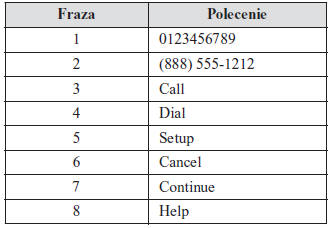
CAUTION
The selected phrase will appear on the audio display.
After training is complete, the voice message "Speaker enrollment is complete" is played.
Enabling/Disabling Voice Training
1. Briefly press the talk button or the voice recognition button.
2. Say: [Beep] "Voice training" 3. Prompt: "Enrolment is enabled/ disabled. Would you like to disable/ enable or retrain?" 4. Say: [Beep] "Disable" or "Enable" 5. If you say "Disable", voice training will be disabled.
If you say "Enable", voice training will be enabled.
6. Prompt: "Speaker Enrolment is disabled/enabled."
Preparing a Bluetooth Portable Device (Type C/Type D)
Pairing a Device
To use the Bluetooth hands-free system, the Bluetooth-equipped device must be paired as follows.
Up to seven devices, including Bluetooth audio devices and mobile phones that support the hands-free system, can be paired in the vehicle.
CAUTION
The Bluetooth system may not function for 1 or 2 minutes after the ignition switch is turned from ACC to ON. This does not indicate a problem.
If the Bluetooth system does not connect automatically after 1 or 2 minutes, make sure the Bluetooth setting on the device is correct, then try to connect the Bluetooth device again from the vehicle.
Pairing Procedure
1. Select the icon on the
home screen to display the settings screen.
2. Select Devices.
3. Select Bluetooth.
4. Turn on Bluetooth.
5. Select Add new device on the screen to display a message and proceed with the operation on the device.
6. Using the mobile phone, search for the Bluetooth device (peripheral).
7. Select "Mazda" from the list of devices found by the mobile phone.
8. (Bluetooth version 2.0 device) Enter the 4-digit code displayed on the screen into the device.
(Bluetooth version 2.1 or later device) Make sure the 6-digit code displayed on the audio system is shown on the device, then touch Yes.
Depending on the mobile device, you may need to allow connection and allow access to the phone book on it.
9. If pairing succeeds, the functions of the Bluetooth-connected device are displayed.
10. (Devices compatible with the Mazda E-mail/SMS function) SMS (Short Message Service) messages and e-mails received on the device are downloaded automatically. Confirmation of the download process on the device may be required.
CAUTION
For automatic download of call history and messages, all automatic download settings must be turned on.
See "Communication Settings" on page 5-134.
Once the device has been paired, the system will recognize it automatically. After the Bluetooth hands-free system is turned on again, or after it is turned on first following the ignition switch moving from OFF to ACC, the device connection status will be shown on the center display screen.
IMPORTANT note on pairing and automatic reconnection:
- If pairing is performed again with the same mobile device, first delete the displayed "Mazda" entry on the Bluetooth settings screen of the mobile device.
- After the device software is updated, pairing information may be deleted. If this happens, perform the Bluetooth device pairing procedure again.
- Before pairing the device, make sure Bluetooth is turned on both on the mobile phone and in the vehicle.
Selecting a device
If several devices have been paired, the Bluetooth system will connect to the one paired last. If you want to connect to a different paired device by default, the connection settings must be changed. The changed order of programmed devices is stored and is not erased even after the ignition is switched off.
Connecting other devices
1. Select the icon On the
home screen, display the settings screen.
2. Select Devices.
3. Select Bluetooth.
4. Turn on Bluetooth.
5. Select the name of the device you want to connect to.
6. Phone and audio system: Select to connect both devices as a hands-free system and Bluetooth audio.
Phone only: Select to connect as a device in the hands-free system.
Audio system only: Select to connect as Bluetooth audio.
CAUTION
The following functions can be used with the hands-free system or the audio system.
Hands-free system: Making calls and receiving emails/SMS messages
Audio system: Bluetooth audio, Aha, Stitcher
Disconnecting a deviceBluetooth hands-free (Type A/Type B)Bluetooth hands-free (Type C/Type D)Bluetooth Audio (Type A/Type B)Bluetooth Audio (Type C/Type D)Troubleshooting
Test yourself
A quick Mazda 2 quiz: every answer comes with an explanation and a link to the manual page.