Audio and video playback
For your safety, the image on the control display is shown only at speeds up to 3 km/h. On some export versions, the image is shown only when the vehicle is stationary and the transmission is in position P.
1. Press the button .
The main menu opens.
2. Push the controller back to open the "Entertainment" menu.
3. Move to the upper field. Select "DVD" and press the controller.
4. Move to the second field from the top, select DVD and press the controller.
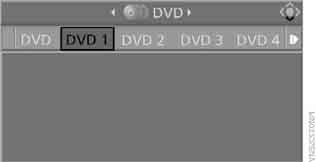
Reading the DVD contents may take several seconds. Afterwards, DVD playback starts and the disc menu appears on the screen.
DVD control panel
The DVD control panel allows you to select tracks and chapters, open the DVD menu, select the language, perform fast forward and reverse, pause, etc.
Some discs may cause the DVD control panel to be disabled (temporarily or for the entire playback of the disc). In this case, use the disc menu to operate the DVD.
During playback:
1. Press the controller.
2. Select (if available) "DVD player toolbar" and press the controller.
The DVD control panel appears.
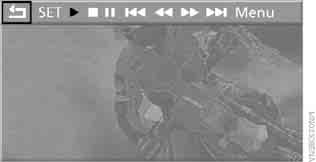
The DVD control panel disappears from the screen automatically some time after the last key press.
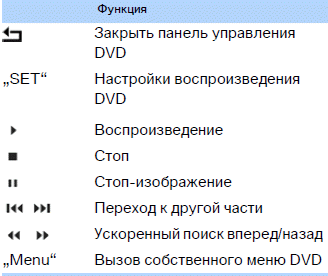
Fast forward/reverse
Fast forward/reverse via the DVD control panel
1. Display the DVD control panel by pressing the controller during playback.
2. Select
 and press the controller.
3. To increase the search speed, press the controller several times.
The DVD plays with distortion.
To turn off fast forward/reverse:
select and press the controller.
The disc plays from the selected point.
Fast forward/reverse using the controller
1. During playback, turn the controller.
Fast forward/reverse starts.
2. Turn the controller further to increase the search speed.
3. Release the controller – the search stops. Playback continues from the selected point.
Skipping to another chapter
During playback, you can skip to the next or previous chapter.
1. Display the DVD control panel by pressing the controller during playback.
2. Select
 and press the controller as many times as needed to reach the desired chapter.
Or:
press the key with the corresponding arrow as many times as needed to find the desired chapter.
DVD settings
 On some DVDs, the language, subtitles and camera angle can only be selected through the disc's own (built-in) menu.
Check the selection options in the disc description.◄
Adjusting sound settings
For DVDs with multi-channel audio, for optimal playback select the multi-channel audio track and set the sound parameters to surround sound, see
Language selection and HiFi Professional system.
Adjusting brightness and contrast
1. During playback, press the controller.
2. Select "SET" (Settings) and press the controller.
3. Select "Graphics settings" (Picture settings) and press the controller.
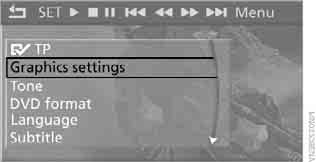
4. Select "Brightness" or "Contrast" and press the controller.
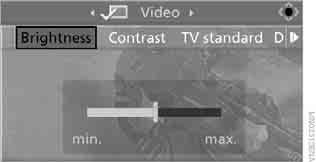
5. To set the desired value, turn the controller.
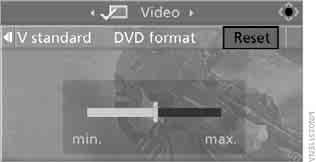
To restore default values: select "Reset" and press the controller.
DVD format
1. During playback, press the controller.
2. Select "SET" (Settings) and press the controller.
3. Select "DVD format" and press the controller.
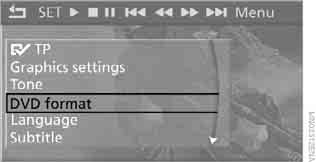
► "Standard"
► "Zoom": picture fills the entire screen
Language Selection
1. During playback, press the controller.
2. Select "SET" (Settings) and press the controller.
3. Select "Language" and press the controller.
4. Select the language or audio track and press the controller.
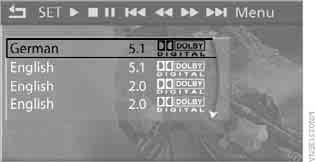
The number of channels is usually indicated next to the language or audio track. The figures 5.1 indicate multi-channel sound.
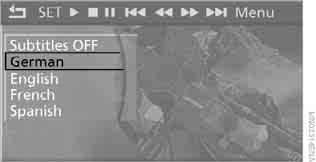
Selecting subtitles
1. During playback, press the controller.
2. Select "SET" (Settings) and press the controller.
3. Select "Subtitle" and press the controller.
4. Select the subtitle language and press the controller.
Selecting a track
1. During playback, press the controller.
2. Select "SET" (Settings) and press the controller.
3. Select "Title" and press the controller.
4. Select the title.
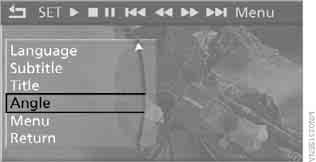
Selecting the camera angle
As a rule, the option to select a camera angle is indicated by links and symbols that appear during playback of the film. This option is usually available only for a short section.
1. During playback, press the controller.
2. Select "SET" (Settings) and press the controller.
3. Select "Angle" and press the controller.
Calling up the DVD menu
DVDs may have additional functions. For example, the viewer can select a storyline of the film or view information about it.
1. During playback, press the controller.
2. Select "Menu" and press the controller.
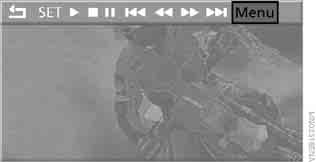
3. Make a selection in the DVD menu. To do this, move the controller to select a menu item and press the controller.
4. Select "Confirm selection" and press the controller.
 The DVD menu also allows you to select the language, subtitles and camera angle.
Check the selection options in the disc description.◄
Closing the settings menu
► Select "Return" and press the controller.
Test yourself
A quick BMW X3 quiz: every answer comes with an explanation and a link to the manual page.