General Information
About SYNC
The system lets you interact with your vehicle's entertainment, information, and communication systems using voice commands and the touchscreen. The system provides easy interaction with audio, phone, navigation, mobile apps, and settings.
Using the Touchscreen
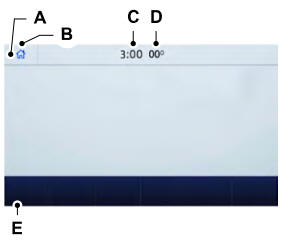
Status bar.
B Home screen.
Clock C.
D Outside air temperature.
E Function bar.
Status Bar
 Cellular phone microphone muted.
 Audio system muted.
 Software update installed.
 Wi-Fi connected.
 Cellular roaming.
 Text message received.
 Automatic fault reporting system off.
 Cellular network signal strength.
Function bar
 Select to use radio, USB, media player, or Bluetooth device. See Entertainment.
 Select to change climate settings. See Climate.
 Select to make calls and access the phone book on your mobile phone. See Phone.
 Select to use the navigation system. See Navigation.
 Select to search for and use compatible apps on your iOS or Android device. See Apps.
 Select to adjust system settings. See Settings.
Cleaning the touchscreen
See Cleaning the Interior.
System Update
Updating the System Using a USB Drive
Downloading the Update
- Go to the SYNC update page on your local Ford website.
- Download the update.
- Insert the USB drive into the computer.
- Follow the instructions to download the update to the USB drive.
Installing the Update
- Disconnect all other USB devices from the USB ports.
- Connect the USB drive with the update to a USB port.
Updating the System Using a Wi-Fi Network Connection
Connecting to a Wi-Fi Network
 Select the settings icon on the function bar.
- Select Automatic Updates.
- Select System Wi-Fi.
- Turn System Wi-Fi on.
- Select Available Wi-Fi Networks.
- Select an available Wi-Fi network.
Turning On Automatic System Updates
 Select the settings icon on the function bar.
- Select Automatic Updates.
- Turn Automatic System Updates on.
The system is now set to check for and download system updates when connected to a Wi-Fi network.
Additional Information and Assistance
For additional information and assistance, we recommend that you contact an authorized dealer or visit your local Ford website.
Test yourself
A quick Ford Explorer quiz: every answer comes with an explanation and a link to the manual page.