Instrument Cluster (Base and Mid Level)
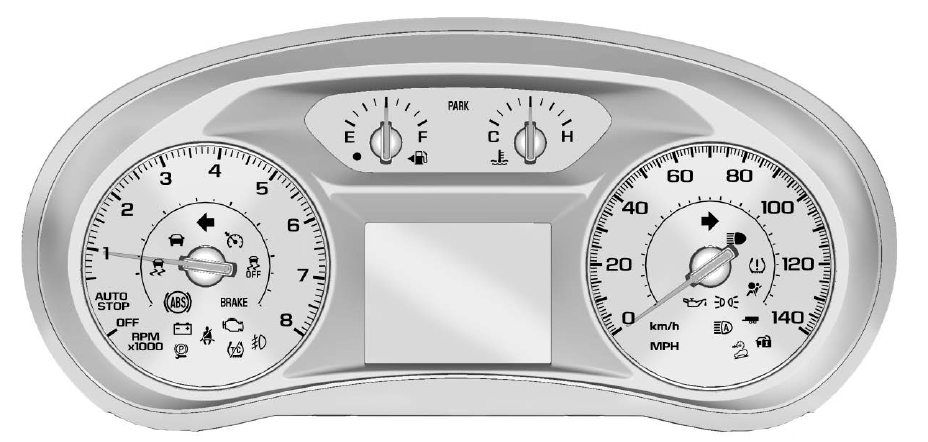
Base level English shown, metric similar
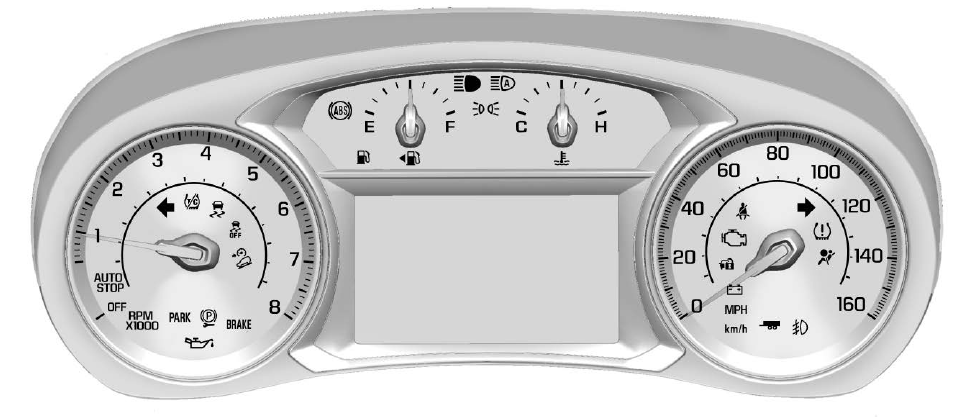
Mid level English shown, metric similar
Cluster Menu (Mid Level)
There is an interactive area in the center of the instrument cluster.
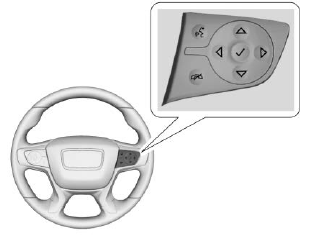
Use the right-hand steering wheel controls to open and scroll through the various items and displays.
Press to access the cluster Applications. Use
 or
 scroll through the list of available applications. Not all applications will be available on all vehicles.
Information application. This is where selected Driver Information Center (DIC) displays can be viewed.
- See Driver Information Center (DIC) (Base and Mid Level) or Driver Information Center (DIC) (Upper Level).
- Settings
Settings
Press to select the Settings application, then press
 to enter the settings menu options. Use
 or
 to scroll through the Settings menu items.
Units: Press while Units is displayed to enter the units menu. Select English or Metric units by pressing
 while the desired item is highlighted. A checkmark will be displayed next to the selected item.
Information Pages: Press while Information Pages is displayed to enter the Information Pages menu and select the items to be displayed in the Information application. See Driver Information Center (DIC) (Base and Mid Level) or Driver Information Center (DIC) (Upper Level).
Traction and Stability: Press p to enter the Traction and Stability menu. To turn the Traction Control System (TCS) on or off, select Traction. To turn the StabiliTrak/Electronic Stability Control (ESC) on or off, select Stability. See Traction Control/Electronic Stability Control.
After the speed is set, this feature can be turned off by pressing while viewing this page. If the selected speed limit is exceeded, a pop-up warning is displayed with a chime.
Test yourself
A quick GMC Terrain quiz: every answer comes with an explanation and a link to the manual page.