Audio System Operating Tips
WARNING
Always adjust the audio unit while the vehicle is stopped:
Do not operate the audio unit control switches while driving. Operating the audio unit while driving is dangerous because it may cause loss of concentration on driving and may result in a serious accident.
Even though the audio controls are located on the steering wheel, learn to use them without looking at them so that maximum attention can be directed toward the road while driving.
WARNING
For safe driving, set the audio volume to a level that allows you to hear sounds outside the vehicle (including vehicle horns and emergency vehicle sirens).
NOTE
- To avoid discharging the battery, do not leave the radio on for an extended period when the engine is not running.
- If a cellular phone or two-way radio is used in or near the vehicle, it may cause noise in the audio unit. However, this does not indicate a malfunction of the audio unit.
Do not spill liquid on the audio unit.
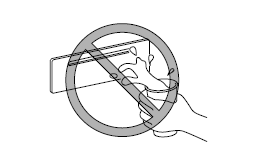
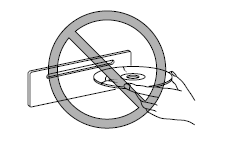
Do not insert any objects other than a compact disc into the slot.

Radio Reception
AM Wave Characteristics
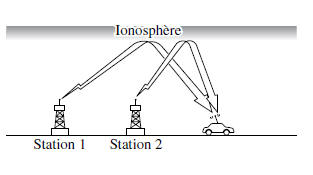
AM waves go around obstacles such as buildings and mountains, and are reflected by the ionosphere.
For this reason, they have a longer range than FM waves.
As a result, two broadcasting stations on the same frequency may be received at the same time.
FM Wave Characteristics
FM broadcasts generally have a range of approximately 40 to 50 km (25 to 30 miles). Because of the additional coding required to separate the sound into two channels, the range of FM stereo is even shorter than that of FM monaural (non-stereo).
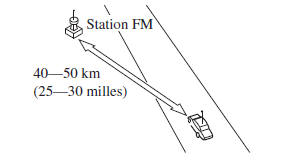
FM signals from a transmitter behave like beams of light: they never bend, but they can be reflected.
Unlike AM signals, FM signals cannot travel beyond the horizon. Therefore, the range of FM stations does not reach that of AM stations.
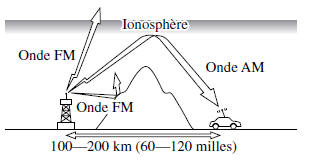
Atmospheric conditions can also affect FM reception. High humidity causes poor reception.
However, reception is better on cloudy days than on sunny days.
Multipath Noise
Because FM signals can be reflected by obstacles, a direct signal and a reflected signal may be received at the same time. This causes a slight delay and may produce noise or distortion. This type of problem can occur even near the transmitter.
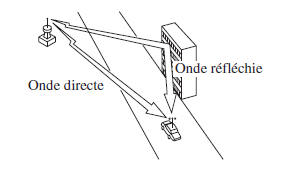
Skipping Noise
Because FM signals from a transmitter travel in straight lines, they weaken between high obstacles such as tall buildings or mountains. When a vehicle passes through such an area, reception conditions change suddenly, causing annoying noise.
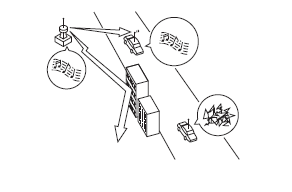
Noise Due to Weak Signals
In some areas, signals weaken because of the distance from the transmitter. Reception in such areas is characterized by audio dropouts.

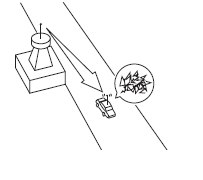
Noise Due to Strong Signals
Noise may occur near a transmitter. The signals are very strong and cause noise and audio dropouts at the radio.
Noise Due to Station Drift
When a vehicle enters the broadcast area of two strong transmitters on similar frequencies, the first station may be temporarily lost and the radio may pick up the second station. Noise caused by this problem then appears.
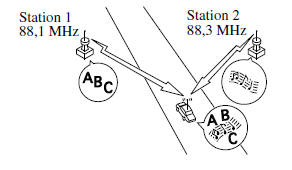
CD Player Operating Tips
Condensation
Immediately after turning on the heater in cold weather, condensation may form on the compact disc or on the optical components (prism and lens) of the CD player. In this case, the compact disc will be ejected immediately after being inserted into the unit. A fogged compact disc can easily be wiped with a soft cloth. The optical components will clear naturally after about one hour.
Wait until normal operation is restored before using the unit.
Handling the CD Player
Observe the following points.
- The compact disc rotates at very high speed inside the unit. Never use defective compact discs (cracked or warped).
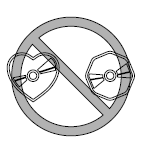
- Do not use non-standard discs such as heart-shaped discs, octagonal discs, etc. The disc may not eject, which could cause a malfunction.
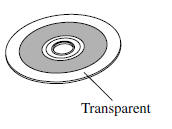
- If the memory portion of the compact disc is transparent or translucent, do not use it.
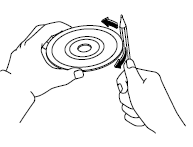
- A new compact disc may have rough edges on the inner or outer circumference. If a compact disc with rough edges is used, it may not load properly and the CD player will not play the disc. In addition, the disc may not be ejectable, which may cause a malfunction. Remove the rough edges before loading the disc, using a pen or pencil as shown in the illustration. To remove the rough edges, smooth them with a pencil or pen.
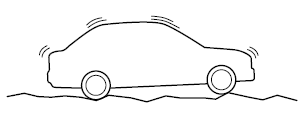
- When driving on rough roads or bumps, sound may cut out.
- The CD player is designed to play compact discs bearing the identification logo shown below. No other discs can be played.

- Use only legally manufactured discs. If illegally copied discs, such as pirated discs, are used, the system may not operate properly.
- Never touch the surface of compact discs when handling them. Hold compact discs by the outer edge or by the edge of the hole and the outer edge.
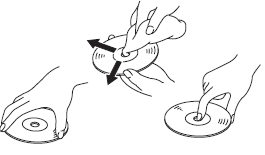
- Do not attach paper or adhesive to the compact disc. Avoid scratching the back of the compact disc (the side without the label). The disc may not be ejectable, which may cause a malfunction.
- Dust, fingerprints and dirt can reduce the amount of light reflected from the surface of the compact disc, affecting sound quality. If the compact disc is dirty, gently wipe the surface of the compact disc with a soft cloth, from the center of the disc toward the edges.
- Do not use compact disc sprays, antistatic agents, or household cleaners. Volatile chemicals such as ether and thinners can damage the surface of compact discs and must therefore never be used. Never use anything that can damage, warp or dull the plastic to clean compact discs.
- Insert discs one at a time. If two discs are inserted at the same time, the system may not operate properly.
- The CD player will eject the compact disc if it is inserted upside down. Also, if the compact disc is dirty or damaged, it may be ejected.
- Do not insert cleaning discs into the CD player.
- Do not insert a compact disc with a label that is peeling off.
- This unit may not be able to play some CD-R/CD-RW discs made with a computer or CD recorder, due to disc characteristics, scratches, stains, dust, etc., or due to dust or condensation on the lens inside the unit.
- Storing compact discs in the vehicle, exposed to direct sunlight or high temperatures, may damage CD-R/CD-RW discs and make them impossible to play.
- CD-R/CD-RW discs larger than 700 MB cannot be played.
- This unit may not be able to play some discs made on a computer, depending on the configuration of the application (recording software) used. (For details, consult the store where the application was purchased.)
- Some text data, such as titles, recorded on CD-R/CD-RW discs may not be displayed during playback of music data (CD-DA).
- The time from when a CD-RW is inserted until playback starts is longer than with a compact disc or a normal CD-R.
- Read the owner's manual and the warnings relating to CD-R/CD-RW discs carefully.
- Do not use discs with tape, partially peeled labels, or adhesive tape protruding from the edges of the compact disc label. Also do not use discs on which a commercially available CD-R label has been applied. The disc may not be ejectable, which may cause a malfunction.
MP3 Usage Tips
NOTE
This product is provided with a license for private, non-commercial use only and does not grant a license or imply any right to use this product for commercial (revenue-generating) real-time broadcasting (terrestrial, satellite, cable and/or any other media), broadcasting/streaming via the Internet, intranets and/or other networks or in electronic content distribution systems, such as pay-audio or audio-on-demand applications.
A separate license is required for such use. For more details, visit http://www.mp3licensing.com.
- This audio system can play MP3 files that have been recorded on CD-R/CD-RW/CD-ROM. Discs recorded in the following formats cannot be played:
- ISO 9660 Level 1
- ISO 9660 Level 2
- Joliet extended format
- Romeo extended format
- This unit processes MP3 files in accordance with the MP3 format, which contains header frames and data frames.
- This unit can play multisession discs recorded with up to 50 sessions.
- This unit can play MP3 files with sampling frequencies of 8, 11.025, 12, 16, 22.05, 24, 32, 44.1 and 48 kHz.
- This unit can play MP3 files recorded at bit rates from 8 kbps to 320 kbps. However, to get the best combination of music enjoyment and continuous sound quality, it is recommended to use discs recorded at a bit rate of 128 kbps or higher.
- If a disc contains both music data (CD-DA) and MP3 files, playback of the two different types varies depending on how the disc was recorded.
- Discs recorded in packet writing format cannot be played on this unit.
- This unit cannot play compact discs recorded in MP3i (interactive MP3), MP3 PRO and RIFF MP3 formats.
About folders and files
- The hierarchy order of MP3 folders and files during playback or any other function runs from shallow to deep. The layout and playback order of a recorded disc containing MP3 files is as follows:
- File number
A numeric file number is assigned to each file in a folder, starting from the deepest hierarchy.
- Folder number
A numeric folder number is assigned to each folder, starting from the deepest hierarchy.
NOTE
Folders and tracks (files) of the same hierarchy are played in the order in which they were written to the disc, depending on the writing software used.
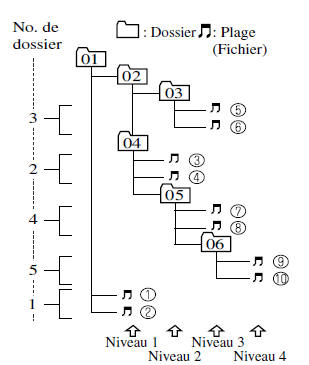
Playback may not be performed in the hierarchy order shown above, depending on the audio device used.
- The folder order is assigned automatically and cannot be changed by any option.
- Any folder without MP3 files will be skipped. (It will be jumped over and its folder number will not be displayed.)
- MP3 files that do not conform to the MP3 format and contain both header frames and data frames will be skipped and not played.
- This unit plays MP3 files with up to eight hierarchy levels.
WARNING
This unit can only play MP3 files that have an MP3 file extension (.mp3) attached.
Do not add an MP3 file extension to any other type of file, as this may cause the unit to emit noise or malfunction.
About the ID3 tag display
- This unit can only display the ID3 tag album, track names and artist names that were entered in Ver.1.0/1.1/2.2/2.3/2.4 format. Any other data that may have been entered cannot be displayed.
- This unit cannot display certain characters. Characters that cannot be displayed are indicated by an asterisk (
 ).
Glossary
MP3
Abbreviation of "MPEG Audio Layer 3".
A technical standard for audio compression established by the ISO*1 MPEG working group. Using MP3, audio data can be compressed to approximately one tenth of the size of the source data.
*1 International Organization for Standardization
ISO 9660
An international standard for the logical formatting of CD-ROM files and folders. It is divided into three levels based on differences in procedures for file naming, data configuration and other characteristics.
Multi-session
A session is the entire amount of data recorded from the beginning to the end of a single data recording period on a CD-ROM, CD-R/CD-RW. Multi-session refers to the existence of data from two or more sessions on a single disc.
Sampling
Refers to the process of encoding analog audio data at regular intervals and converting it into digital data. The sampling rate refers to the number of times a sample is taken per second, expressed in Hz.
Increasing the sampling rate improves sound quality but also increases data size.
Bit rate
Refers to the volume of data per second, expressed in bps (bits per second). In general, the higher the bit rate when compressing an MP3 file, the more information it carries for music reproduction and, consequently, the better the sound quality.
Packet writing
A general term for the method of recording required files incrementally, similar to that used for floppy disks or hard drives, onto a CD-R and similar media.
ID3 tag
The ID3 tag is a method of storing music-related information in an MP3 file. Information such as track name, artist name and album name can be stored. This content can be freely modified using ID3 tag editing software.
VBR
Abbreviation of variable bit rate.
Although CBR (constant bit rate) is generally used, VBR varies the bit rate of audio compression according to the compression conditions, allowing compression that gives priority to sound quality.
WMA usage tips
WMA stands for Windows Media Audio and is Microsoft's audio compression format.
Audio data can be created and recorded at a higher compression rate than with the MP3 format.
* Microsoft and Windows Media are registered trademarks of Microsoft Corporation in the United States and/or other countries.
Playable WMA files:
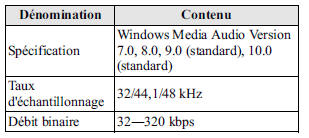
WARNING
This unit plays files with the (.wma) extension as WMA files. Do not use the WMA file extension for files other than WMA files, as this may cause noise or malfunction.
- Track, artist and album name information is recorded as data called a "WMA tag", and this information can be displayed.
- WMA files written under specifications other than those indicated may not play normally, or file or folder names may not be displayed correctly.
- The file extension may not be provided depending on the operating system, version, software or computer settings. In this case, add the file extension ".wma" to the end of the file name, then burn the disc.
AAC Usage Notes
AAC stands for Advanced Audio Coding, a standardized audio compression format developed by the ISO*1 (MPEG) working group. Audio data can be created and recorded at a higher compression ratio than with the MP3 format.
*1 International Organization for Standardization
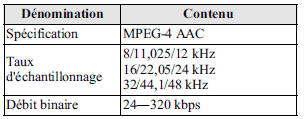
Playable AAC File Specifications
This unit can play AAC files recorded on CD-R and CD-RW discs.
Playable AAC files:
WARNING
This unit plays files with the (m4a) file extension as AAC files. Do not use the AAC file extension for any files other than AAC files.
Otherwise, noise or malfunction may occur.
- Track, artist and album name information in the AAC file is recorded as so-called "iTunes-compatible m4a metadata", and this information can be displayed.
- AAC files written to specifications other than those listed may not play properly, or file or folder names may not display correctly.
- The file extension may not be shown depending on the operating system, version, software or computer settings. In this case, add the file extension ".m4a" to the end of the file name, then burn the disc.
USB Device Usage Notes
This unit can play MP3/WMA/AAC files stored on a USB device.
NOTE
- Music data (MP3/WMA/AAC (.m4a) format) stored on a device compatible with the USB mass storage class (such as a USB flash drive) can be played.
- Playback may not be possible depending on the type and condition of the USB flash drive, even if the audio file conforms to the above standard.
- Copyright-protected WMA/AAC files cannot be played on this unit.
- The playback order of music data stored on the device may differ from the order in which it was stored.
- To prevent loss or damage to stored data, we recommend always backing up your data.
- If a device exceeds the maximum electrical current of 500 mA, it may not operate or charge when connected.
- Do not remove the USB device while in USB mode (remove it only when in FM/AM radio or CD mode).
- The unit will not operate if the data is password-protected.
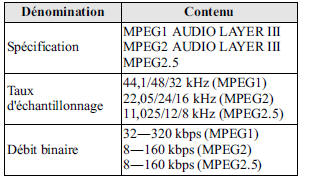
Playable MP3 File Specifications
Playable MP3 files:
WARNING
This unit plays files with the (mp3) file extension as MP3 files. Do not use the MP3 file extension for any files other than MP3 files.
Otherwise, noise or malfunction may occur.
- MP3 files written to specifications other than those listed may not play properly, or file or folder names may not display correctly.
- The file extension may not be shown depending on the operating system, version, software or computer settings. In this case, add the file extension ".mp3" to the end of the file name, then burn it to the memory.
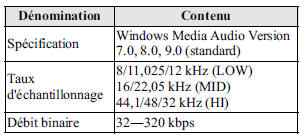
Playable WMA File Specifications
Playable WMA files:
WARNING
This unit plays files with the (wma) file extension as WMA files. Do not use the WMA file extension for any files other than WMA files. Otherwise, noise or malfunction may occur.
- WMA files written under specifications other than those indicated may not play normally, or file or folder names may not be displayed correctly.
- The file extension may not be shown depending on the operating system, version, software or computer settings. In this case, add the file extension ".wma" to the end of the file name, then burn it to the memory.
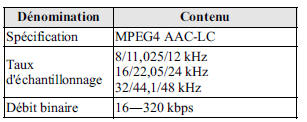
Playable AAC File Specifications
Playable AAC files:
WARNING
This unit plays files with the (.aac*1/.m4a) file extension as AAC files. Do not use the AAC file extension for any files other than AAC files.
Otherwise, noise or malfunction may occur.
*1 Type B Refer to Audio System (Type B) on page 5-37.
- AAC files written to specifications other than those listed may not play properly, or file or folder names may not display correctly.
- The file extension may not be shown depending on the operating system, version, software or computer settings. In this case, add the file extension ".aac*1" or ".
*1 Type B Refer to Audio System (Type B) on page 5-37.
iPod Usage Notes
This unit can play music files stored on an iPod.
- iPod is a trademark of Apple Inc., registered in the U.S. and other countries.
- iPod classic is a trademark of Apple Inc., registered in the U.S. and other countries.
- iPod nano is a trademark of Apple Inc., registered in the U.S. and other countries.
- iPod touch is a trademark of Apple Inc., registered in the U.S. and other countries.
- iPhone is a trademark of Apple Inc., registered in the U.S. and other countries.
- iPad is a trademark of Apple Inc., registered in the U.S. and other countries.
Compatible iPods:
- iPod: 5G
- iPod classic
- iPod nano: 1/2/3/4/5/6*1G
- iPod touch*2: 1/2/3*1/4*1G
- iPhone*2: iPhone*1/3G/3GS/4*1/4S*1
- iPad*1, 2: 1st/2nd/3rd
*1 Type B
*2 iPod function only
WARNING
- Remove the iPod when it is not in use. The iPod is not designed to withstand excessive temperature changes in the cabin. If left in the vehicle, it may be damaged, or its battery may deteriorate due to excessive temperature or humidity in the cabin.
- If data on the iPod is lost while it is disconnected from the unit, Mazda cannot guarantee recovery of the data.
- If the iPod battery is deteriorated, the iPod may not charge and playback may not be possible when connected to the unit. Replace the iPod battery immediately.
- Be careful not to pinch the iPod connection cable when opening or closing the center console.
- For details on using the iPod, refer to the iPod owner's manual.
- When the iPod is connected to a USB port, all controls are operated from the audio unit. This is not possible from the iPod.
NOTE
The audio unit cannot display images and videos stored on an iPod.
Test yourself
A quick Mazda 6 quiz: every answer comes with an explanation and a link to the manual page.