Presets
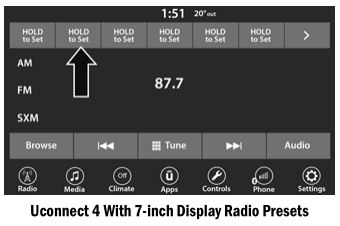
Presets are available in all radio modes and are activated by pressing any of the Preset buttons located at the top of the screen.
When you are on a station you want to save as a preset, press and hold the numbered button on the touchscreen for more than two seconds.
The radio stores up to 12 presets in each radio mode.
Six presets are displayed on the screen at one time. To switch between the preset list pages, press the arrow button located in the upper right corner of the radio touchscreen.
Preset Features (if equipped)
AM / FM Browse
In AM or FM mode, the Browse screen provides the means to edit presets. Enter the List by pressing the Enter/Browse button.
Scrolling the Preset List
Once on the Preset Browse screen, you can scroll the preset list by turning the Tune/Scroll knob or by using the up and down arrow keys located on the right side of the screen.
Selecting a Preset from the List
Select a preset by pressing any of the listed presets, or by pressing the Enter/Browse button on the Tune/Scroll knob to select the currently highlighted preset.
When selected, the radio tunes to the station stored in Presets.
Deleting Presets
A preset can be deleted on the Presets browse screen by pressing the trash can icon of the corresponding preset.
Returning to the Main Radio Screen
You can return to the main radio screen by pressing the X button or the Back arrow button on the Preset Browse screen.
Test yourself
A quick Dodge Charger quiz: every answer comes with an explanation and a link to the manual page.