Phone Operation
Operation
Voice commands can be used to operate Uconnect Phone and navigate its menu structure. Voice commands are required after most Uconnect Phone prompts. There are two main methods of using voice commands:
- Speak a compound command, for example, "Call John Smith on mobile."
- Speak single commands and let the system guide you through the task.
You will be prompted to say a specific command, and then follow the available options.
- Wait for the beep, which follows the "Listen" prompt or other prompt, before giving a voice command.
- For some operations, compound commands can be used. For example, instead of saying "Call," then "John Smith," then "mobile," the following compound command can be said: "Call John Smith on mobile."
- To explain each function in this section, only the compound command form of the voice command is given. You can also break commands into parts and say each part when prompted. For example, you can use the compound command "Find John Smith," or the compound command can be broken into two voice commands: "Find contact" and, when asked, "John Smith." Please remember that Uconnect Phone works best when you speak in a normal conversational tone, as if speaking to someone sitting a few feet/meters away from you.
Natural Speech
Your Uconnect Phone voice system uses a natural language speech recognition (VR) engine.
Natural speech allows the user to speak commands in phrases or complete sentences. The system filters out certain non-verbal utterances and sounds, such as "uh" and "ah." The system processes filler words such as "I would like."
The system processes multiple inputs in the same phrase or sentence, such as "make a phone call" and "Kelly Smith." For multiple inputs in the same phrase or sentence, the system identifies the topic or context and provides appropriate follow-up actions, for example, "Who would you like to call?" if a phone call was requested but a specific name was not recognized.
The system uses continuous dialogue. When the system requires additional information from the user, it will ask a question which the user can answer without pressing the voice command button on the steering wheel.
Help Command
If you need help at any time, or if you want to learn your options for any prompt, say "Help" after the beep.
To activate Uconnect Phone from standby, simply press the phone button (if active) on the steering wheel and say a command or say "Help." All phone sessions begin by pressing the VR button or the phone button.
Cancel Command
At any time, after the beep, you can say "Cancel" and you will return to the main menu.
You can also press the VR button or the phone button on the steering wheel when the system is listening to a command, and it will return to the main or previous menu.
Pairing (Linking) Uconnect Phone with a Mobile Phone
Use this QR code to access the digital experience.
To begin using Uconnect Phone, you must pair a compatible Bluetooth® mobile phone. Pairing a mobile phone is the process of establishing a wireless connection between the mobile phone and the Uconnect system.
To complete the pairing process, you will need to refer to your mobile phone's manual. Please visit UconnectPhone.com for complete information on mobile phone compatibility.
NOTE:
- Bluetooth® must be turned on in your phone to perform this procedure.
- The vehicle must be in PARK or stationary.
To pair a phone, perform the following steps:
- Set the ignition to the ACC or ON/RUN position.
- Press the Phone button.
NOTE:
If no phones are currently connected to the system, a pop-up will appear asking whether you want to pair a mobile phone.
This pop-up appears only when the user enters Phone mode and no other devices were previously paired. If the system has a previously paired phone, even if no phone is currently connected to the system, this pop-up will not appear.
- Select "Yes" to begin the pairing process.
- Search for available devices on your Bluetooth®-enabled mobile phone.
Press the "Settings" button on your mobile phone.
Select Bluetooth® and make sure it is turned on. After it is turned on, your mobile phone will start searching for Bluetooth® connections.
NOTE:
During the pairing procedure, a pop-up may appear on the touchscreen asking you to make sure the PIN code on the touchscreen matches the PIN code shown on the pop-up on your mobile phone.
- If you select "No" but still want to pair a mobile phone, press the Pairing or Settings button on the Uconnect Phone home screen.
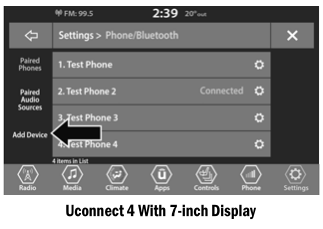
Press the "Paired Phones" button or the "Add Device" button.
Search for available devices on your Bluetooth®-enabled mobile phone (see below). When prompted on the phone, select "Uconnect" and accept the connection request.
- The Uconnect Phone will display a screen during the process while the system connects.
- When your mobile phone detects the Uconnect system, select "Uconnect."
- When prompted on your mobile phone, accept the connection request from Uconnect.
- When the pairing process is completed successfully, the system will ask you whether this is your favorite phone. Selecting "Yes" will give this phone the highest priority. This phone will take priority over other paired phones within range and will automatically connect to the Uconnect system when you enter the vehicle. Only one mobile phone and/or one Bluetooth® audio device can be connected to the Uconnect system at a time. If "No" is selected, simply select "Uconnect" on the Bluetooth® screen of the mobile phone/audio device, and the Uconnect system will reconnect to the Bluetooth® device.
NOTE:
For phones that are not set as favorites, phone priority is determined by the order in which they were paired. The most recently paired phone will have a higher priority.
NOTE:
During the pairing procedure, a pop-up may appear on your mobile phone asking to allow the Uconnect system to access your "Messages" and "Contacts." Selecting "OK" or "Allow" will synchronize your contacts with the Uconnect system.
You can also use the following voice command to open the paired phones screen from any radio screen:
- "Show Paired Phones"
NOTE:
Software updates on your phone or in the Uconnect system may interfere with the Bluetooth® connection. If this happens, simply repeat the pairing process. However, first be sure to delete the device from the phone list in your Uconnect system. Then be sure to delete Uconnect from the Bluetooth® device list in your phone's settings.
Pairing a Bluetooth® Streaming Audio Device
- To begin, press the "Media" button on the touchscreen.
- Change the source to "Bluetooth®."
- Press the Bluetooth® button on the touchscreen to display the Paired Audio Devices screen.
- Press the "Add Device" button on the touchscreen.
NOTE:
If no device is currently connected to the system, a pop-up will appear.
- Search for available devices on your Bluetooth®-enabled audio device. When prompted on the device, confirm the PIN code shown on the Uconnect screen.
- The Uconnect Phone will display a screen during the process while the system connects.
- When the pairing process is completed successfully, the system will ask you whether this is your favorite device. Selecting "Yes" will give this device the highest priority. This device will take priority over other paired devices within range.
NOTE:
For devices that are not set as favorites, device priority is determined by the order in which they were paired. The most recently paired device will have a higher priority.
You can also use the following voice command to open the paired audio devices list:
- "Show Paired Phones"
Connecting to a Specific Mobile Phone or Audio Device After Pairing
The Uconnect Phone will automatically connect to the paired phone and/or audio device with the highest priority within range. If you need to select a specific phone or audio device, perform the following steps:
- Press the "Settings" button on the touchscreen.
- Press the paired phones/audio sources buttons.
- Press to select a specific phone or a specific audio device. A pop-up menu will appear; press "Connect Phone."
- Press X to exit the Settings screen.
Disconnecting or Deleting a Phone or Audio Device
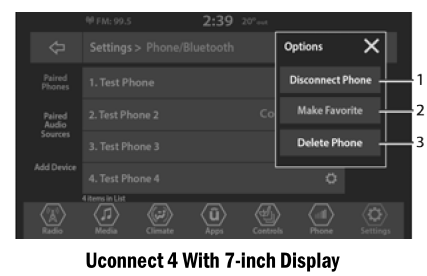
- Disconnect Device or Disconnect Phone
- Make Favorite
- Delete Device/Phone
- Press the "Unpair Phone" or "Settings" button.
- Press the paired phones/audio sources buttons.
- Press the "Settings" button located to the right of the device name for a phone or audio device other than the currently connected device, or press the preferred connected phone from the list.
- A pop-up options menu will appear.
- Press the "Disconnect Device" or "Delete Device" button on the touchscreen.
- Press X to exit the Settings screen.
Adding a Phone or Audio Device to Favorites
- On the "Paired Phone/Audio Sources" screen, press the "Settings" button located to the right of the device name for a phone or audio device other than the currently connected device, or press the preferred "Connected Phone" from the list.
- A pop-up options menu will appear.
- Press the "Make Favorite" button on the touchscreen; the selected device will move to the top of the list.
- Press X to exit the Settings screen.
Phonebook Download (Automatic Phonebook Transfer from Mobile Phone) — If Equipped
If supported by your phone, the Uconnect Phone is able to download contact name and number records from the mobile phone's phonebook. Specific Bluetooth® phones with the Phonebook Access Profile may support this feature. A pop-up may appear on your mobile phone asking for permission for the Uconnect system to access your messages and contacts. When "OK" or "Allow" is selected, your contacts will be synchronized with the Uconnect system.
See the Uconnect website, UconnectPhone.com, for supported phones.
- To call a contact by name from the phone book downloaded from your mobile phone, follow the procedure in "Voice Command" in this section.
- If supported, the phone book is automatically downloaded and updated as soon as a Bluetooth® wireless phone connection is established with the Uconnect Phone, such as after starting the vehicle.
- A maximum of 5000 contact names with up to four numbers per contact will be downloaded and updated each time a phone connects to the Uconnect Phone.
- Depending on the maximum number of downloaded entries, there may be a short delay before the most recently downloaded names can be used. In the meantime, any previously downloaded phone book is available for use.
- Only the phone book of the mobile phone currently connected is available.
- This downloaded phone book cannot be edited or deleted on the Uconnect system. It can only be edited on the mobile phone. Changes are transferred and updated to the Uconnect Phone at the next phone connection.
Favorites Management — If Equipped
You can add a favorite in two ways:
- After the mobile phone phone book has been downloaded, press the "Favorites" button on the touchscreen, then press one of the +Add Favorite Contact buttons that appears on the list.
- After the mobile phone phone book has been downloaded, select "Contacts" from the main "Phone" screen, then select the desired number. Press the down arrow button or the gear settings button next to the selected number to display the option. In the pop-up window, select "Add to Favorites".
NOTE:
If the favorites list is full, you will be prompted to delete an existing favorite entry.
Favorites Deletion — If Equipped
- To delete a favorite, select "Favorites" on the phone main screen.
- Then select the down arrow icon or the gear settings icon next to the contact you want to delete from favorites. This will display the options for that favorite contact.
- Deselect the star icon to delete the favorite.
Test yourself
A quick Dodge Charger quiz: every answer comes with an explanation and a link to the manual page.