Telephone Call Features
Access to the following features is available through the Uconnect Phone if the feature(s) are available and supported by Bluetooth® on your mobile service plan. For example, if your mobile service plan includes three-way calling, this feature is available through the Uconnect Phone. Check with your mobile service provider for the features available to you.
The following options are available with the Uconnect Phone:
- Redial
- Dial by Pressing a Number
- Voice Commands (dial, dial by name, call, call by phone book name, redial, or callback)
- Favorites
- Mobile Phone Book
- Recent Call Log
- View SMS Messages
Call Management
The touchscreen allows you to control the following call functions:
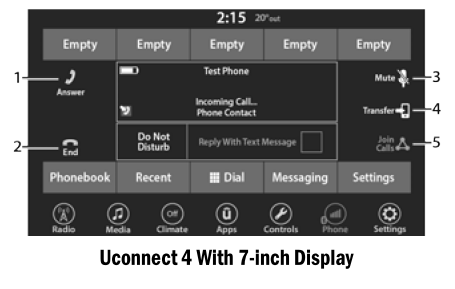
- Answer
- End
- Mute/Unmute
- Transfer
- Join Calls
Other telephone call functions include:
- End Call
- Hold/Cancel/Resume
- Swap Between Two Active Calls
Keypad Number Entry
- Press the Phone button.
- Press the dial/keypad button on the touchscreen.
- The Touch-Tone screen will be displayed.
- Using the number buttons on the touchscreen, enter the number and press "Dial/Call".
Recent Calls — If Equipped
You can view the list of recent calls of each of the following types:
- All Calls
- Incoming Calls or Received Calls
- Outgoing Calls or Dialed Calls
- Missed Calls
To access them, press the "Recent Calls" button on the phone main screen.
You can also press the VR button on the steering wheel and perform the operation described above. For example, say "Show my incoming calls."
Answering or Ignoring an Incoming Call — No Current Call in Progress
When you receive a call on your mobile phone, the Uconnect Phone interrupts the vehicle audio system. Press the Phone button on the steering wheel, then press the Answer button on the touchscreen.
You can also press the Caller ID field to place the current call on hold or answer an incoming call.
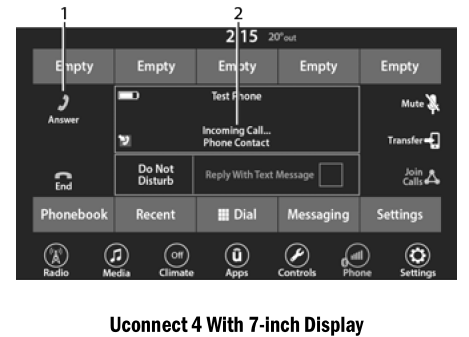
- Answer Button
- Caller ID Block
Answering or Ignoring an Incoming Call — Current Call in Progress
If a call is in progress and you receive another incoming call, you will hear the same network call-waiting tones you normally hear when using your mobile phone. Press the Phone button on the steering wheel, press the Answer button on the touchscreen, or press the Caller ID field to place the current call on hold and answer the incoming call.
NOTE:
Mobile phones compatible with the Uconnect system currently on the market do not support rejecting an incoming call while another call is in progress. Therefore, the user can only answer the incoming call or ignore it.
Do Not Disturb
The Do Not Disturb feature allows you to turn off notifications of incoming calls and text messages, so you can keep your eyes on the road and your hands on the steering wheel. For your convenience, a counter tracks missed calls and text messages while Do Not Disturb mode is active.
The Do Not Disturb feature can automatically respond to the caller with a text message, a call, or both, when an incoming call is rejected and sent to voicemail.
Automatic reply messages can be:
- "I am driving now, I will call you back soon."
- Create your own auto-reply message up to 160 characters long.
NOTE:
Only the first 25 characters can be seen on the touchscreen when entering a custom message.
In Do Not Disturb mode, you can select conference calling so you can make a second call without interruption from incoming calls.
NOTE:
- Text message reply is not compatible with iPhone®.
- Text message auto-reply is only available on phones supporting Bluetooth® Message Access Profile (MAP).
Place/Retrieve Call from Hold
During an active call, press the "Hold" or "Hold/Swap" button on the Phone home screen.
Making a Second Call During a Current Call
You can place a call on hold by pressing the "Hold" button on the Phone home screen. Then dial a number using the keypad (if supported by your mobile phone), Recent Calls, Incoming SMS, or from the phonebooks.
Switching Between Calls
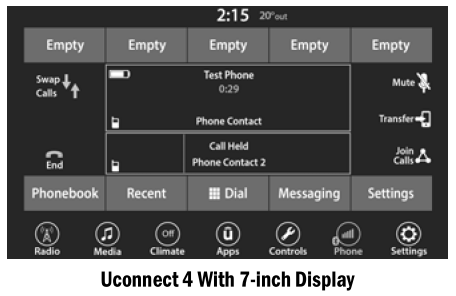
If two calls are in progress (one active and one on hold), press the Swap Calls button on the Phone home screen. Only one call can be placed on hold at a time.
You can also press the Phone button to switch between the active and held call.
Join Calls
When two calls are in progress (one active and one on hold), press the Join/Merge button on the Phone home screen to merge all calls into a conference.
Ending a Call
To end the current call, briefly press the "End Call" button on the touchscreen or the end call button on the steering wheel. Only the active call will be ended. If a call is on hold, it will become the new active call.
Redial
Press the VR button, and after the prompt "Listening" and the following beep, say "Redial." Uconnect Phone will call the last number dialed from your mobile phone.
Call Continuity
Call Continuity is the ability to continue a phone call on Uconnect Phone after the vehicle ignition has been turned off.
NOTE:
The call will remain in the vehicle audio system until the phone is out of Bluetooth® connection range. It is recommended to press the Transfer button on the touchscreen when leaving the vehicle.
Test yourself
A quick Dodge Charger quiz: every answer comes with an explanation and a link to the manual page.