Entertainment
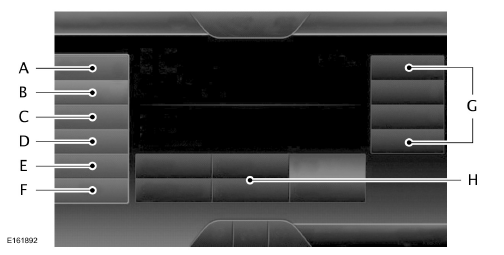
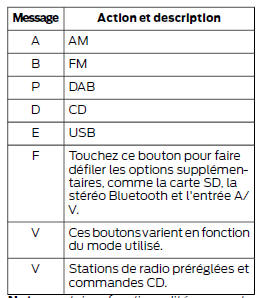
Note: some features may not be available in your country.
Contact an authorised dealer for more information.
You can access these options using the touchscreen or voice commands.
AM/FM radio
 Touch the AM
or FM tab to listen to the radio.
To switch from an AM preset to an FM preset, and vice versa, simply touch the AM or FM tab.
Presets
To store a radio station, press and hold one of the preset buttons. The sound is briefly interrupted while the radio stores the station. The sound resumes when storing is complete.
TA
If TA is enabled, the active audio source is interrupted by traffic announcements.
Scan
Touch this button to scan the AM or FM bands. The system stops on each station received for 10 seconds. The button lights up when the function is enabled.
Info (DAB only)
When you press the INFO button, the system displays the ensemble number of the active DAB station. Press the button a second time to display the station name again.
Options
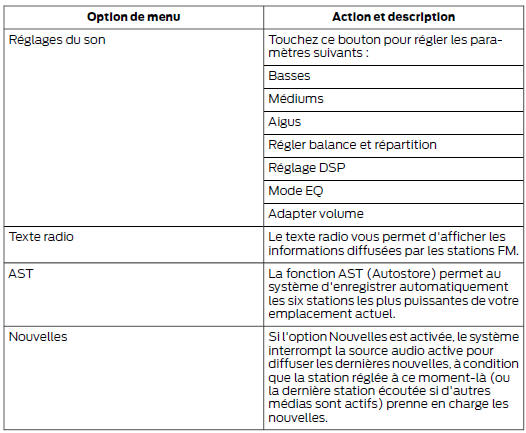
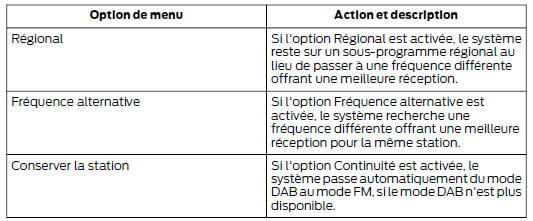
Note: Your vehicle may not have all of these sound settings.
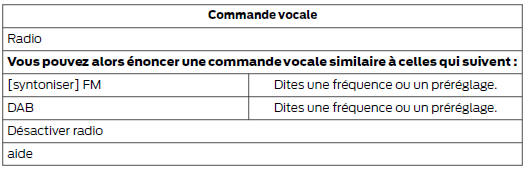
Radio Voice Commands

Press the voice command button and, when the system is ready, say:
CD

Touch the lower left corner of the touchscreen, then select:
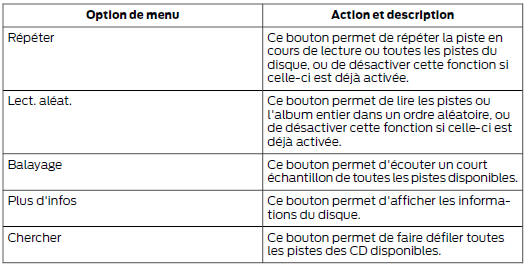
Insert the CD, then select:
To change the sound settings, select:
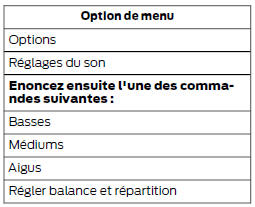
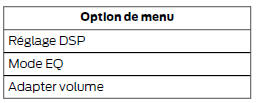
Note: Your vehicle may not have all of these sound settings.
CD Voice Commands
 If you are listening to a
CD, press the Voice Command button on the steering wheel. When the system is ready, say one of the following commands.
If you are not listening to a CD, press the voice command button and, after the tone, say:
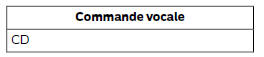
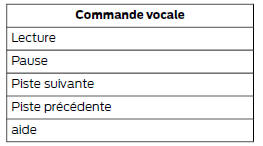
If you are listening to a CD, you can say many commands.
Examples include:
SD Card Slot or USB Port
The SD card slot and USB port are located in the Media Hub. See Media Hub (page 290).
SD Card
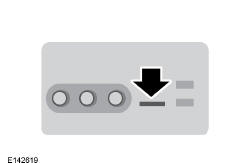
Note: The SD card slot is spring-loaded.
Press the SD card in to have the system eject it and remove it. Do not pull on the card to remove it, as this could damage it. Note: The navigation system also uses this slot. See Navigation (page 395).
To access and play music from your device, touch the lower left corner of the touchscreen.

The SD logo is a trademark of SD-3C, LLC.
USB port
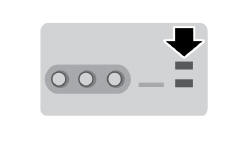
To access and play music from your device, touch the lower left corner of the touchscreen.
This feature lets you connect portable media players, memory cards, flash drives or USB keys, as well as chargers where supported.
To play videos from your iPod or iPhone, you need a USB/RCA composite video cable (available from Apple).
After connecting the cable to your iPod or iPhone, connect the other end to the RCA connectors and the USB port.
Playing Music From Your Device
Note: The system can index up to 30,000 songs.

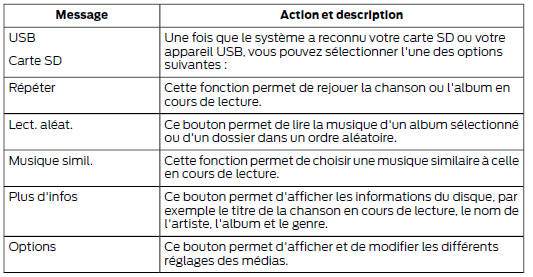
Insert your device, then select:
Sound
The sound settings let you change the following:
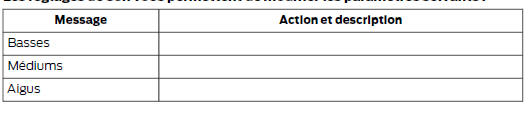
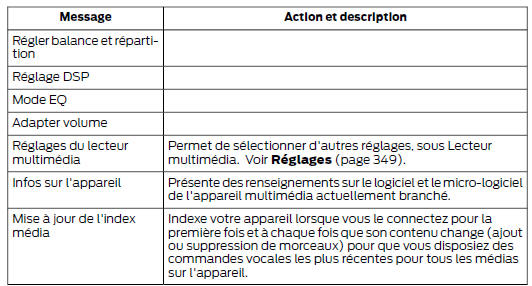
Note: Your vehicle may not have all of these sound settings.
Browse
This feature lets you view the content on your device. It also lets you search by category, such as genre, artist or album.
To view available information about a song, such as title, artist, file, folder, album and genre, touch the album art on the touchscreen.
You can also select:

Playing Videos From Your Device
To access and play videos from your device, the transmission must be in Park (P) with the ignition in accessory mode. See Starting and Stopping the Engine (page 135).
USB and SD Card Voice Commands

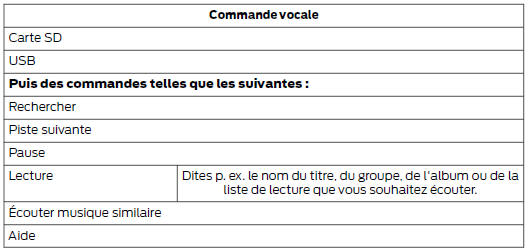
The voice system lets you control your media source using voice commands. For example, if you are listening to music from your USB device and want to change tracks, you can press the voice command button and the system will give you audio instructions.
Press the Voice button and, when the system is ready, say:
Supported Media Players, Formats and Metadata Information
SYNC is compatible with almost all digital media players, including iPods, Zunes, card readers and USB devices. The SYNC system also supports audio formats such as MP3, WMA, WAV and AAC.
It can also organize indexed media from the connected device using the metadata tags in the files. Metadata tags, which are descriptive software identifiers embedded in media files, provide information about the file.
If the tags embedded in your indexed media files do not contain information, SYNC may classify the empty metadata tags as unknown.
To play videos from your iPod or iPhone, you need a USB/RCA composite video cable (available from Apple).
After connecting the cable to your iPod or iPhone, connect the other end to the RCA connectors and the USB port.
Bluetooth Audio
This system lets you play your audio content through the vehicle speakers from your connected Bluetooth-compatible phone.

Touch the lower left corner of the touchscreen, then select:

Bluetooth Audio Voice Commands

The voice system lets you control your media source using a simple voice command. For example, to change tracks, press the voice command button and follow the system prompts.
A/V Inputs
WARNINGS
- Driving while distracted can lead to loss of vehicle control, accidents and injury. We strongly recommend that you exercise the utmost care when using any device that may take your attention away from the road. Driving your vehicle safely is your first responsibility.
We advise against using portable devices while driving and recommend using voice control systems where possible. Make sure you are aware of all applicable laws that may affect the use of electronic devices while driving.
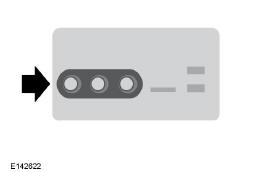
The A/V inputs let you connect an auxiliary audio/video source (such as a game console or camcorder) by plugging an RCA cable (not included) into the input jacks.
The jacks are yellow, red and white and are located either behind a small access door on the instrument panel or on the center console.
You can also use the A/V inputs as an auxiliary input jack to play music from your portable media player through the vehicle speakers.
Connect the 1/8 inch (3.5 mm) RCA adapter to the two left-hand A/V input jacks (red and white).
To use the auxiliary input jack feature, make sure your portable media player is designed to be used with headphones and is fully charged. You also need an audio extension cable with a 1/8 inch (3.5 mm) male stereo plug on one end and an RCA connector on the other.
- Turn off the engine, the radio and the portable media player. Set the parking brake and shift the transmission into P.
- Connect one end of the audio extension cable to the headphone jack of your player and the other end to the adapter in one of the two left-hand A/V input jacks (white or red) on the center console.
- Touch the lower left corner of the touchscreen. Select a preset FM station.
- Adjust the volume as desired.
- Turn on the portable media player and set the volume to ½ of the maximum volume.
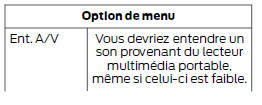
- Press the lower left corner of the touchscreen, then select:

To play videos from your iPod or iPhone, you need a USB/RCA composite video cable (available from Apple).
After connecting the cable to your iPod or iPhone, connect the other end to the RCA connectors and the USB port.
Troubleshooting
- Do not connect the audio input connector to a line-level output. The connector only works correctly with devices that have a headphone output with a volume control.
- To avoid sound distortion and poor sound quality, do not set the portable media player to a volume higher than the FM station volume.
- If you notice sound distortion at lower listening levels, reduce the volume of the portable media player. If the problem persists, recharge or replace the batteries of the portable media player.
- Use the controls on the portable media player as you would when using it with headphones. The auxiliary input jack does not provide control over the playback controls (Play, Pause, etc.) of the connected player.
Test yourself
A quick Ford Mondeo quiz: every answer comes with an explanation and a link to the manual page.