Navigation
Note: the navigation SD card must be in the SD card slot for the navigation system to operate. If you need a replacement SD card, contact an authorized dealer. Note: the SD card slot is spring-loaded.
To remove the SD card, simply push it in and release it. Do not try to pull the card out, as this may cause damage.
Your navigation system has two main features: destination mode and map mode.
Destination Mode
To set a destination, touch the green corner of the touch screen, then press:
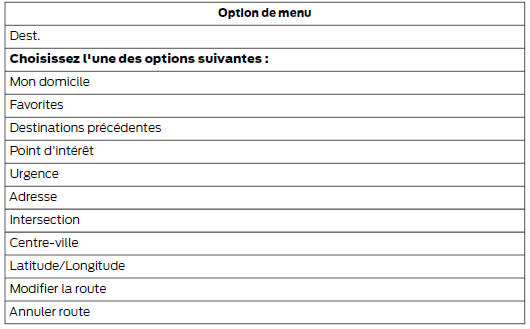
To set your destination, enter the required information in the highlighted fields (in any order).
To enter the destination address, touch:

To select a previous destination, touch:

After making your selection, press:
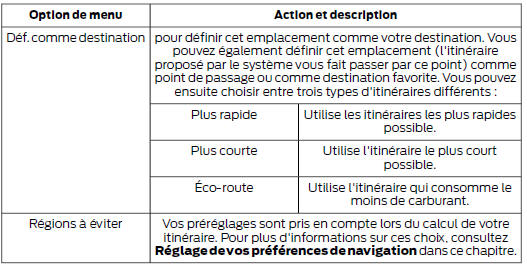
To start navigation, touch:


To set route preferences, touch:

Note: if you do not touch the Start guidance button while your vehicle is on a known road, the system defaults to the Fastest route option and starts navigation.
Michelin Guide
The Michelin Guide is a service that provides additional information about certain points of interest (POI), such as restaurants, hotels and tourist attractions (where available).
If you have paired your phone with the system, you can touch the Phone button to call the selected POI directly.
Note: Not all features are available in all languages and countries.
Point of Interest (POI) Categories
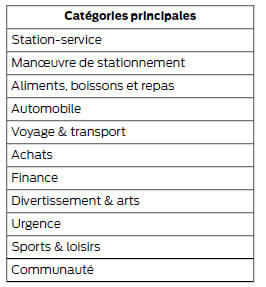
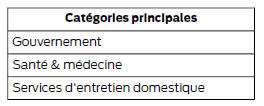
To expand this list, touch the + next to the list.
The system also allows you to sort the results alphabetically or by distance.
Setting your navigation preferences
 Select the
settings the system should take into account when setting your route.
To access the settings options, touch:
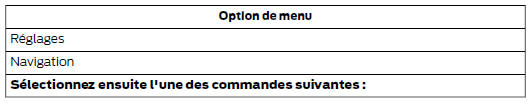
Map preferences
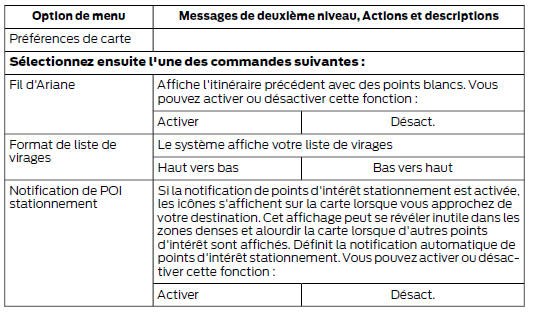
Route preferences
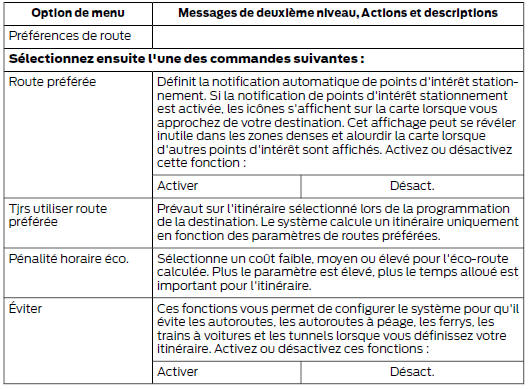
Navigation preferences
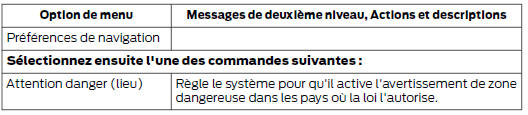
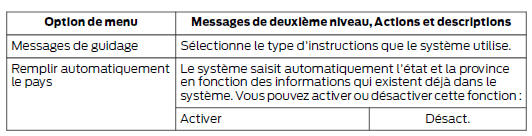
Traffic preferences
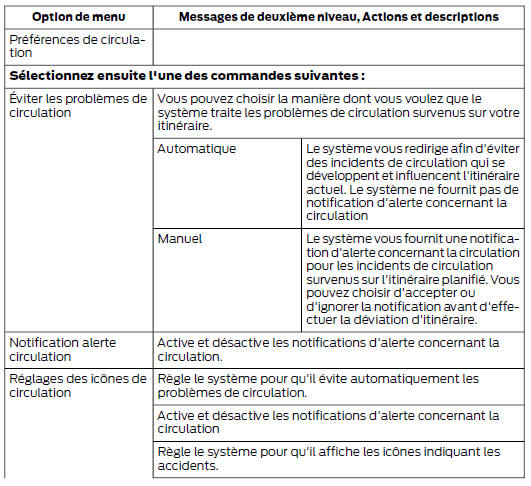
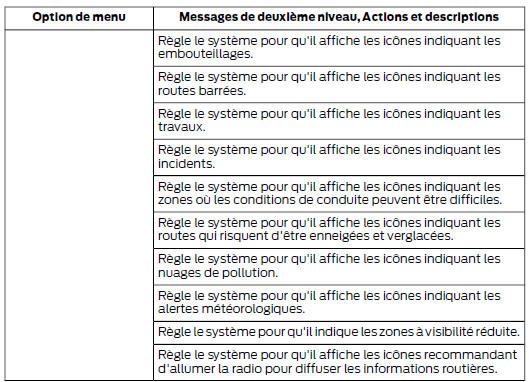
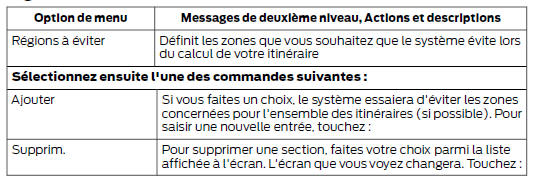
Area to avoid
Map Mode
Touch the green bar in the upper right corner of the touch screen to display Map mode. Map mode provides a more detailed display, consisting of both 2D maps and 3D landmarks (where available).
2D maps show detailed outlines of buildings, land use, natural features and railway infrastructure in major cities around the world. They also show certain features such as street furniture, building footprints and railways.
3D landmarks are distinct, clearly visible objects that are generally recognizable and have some tourist value. Landmarks only appear when 3D Map mode is enabled. Coverage varies and improves with map updates.
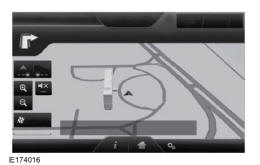
Change the map display by tapping the arrow button in the upper left corner of the screen several times. You can choose from three different map display modes:
 Heading Up (2D map):
Always displays the map so that the next maneuver is at the top of the screen.
The map scale can go up to 5 km/h.
 North Up (2D map):
Always displays the map so that north is at the top of the screen.
 3D map: Displays the map with
a higher viewing angle. You can change this viewing angle and rotate the map 180 degrees by tapping the map twice, then sliding the arrows along the gray bar at the bottom of the map with your finger.
You can also select the following options:
| Menu options | |
| See | Shows the full map, the street list, and returns to the route during turn-by-turn guidance. |
| Menu | Displays a pop-up window for direct access to the navigation settings. |
 Touch the Speaker button
that appears on the map to turn off route guidance.
When the button light is on, the function is active. The Speaker button appears on the map only when route guidance is enabled.
 Touch this icon
to re-center the map on your position when you have scrolled the map away from your current position.
Automatic zoom
Touch the green bar to access Map mode, then select the + or - zoom buttons to display the zoom level and the Auto buttons on the touch screen. When you touch Auto, automatic zoom is activated and the Auto button appears in the lower left corner of the screen on the map scale. The map zoom level then synchronizes with the vehicle speed. The slower the vehicle moves, the greater the zoom in; the faster the vehicle moves, the greater the zoom out. To turn off this function, touch the + or - buttons again.
In 3D mode, rotate the map by sliding the arrows on the gray bar with your finger.
The ETA (estimated time of arrival) area appears below the zoom buttons when a route is active and shows the distance and time remaining to reach your destination. If you touch the button, a window appears showing the list of instructions (and waypoints, if any), the mileage, and the time remaining to reach the destination. You can also choose to display the estimated travel time to your destination or the estimated arrival time.
Map icons
 Vehicle marker:
Shows the current position of your vehicle. The marker stays at the center of the map, except when you scroll the map.
 Scroll cursor:
Lets you scroll the map; the fixed icon is at the center of the screen.
The closest position to the cursor is shown in a window at the top center of the screen.
 Default icon(s) for
address book entries: Indicates the location of an address book entry on the map. This default symbol appears after saving an address book entry by a method other than one that requires using the map. You can select one of the 22 available icons. You can use each icon more than once.
 Home: indicates
the location currently saved as the home position on the map. You can save only one address book entry as the home address. This icon cannot be changed.
 POI (Points of Interest) icons
: Indicate the locations of the points of interest categories you choose to display on the map. You can choose to display up to three points of interest categories on the map at a time.
 Start point: indicates
the starting point of a planned route.
 Waypoint: indicates
the location of a waypoint on the map. The number inside the circle is different for each waypoint and represents the location of a waypoint in the route details.
 Destination: indicates the
end point of a planned route.
 Next maneuver:
Indicates the location of the next turn on the planned route.
 No GPS: indicates that
the GPS signals from the satellites are not sufficient for the current location on the map.
This icon may appear during normal operation in areas with insufficient GPS signals.
Quick access buttons
When in Map mode, touch the map anywhere to access the following options:

Show/Edit route
Access these functions when a route is active:

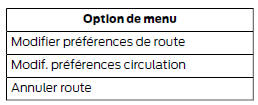
The digital maps used in this navigation application are provided by HERE. If you encounter data errors on a map, you can report them directly to HERE by visiting www.here.com. HERE reviews all reported errors and includes the results of its research in its reply email.
Updating navigation maps
Annual navigation map updates can be purchased from your dealer.
Navigation voice commands
 When in
Navigation mode, press the Voice Command key located on the steering wheel.
After the tone, say one of the following commands or a similar command:

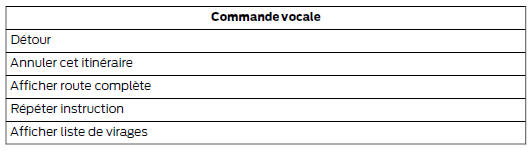
The following commands can also be used when a navigation route is active:
Naturally spoken destination address
To set a destination using voice commands, you can say:
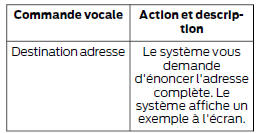
You can then state the address naturally, for example: "One two three four Main Street, City"
Test yourself
A quick Ford Mondeo quiz: every answer comes with an explanation and a link to the manual page.