Settings
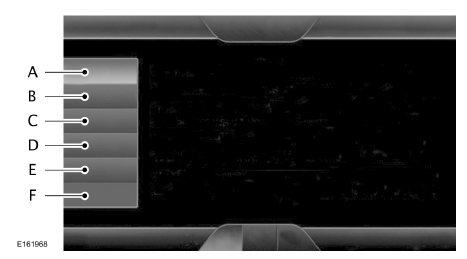
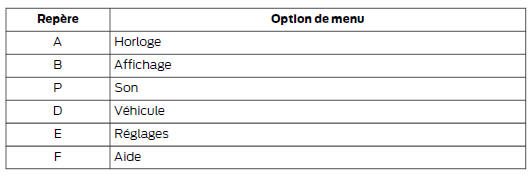
Clock
 In this menu, you can
set the time, access and adjust the display, sound and vehicle settings. You can also access the settings for specific modes or the help function.
To make a setting using the touchscreen, select:
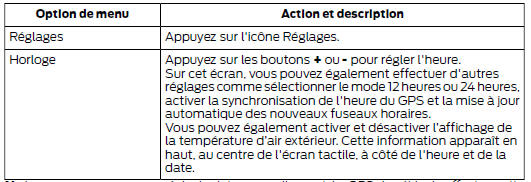
Note: you cannot set the date manually. The vehicle GPS performs this operation. Note: if the battery has been disconnected, your vehicle must find a GPS signal to update the time. Once the signal is found, the time update may take a few minutes.
Display
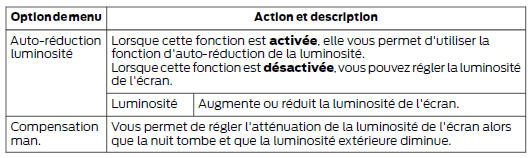
 You can adjust the display
using the touchscreen or the voice command button on the steering wheel controls.
To make a setting using the touchscreen, select:


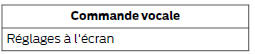
To make a setting using the voice command button, press this button and, when the system is ready, say:
Downloading photos for the home screen background
Note: you cannot import photos directly from your camera.
You must access the photos from a USB storage device or an SD card. Note: photos with very large dimensions (2048 x 1536, for example) may not be compatible. A blank (black) image will then appear on the screen.
The system lets you download and display up to 32 photos.
 To access it, press:
To download your photos, select:

Only photos meeting the following conditions are displayed:
- Compatible file formats are: JPG, GIF, PNG, BMP.
- Each file must be 1.5 MB or less in size.
- The recommended dimensions are 800 x 384.
Sound

To make a setting using the touchscreen, select:
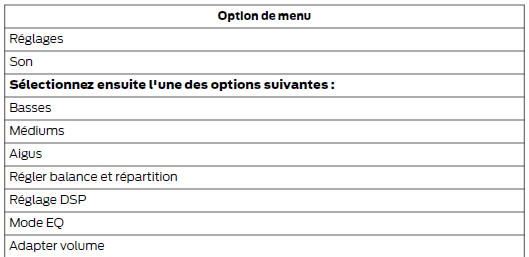
Note: your vehicle may not have all the sound settings listed above.
Vehicle

To make a setting using the touchscreen, select:


Ambient lighting (depending on equipment)
When you activate this function, the ambient lighting illuminates the floor and cup holders in the selected colour.
To make a setting using the touchscreen, select:

- You can then touch the colour of your choice.
- To increase or decrease the intensity, use the scroll bar.
- To turn the function on or off, press the on/off button.
Camera settings
 This menu lets you access
the rear view camera settings.
To make a setting using the touchscreen, select:
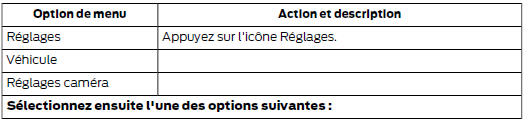

The rear view camera functions are described in another chapter. See Parking aids (page 170).
Activate valet mode
 Valet mode lets you
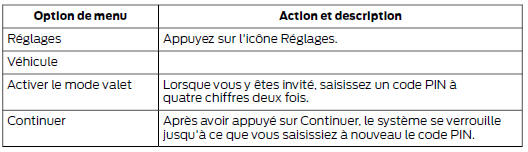
lock the system. To access the information, you must unlock the system with the correct PIN code.
Note: if the system is locked and you need to reset the PIN code, enter 3681. The system will then be unlocked.
To make a setting using the touchscreen, select:
Settings
Access system settings, voice control, as well as phone, navigation aid and wireless function settings.
System

To make a setting using the touchscreen, select:

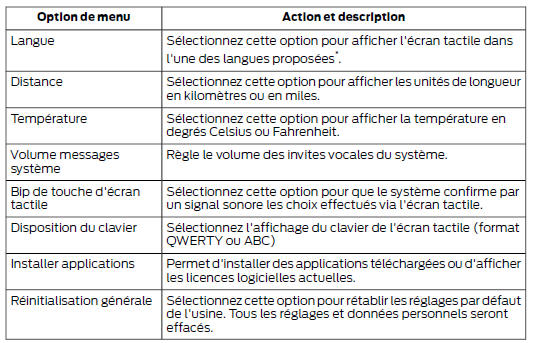
* The available languages are English, Spanish, French, Portuguese, German, Italian, Dutch, Swedish, Polish, Turkish and Russian. Only four of these languages are available for voice input and output depending on your location.
Voice control

To make a setting using the touchscreen, select:

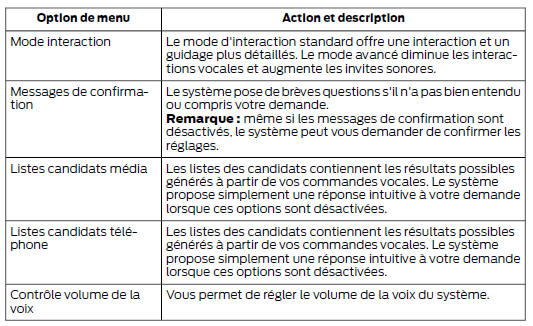
Media player

To make a setting using the touchscreen, select:

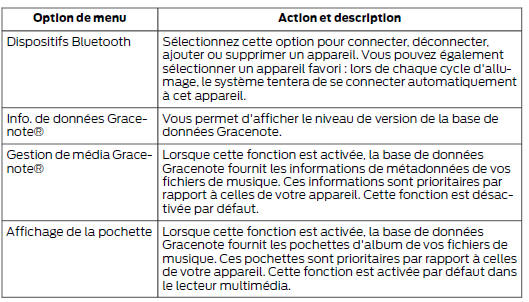
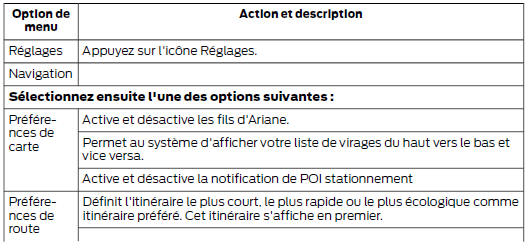
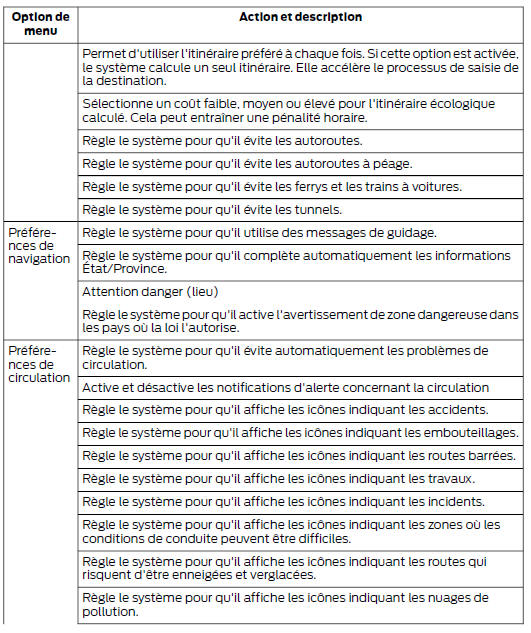
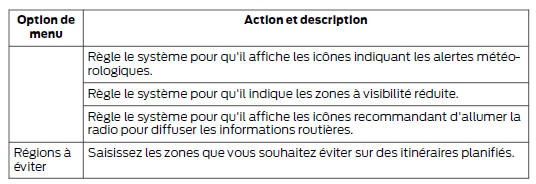
Navigation

To make a setting using the touchscreen, select:
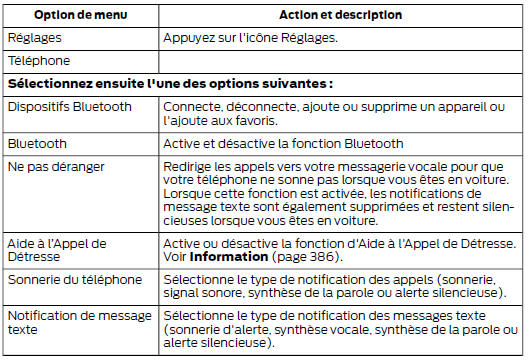
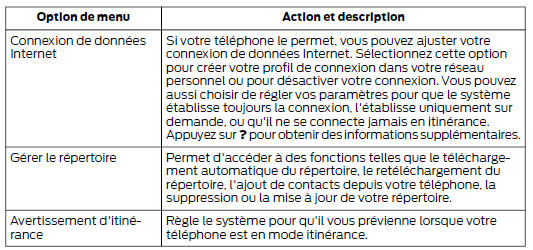
Phone

To make a setting using the touchscreen, select:
Wireless and Internet
 Your system has a
Wi-Fi function that creates a wireless network inside your vehicle, allowing other devices (personal computers or phones, for example) in the vehicle to interact, share files or play games. Thanks to this Wi-Fi function, all occupants of your vehicle can access the Internet if the vehicle has a USB mobile broadband connection, if your phone supports personal networks, or if you park outside a wireless access point.
To make a setting using the touchscreen, select:
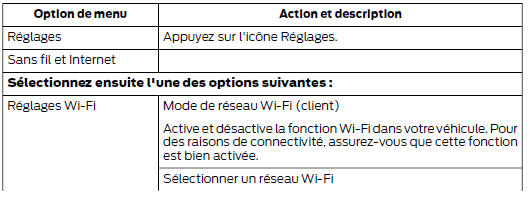
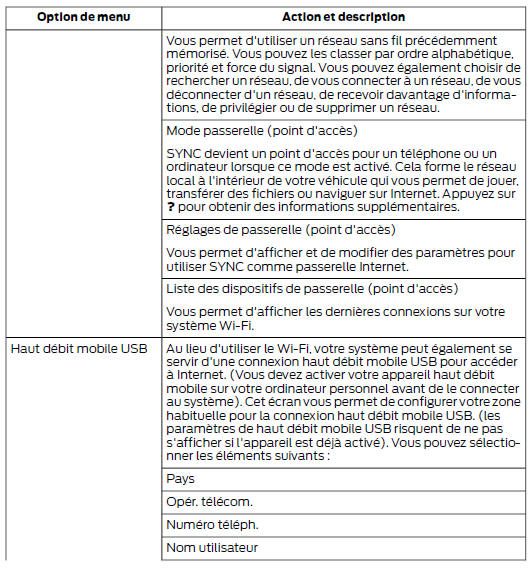
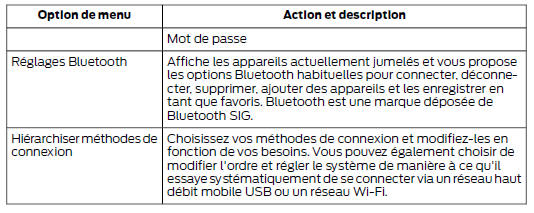

The Wi-Fi CERTIFIED logo is a certification trademark of the Wi-Fi Alliance.
Help

To make a setting using the touchscreen, select:
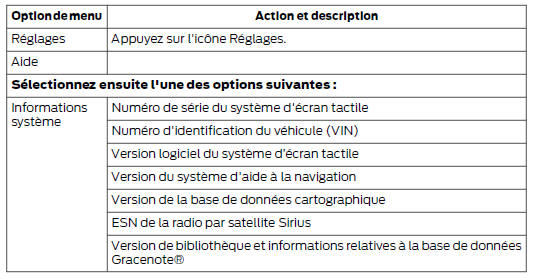
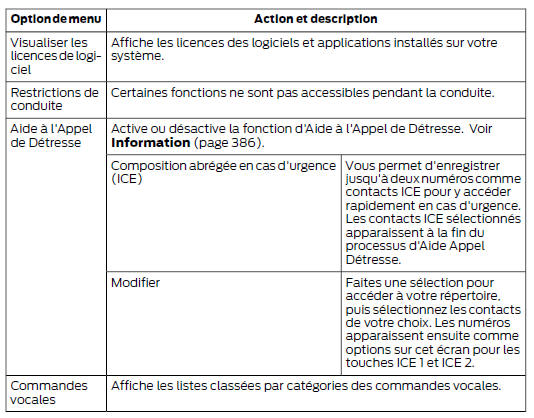
 You can access
Help using voice commands. The system offers the voice commands allowed in the current mode.
Press the voice command button and, when the system is ready, say:
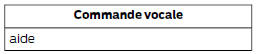
You can say help at any time to get help with commands, menus or other information.
Test yourself
A quick Ford Mondeo quiz: every answer comes with an explanation and a link to the manual page.