General information
WARNING
Driving while distracted can lead to loss of vehicle control, accidents and injury. We strongly recommend that you exercise the utmost care when using any device that may take your attention away from the road. Driving your vehicle safely is your first responsibility.
We advise against using portable devices while driving and recommend using voice-controlled systems whenever possible. Make sure you are aware of all applicable laws that may affect the use of electronic devices while driving.
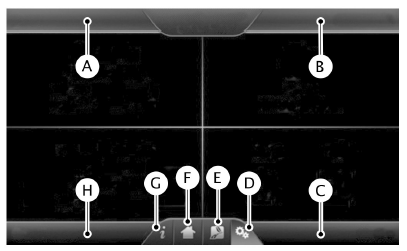

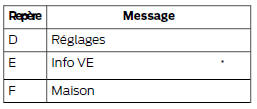
* Hybrid vehicles only.
The system is divided into four areas to provide quick access to several vehicle functions and settings. The touchscreen makes it easy to interact with your mobile phone, media devices, climate control and navigation system. The corners display all active modes within these menus, such as phone status or temperature.
Note: Some functions are not available while driving. Note: Your system has a feature that lets you access and control the audio functions for 10 minutes after the ignition is switched off (as long as no door has been opened).
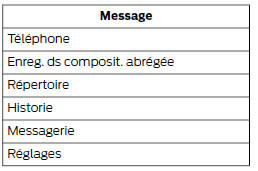
Phone
Touch the screen to select one of the following:
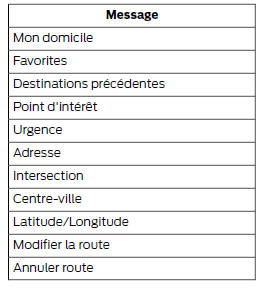
Navigation
Touch the screen to select one of the following:
Air conditioning
Touch the corresponding icons to control the following options:
- Driver Side Temperature Settings
- Recirculated Air
- Auto
- Dual
- Passenger Side Temperature Settings
- A/c
- Defrost
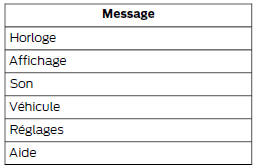
Settings

Touch the screen to select one of the following:
Vehicle Info
 Touch these buttons to
access specific functions of your hybrid or plug-in hybrid electric vehicle.
Home
 Touch this button to access
your home screen. Depending on your vehicle's options and software, your screens may differ from those described in this section. Some functions may also be restricted depending on your region. Contact an authorized dealer to check the availability of these functions.
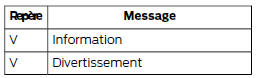
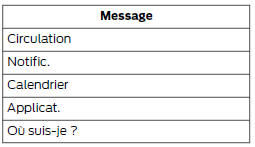
Information

Touch the screen to select one of the following:
Entertainment
Touch the screen to select one of the following:
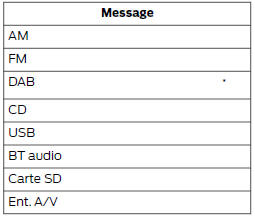
* Depending on equipment.
Using the Audio Controls
Depending on your vehicle, the following controls may also be available:

Using the Steering Wheel Controls
Depending on your vehicle and optional equipment, you can use the steering wheel controls to interact with the touchscreen system.
- Volume: adjusts the sound volume.
- Mute: mutes the sound.
- Voice command: press this button to start a voice command session.
Seek and Phone Accept:
- In radio mode, press this button to seek presets, or press and hold it to seek through stations.
- In USB or CD mode, press this button to seek tracks, or press and hold it to fast forward or rewind.
- In Phone mode, press this button to answer a call or switch between multiple calls.
Seek and Phone Reject:
- In radio mode, press this button to seek presets, or press and hold it to seek through stations.
- In USB or CD mode, press this button to seek tracks, or press and hold it to fast forward or rewind.
- In Phone mode, press this button to end a call or reject an incoming call.
- Source: press this button repeatedly to switch between media modes.
- Sound: press this button to change the sound settings. See Settings (page 349).
Cleaning the Touchscreen
Use a dry, clean, soft cloth. If dirt or fingerprints remain, dampen the cloth with a small amount of alcohol. Do not pour or spray alcohol directly onto the screen. Do not use detergents or solvents to clean the screen.
Assistance
Contact an authorized dealer for more information. For further details, visit the Ford website for your region.
Safety Information
Notice
Driving while distracted can lead to loss of vehicle control, accidents and injury. We strongly recommend that you exercise the utmost care when using any device that may take your attention away from the road. Driving your vehicle safely is your first responsibility.
We advise against using portable devices while driving and recommend using voice-controlled systems whenever possible. Make sure you are aware of all applicable laws that may affect the use of electronic devices while driving.
- Do not attempt any maintenance or repair on the system. Have your vehicle inspected by an authorized dealer.
- Do not operate a device if its power cords or cables are broken, cut or damaged.
Be sure to review your device's user manual before using it with SYNC.
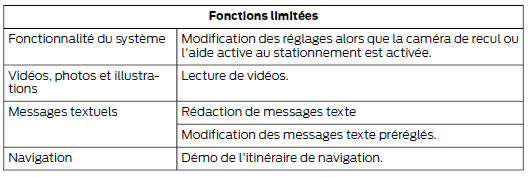
Speed-Restricted Functions
Some functions may be difficult to use while driving. Their use is therefore restricted unless your vehicle is stationary.
Refer to the table below for more specific examples.
Privacy
When you connect a cell phone to SYNC, the system creates a profile that is linked to that phone. The system creates this profile to give you access to more features and to optimize performance. This profile may contain data such as your phone book, your text messages (read or unread) and your call history. This includes calls made or received while your cell phone was not connected to the system. If you connect a media player, the system creates and stores an index of the supported media content. The system also saves a short development log of about 10 minutes for each of the system's recent activities.
The system uses the log profile and other system data to improve the system and help diagnose possible problems.
The cell phone profile, the media player index and the development log remain in the system until you delete them.
Generally, they can only be accessed from the vehicle when the cell phone or media player is connected. If you no longer want to use the system or your vehicle, we recommend performing a complete reset to erase all stored information. See Information displays (page 89).
Specific equipment is required to access system data.
Access to the SYNC module in the vehicle is also required. We do not access system data without your consent for purposes other than those described. Exceptions include the following: a court order, or when required by law enforcement, other government agencies or any other third party acting with legal authority.
Other parties may attempt to access this information independently of us. Additional privacy information is available.
Displaying and adjusting modes using the right-hand information display
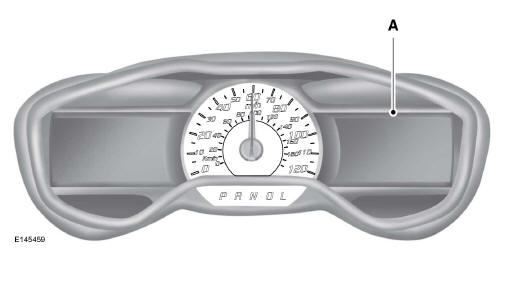
The display is located on the right side of the instrument cluster (a). You can use the steering wheel controls to view and make minor adjustments to the active modes without taking your hands off the steering wheel. For example:
- In Entertainment mode, you can view the file currently playing, change the audio source, select presets and make some adjustments.
- In Phone mode, you can accept or reject an incoming call.
- If your vehicle is equipped with Navigation, you can view the current route or activate a route.
- In Efficiency Leaf mode, you can view a graphical representation of your driving efficiency. Press OK to exit this menu.
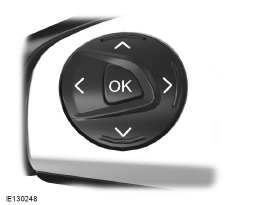
Use the OK button and the arrows on the right side of the steering wheel to scroll through the available modes.
The Selection menu opens and the different options appear.
- Press the up or down arrow to scroll through the modes.
- Press the right arrow to access the mode.
- Press the left or right arrow to make adjustments in the mode of your choice.
- Press OK to confirm your selection.
Note: if your vehicle is not equipped with Navigation, the compass appears on the screen in place of the navigation. If you press the right arrow to access the compass menu, the graphic compass appears. The compass shows the direction the vehicle is traveling, not its actual direction. For example, if the vehicle is heading west, the center of the graphic compass indicates west. North appears to the left of west, whereas in reality it should appear to the right of west.
Using Voice Recognition
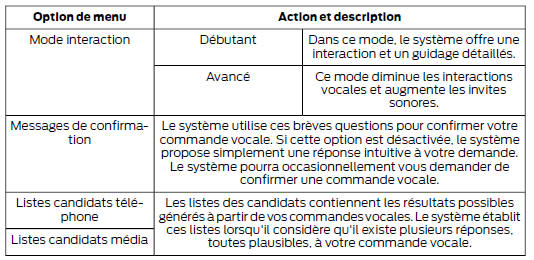
This system lets you control several functions using voice commands. This way you can keep your hands on the steering wheel and focus on the road. The system responds with a range of audible signals, messages, questions and voice confirmations, depending on the situation and the level of interaction selected (see voice settings).
The system also asks brief questions (confirmation messages) when it is unsure of your request, or when there are several possible responses to your request.
When using voice commands, words and icons may appear in the status bar at the bottom left of the screen to indicate the status of the voice command session.
How to use voice commands
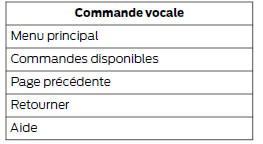
 Here are some of the
voice commands you can say at any time during a voice command session.
Press the voice command button and, when the system is ready, say:
Tips
- Make sure the vehicle cabin is as quiet as possible. Wind noise from open windows and road vibrations may prevent the system from correctly recognizing spoken voice commands.
- After pressing the voice command icon, wait for the tone to sound and a message to appear before saying a voice command. Any voice command spoken before this is not recorded by the system.
- Speak naturally, without long pauses between words.
- You can interrupt the system during a command at any time by pressing the voice command icon.
Accessing a list of available voice commands
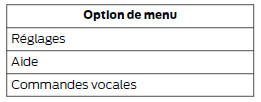
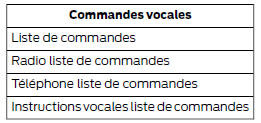
To access a list of available voice commands, you can perform one of the following actions.
Using the touchscreen, press:
Using the steering wheel control, press the voice command button and, when the system is ready, say one of the following commands:
Voice command settings
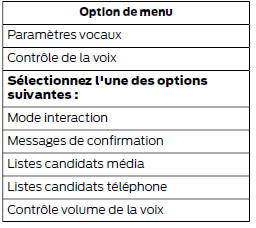
You can customize the level of interaction, help and response of the system. By default, the system uses standard interaction, which uses candidate lists and confirmation messages, because these features provide the highest level of guidance and response.
Using the touchscreen, touch the settings icon, then:
Using voice commands with touchscreen options
The voice command system has a dual mode that lets you switch between voice commands and selections on the touchscreen. This is only available when the system displays a list of candidates generated during a voice command session.
For example, you can use this when entering an address or trying to call a contact from a phone paired with the system.
Test yourself
A quick Ford Mondeo quiz: every answer comes with an explanation and a link to the manual page.