Features
Phone Setup
In this manual: Features
18steps
~108min
4/5difficulty
Done 0 of 18
To pair a cell phone (when there is no phone paired to the system)

- Select Phone.
- Select Yes.
- Make sure your phone is in search or discoverable mode, then select Continue.
- HFL automatically searches for a Bluetooth device.
- Select your phone when it appears on the list.
- If your phone does not appear, you can select Refresh to search again.
- If your phone still does not appear, select Phone Not Found and search for Bluetooth devices using your phone.
From your phone, search for HandsFreeLink.
- The system gives you a pairing code on the audio/information screen.
- Confirm if the pairing code on the screen and your phone match.
This may vary by phone.
Phone Setup
Your Bluetooth-compatible phone must be paired to the system before you can make and receive handsfree calls.Phone Pairing Tips:
- You cannot pair your phone while the vehicle is moving.
- Up to six phones can be paired.
- Your phone's battery may drain faster when it is paired to the system.
- If your phone is not ready for pairing or not found by the system within three minutes, the system will time out and return to idle.
These icons indicate the following:
 : The phone can be used with HFL.
 : The phone is compatible with Bluetooth Audio.
If there is an active connection to Apple CarPlay, pairing of additional Bluetooth-compatible devices is unavailable and Add Bluetooth Device is grayed out from the Bluetooth Device List screen.
To change the currently paired phone
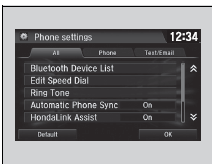
- Go to the phone settings screen.
- Phone settings screen P. 365
- Select Bluetooth Device List.
- Select a phone to connect.
- HFL disconnects the connected phone and starts searching for another paired phone.
- Select Connect

 , Connect
 , or Connect
 .
To change the currently paired phone
If no other phones are found or paired when trying to switch to another phone, HFL will inform you that the original phone is connected again.To pair other phones, select Add Bluetooth Device from the Bluetooth device list screen.
To change the pairing code setting
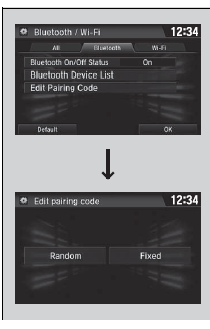
- Select
 .
- Select Settings.
- Select Bluetooth/Wi-Fi.
- Select the Bluetooth tab.
- Select Edit Pairing Code.
- Select Random or Fixed.
To change the pairing code setting
The default pairing code is 0000 until you change the setting. To create your own, select Fixed, and delete the current code, then enter a new one.For a randomly generated pairing code each time you pair a phone, select Random.
To delete a paired phone
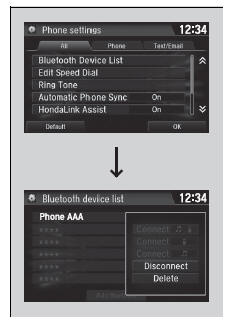
- Go to the phone settings screen.
- Select Bluetooth Device List.
- Select a phone you want to delete.
- Select Delete.
- A confirmation message appears on the screen. Select Yes.
Test yourself
A quick Honda Civic quiz: every answer comes with an explanation and a link to the manual page.
Was this page helpful?