Digital Key (Card Key)
Storing the Digital Key (Card Key)
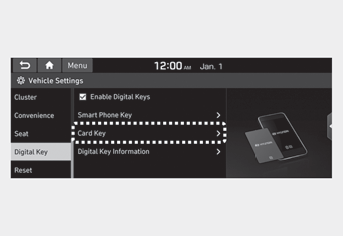
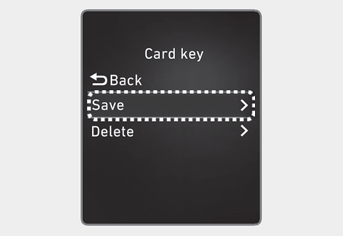
1. Install the Hyundai Digital Key app on the primary user's smartphone and register the digital key (smartphone). Refer to the digital key (smartphone) registration method.
2. Using the [Pair Card Key] menu in the digital key app, activate the card key registration mode.
* NFC authentication: Enter the NFC authentication menu and touch the smartphone to the exterior door handle.
* Bluetooth authentication: Enter the Bluetooth authentication menu and press the [OK] button to activate. If you activate the registration mode, you must complete the card storing process within 5 minutes.
* If you have not registered the digital key (smartphone), register the digital key (card key) with two smart keys.
3. Register the NFC card key in the user settings menu after turning on the vehicle.
* With navigation screen: From the infotainment system screen menu, go to [Settings] - [Vehicle] - [Digital Key] - [Card Key], then select [Store] from the submenu.
* Without navigation screen: From the cluster menu, go to [Digital Key] - [Card Key] and select [Store]. The [Store] button will be disabled if the digital key (card key) is already stored.
Refer to "Deleting the Digital Key" in this manual and follow the digital key deletion procedure in your vehicle before storing the digital key.
4. Place the NFC card key on the interior authentication panel (wireless charger). The storing process will start automatically.
5. If the key is registered, a message will be displayed on the infotainment screen or instrument cluster.
- After the card key registration mode is activated, the process must be completed within 5 minutes. After that, you must reactivate the registration mode once again.
- To store the digital key (card key), the smart key (fob) must be inside the vehicle.
- Once the card key is registered, it cannot be reused on another vehicle.
Deleting the Digital Key (Card Key)
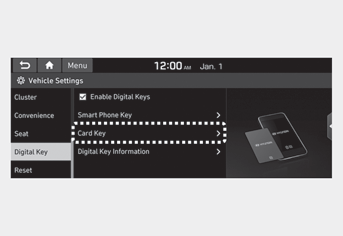
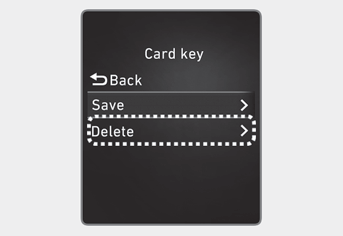
You must have the smart key to delete the digital key (card key). Please keep the smart key with you.
1. Get into the vehicle with the smart key.
2. Delete the NFC card key in the user settings menu after turning on the engine.
* With navigation screen: On the infotainment system screen menu, go to [Settings] - [Vehicle] - [Digital Key] - [Key Card], then select [Delete] from the submenu.
* Without navigation screen: From the cluster menu, go to [Digital Key] - [Key Card] and select [Delete].
If there is no registered digital key (key card), the [Delete] menu will not be activated.
- To delete a registered digital key (key card), the smart key must be inside the vehicle.
- A deleted digital key (key card) may need to be re-registered before registering a new digital key (key card).
- If you attempt to register a new digital key (key card), a previously registered digital key (key card) cannot be used again.
NFC Door Lock/Unlock
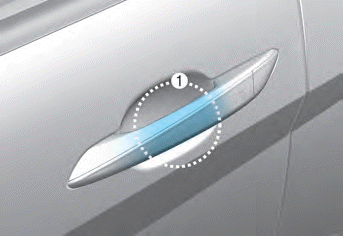
[1]: Door Handle Authentication Pad
Touch the digital key (key card) to the authentication area on the driver's (or front passenger's) door handle (1, marked area next to the lock button) from outside the door within 2 seconds to lock or unlock the doors. If the Two-Press Unlock function is applied (press twice to unlock), the driver's door will be unlocked by touching the digital key (key card). In this state, if you touch again within 4 seconds, all doors will unlock.
Malfunction
If you do not touch the digital key (key card) precisely to the center of the door handle authentication area, it may not work. Also, if you overlap and use a key card with NFC support, such as a transportation card or credit card, it will not work.
Note that if you try to lock the vehicle with the digital key (key card) under the following conditions, the doors will not lock and the warning buzzer will sound for 3 seconds.
- The smart key is inside the vehicle.
- The POWER button is in the ACC or ON position.
- Any of the doors, the hood, or the trunk is open.
If the digital key (key card) does not work, move the key approximately 4 in. (0.1 m) away from the door handle authentication area and try touching again. The key card may be damaged by impact. It will not work properly if the key is damaged. You must purchase a new card and register it again. Exposure to high temperatures for a long time may cause the key card to malfunction. Be careful not to expose the key to direct sunlight or high temperatures.
Starting with the Key Card
After placing the registered key card on the interior authentication area (wireless charger), depress the brake pedal and press the ENGINE START/STOP button.
WARNING
- If you do not place the digital key (key card) precisely in the center of the interior authentication area (wireless charger), the key card may not be recognized. If the engine does not start, adjust the key and place it again.
- If you overlap and use a key card with NFC support, such as a transportation card or credit card, the key card may not be recognized.
- If the digital key (key card) does not work, move the key approximately 4 in. (0.1 m) away from the door handle authentication area and try touching again.
- The key card may be damaged by impact. It will not work properly if the key is damaged. You must purchase a new card and register it again.
Activating/Deactivating the Digital Key
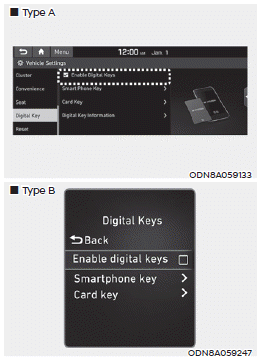
If you do not want to use the digital key (smartphone and key card), the function can be temporarily disabled. You must have the smart key when you change the settings.
* With navigation screen:
On the infotainment screen menu, go to [Settings] - [Vehicle] - [Digital Key] - [Enable Digital Keys] (deselect).
* Without navigation screen:
On the cluster menu, go to [Digital Key] - [Enable Digital Keys] (deselect).
Information
If you do not have the smart key in your possession, you cannot deselect [Enable Digital Keys]. However, if you want to select [Enable Digital Keys] again, you do not need to have the smart key in your possession.
CAUTION
If you deselect Enable Digital Keys, it is not possible to lock or unlock the doors or start the vehicle with digital keys such as the smartphone and key card. If you select Enable Digital Keys again, the registered digital keys (smartphone and key card) become available. Even if you disable the digital key function, the registered keys (smartphone and key card) are not deleted.
Test yourself
A quick Hyundai Elantra CN7 quiz: every answer comes with an explanation and a link to the manual page.