Using the CD Player
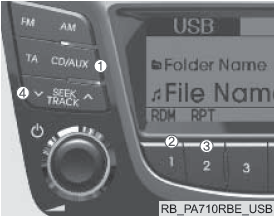
1. Button (CD)
If a CD is loaded, CD mode is activated. If there is no CD, the message "No Disc" is displayed for 3 seconds and the screen returns to the previous mode.
2.  (RANDOM) Button
Press this button for less than 0.8 seconds to activate the "RDM" mode, and for more than 0.8 seconds to activate the "ALL RDM" mode.
• RDM: Files/tracks in the current folder/on the current disc are played in random order.
• ALL RDM (MP3/WMA only): All files on the current disc are played in random order.
3.  (REPEAT) Button
Press this button for less than 0.8 seconds to activate the "RPT" mode, and for more than 0.8 seconds to activate the "FLD RPT" mode.
• RPT: Repeats the current file/track.
• FOLDER RPT (MP3/WMA only):
Repeats all files in the folder.
4. Button
• Briefly pressing the button (TRACK SEARCH) for less than 0.8 seconds starts playback of the current track.
• Briefly pressing (less than 0.8 seconds) the button and then pressing and holding the button within 1 second starts playback of the previous track.
• To start high-speed reverse playback (search) of the current track, press and hold the button for at least 0.8 seconds.
• Briefly pressing the button (TRACK SEARCH) (less than 0.8 seconds) starts playback of the next track.
• To start high-speed forward playback (search) of the current track, press and hold the button for at least 0.8 seconds.
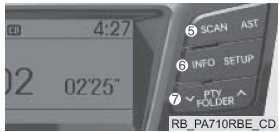
5. Button
Plays each track on the CD for 10 seconds. To cancel SCAN mode, press this button again.
6. Button
Displays information about the current track.
• Audio CD: disc title/artist, track title/artist, total number of tracks.
• MP3 CD: file name, artist, album, folder, total number of files (information is not displayed if it is not present on the CD or in the file).
7. Button
• To move to a subfolder of the current folder and display its first track, press the button .
To enter the displayed folder, press the button . Playback of the first track in this folder starts.
• To move to the parent folder of the current folder and display its first track, press the button .
To enter the displayed folder, press the button .
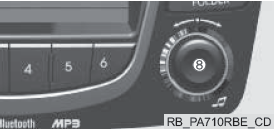
8. Buttons  and

• Turn this knob clockwise to scroll through the tracks after the current track, or counterclockwise to scroll through the tracks before the current track. To play the displayed track, press the knob.
• Pressing this knob without turning it enters the "AUDIO CONTROL" mode.

9. CD Eject Button
To eject the disc during playback, press this button for less than 0.8 seconds. The button is active when the ignition switch is in the OFF position.
10. CD slot
Insert the CD label side up and carefully push it in with the ignition switch in the ACC or ON position.
The audio system automatically switches to CD mode and starts playing the CD.
If the audio system was off, its power is automatically turned on as soon as the CD is inserted.
• This audio system only recognizes 12 cm CDs, audio CDs (CD-DA) or ISO data discs (CDs with MP3 files).
• If a UDF data CD or a disc of another format (for example, a DVD) is inserted, the message “Reading Error” appears and the disc is ejected.
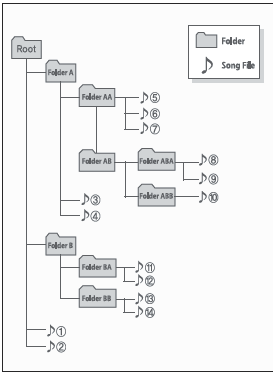
File (folder) playback order:
1. Song playback order:
 –
 in sequence.
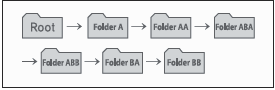
2. Folder playback order:
A folder that does not contain any song files is not displayed.
Precautions when using a USB device
• If an external USB device is connected, make sure the device is disconnected before starting the engine. Connect the device after the engine has started.
• Starting the engine with a USB device connected may damage the device (USB flash drives are very sensitive to voltage surges).
• If the engine is started or stopped while an external USB device is connected, the external device may not work.
• Some non-original MP3 and WMA files may not play.
1) To play an MP3 file, its bit rate must be from 8 to 320 kbps.
2) To play a WMA file, its bit rate must be from 8 to 320 kbps.
• Observe precautions against static discharge when connecting and disconnecting external USB devices.
• MP3 players with encoded data storage are not recognized by the system.
• The external USB device may not be recognized by the system (depending on its condition).
• External USB devices with sector formatting other than 512 BYTE and 2048 BYTE are not recognized by the system.
• The USB device must use the FAT 12, FAT 16 or FAT 32 file system.
• USB devices without USB I/F certification may not be recognized by the system.
• Keep the USB connector away from human skin and foreign objects.
• Repeatedly connecting and disconnecting the USB device within a short period of time may damage the device.
• Connecting and disconnecting the USB device may produce noise.
• If an external USB device is disconnected while in USB playback mode, the external USB device may be damaged or may malfunction.
Therefore, the external USB device must be disconnected before turning off the audio system or switching it to another mode (for example, to the radio or CD player).
• The time required to recognize an external USB device depends on the capacity of the device or the type of files stored on it.
• Do not connect USB devices intended for any purpose other than playing audio files.
• Connecting devices such as USB chargers and USB I/F heaters may reduce performance or cause a malfunction.
• If devices such as a separately purchased USB hub are used, the vehicle audio system may not recognize the USB device.
Connect USB devices directly to the vehicle's multimedia connector.
• If the USB device has several logical drives, the vehicle audio system recognizes only the drive with the highest priority.
• For example, devices such as MP3 players, mobile phones or digital cameras may not be recognized by the standard USB interface.
• Non-standard USB devices (in a metal housing) may not be recognized.
• USB card readers (for CF, SD, microSD memory cards, etc.) and external hard drives may not be recognized by the system.
• Audio files protected by DRM (Digital Rights Management) are not recognized by the system.
• When using this audio system, information stored on the USB device may be lost. It is recommended to store important data on a personal storage device.
• To avoid damaging the USB connector, do not use USB devices designed as key chains or cell phone accessories. Use only devices with plug-in USB connectors (see below).

Test yourself
A quick Hyundai Solaris quiz: every answer comes with an explanation and a link to the manual page.