Using a USB device
1. Button (USB or AUX)
If an additional device is connected, switch to AUX or USB mode to play sound from that additional device.
If there is no CD and no additional device is connected, the message “No Media” is shown on the LCD display for 3 seconds and the system returns to the previous mode.
2.  (RANDOM) Button
• To play songs from the current folder in random order, briefly press this button (less than 0.8 s).
• To play all songs on the USB device in random order, press and hold this button (at least 0.8 s).
• To cancel RANDOM playback, press this button again.
3.  (REPEAT) Button
• Briefly press this button (less than 0.8 s) to repeat the current song.
• To repeat all songs in the current folder, press and hold this button (at least 0.8 s).
• To cancel REPEAT playback, press this button again.
4. Buttons
• Briefly pressing the button (TRACK), less than 0.8 s, starts playback of the current track.
If this button is pressed again within 1 second, playback of the previous track starts.
For high-speed reverse playback of tracks, press and hold the button for at least 0.8 s.
• When the button is briefly pressed (TRACK) (less than 0.8 s): the next track starts playing. To fast forward tracks, press and hold the button for at least 0.8 seconds.
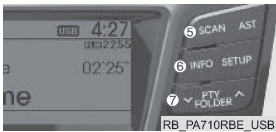
5. Buttons
Plays each song on the USB device for 10 seconds. To exit scan mode, press the button again.
6. Button
Press this button to display information about the file being played, in the following order: FILE NAME - TITLE - ARTIST - ALBUM - FOLDER - TOTAL NUMBER OF TRACKS - NORMAL DISPLAY MODE - FILE NAME - ...
(This information is displayed only if it is contained in the file.)
7. Button
• To move to a subfolder of the current folder and display its first track, press the button .
To enter the displayed folder, press the button The first track in this folder starts playing.
• To move to the parent folder and display its first track, press the button . To enter the displayed folder, press the button
 .

8. Buttons and

• Turn this knob clockwise to scroll through the songs following the current song, or counterclockwise to scroll through the songs preceding the current song. Press the knob to play the displayed song.
• Pressing the knob without turning it enters the "AUDIO CONTROL" mode.
NOTES REGARDING THE USE OF iPod DEVICES • Some iPod models do not support the communication protocol. Files from such devices will not play.
Supported iPod models:
- iPod mini
- iPod 4th generation (photo) to 6th generation (classic)
- iPod nano 1st to 4th generation
- iPod touch 1st to 2nd generation
• The search and playback order of tracks on the iPod may differ from the playback order on the vehicle audio system.
• If an error occurs with the iPod, reset it (refer to the iPod user manual for reset instructions).
• Low battery charge may cause iPod malfunctions.
• Some iPod devices, such as iPhone, can connect via Bluetooth®.
This requires the device to support audio streaming via Bluetooth® (such as that used for connecting Bluetooth® stereo headphones).
In this case, the device can play music but cannot be controlled through the audio system.
PRECAUTIONS WHEN USING AN iPod DEVICE
• To control the iPod with the audio system buttons, the Hyundai iPod Power Cable is required. An Apple USB cable may cause malfunctions and must not be used in Hyundai vehicles.
• The Hyundai iPod Power Cable can be purchased from Hyundai dealers.
• When connecting the iPod to the multimedia jack with the iPod Power Cable, make sure the cable is securely connected. Otherwise, communication between the iPod and the audio system may fail.
• If sound settings are adjusted on both the iPod and the vehicle audio system, the combined settings may distort the sound and reduce its quality.
• Turn off the iPod equalizer when using the audio system volume control, and turn off the audio system equalizer when using the iPod equalizer.
• If the iPod cable is connected, the system can be switched to AUX (AUXILIARY
DEVICE) mode even if the iPod is disconnected, and noise may occur.
It is recommended to disconnect the iPod cable when the iPod is not in use.
If the iPod is not used with the car audio system, disconnect the cable from the iPod. Otherwise, the iPod may remain in standby mode and may not operate properly.

Test yourself
A quick Hyundai Solaris quiz: every answer comes with an explanation and a link to the manual page.