Disc Care
- If the temperature inside the vehicle is too high, open the vehicle windows to ventilate before using the system.
- It is illegal to copy and use MP3/WMA files without permission. Use only discs created by legal means.
- Do not use volatile substances such as benzene and thinner, common cleaners, or anti-static sprays designed for analog discs on compact discs.
- To prevent damage to the disc surface, hold compact discs by the edges or center hole only.
- Wipe the disc surface with a soft cloth before playing (wipe from the center toward the edge).
- Do not damage the disc surface or attach pieces of adhesive tape or paper.
- Make sure only compact discs are inserted into the CD player (do not insert more than one compact disc at a time).
- Store compact discs in their cases after use to protect them from scratches and dirt.
- Depending on the type of CD-R/CD-RW discs, some discs may not operate normally depending on the manufacturer or the recording method. In such cases, continued use may cause malfunctions in your audio system.
✽ NOTICE - Incompatible copy-protected audio compact disc
Some copy-protected compact discs that do not conform to the international audio CD standard (Red Book) may not play in your vehicle audio system. Please note that failure to play a copy-protected compact disc correctly may indicate that the compact disc is defective, not the CD player.
NOTE:
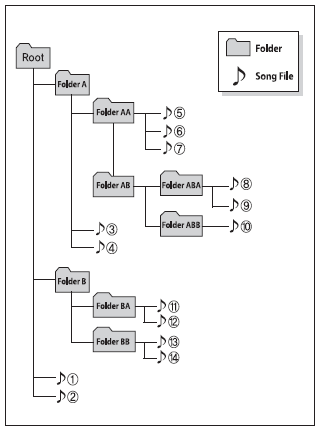
Playback order of files (folders):
1. Song play order: sequential.
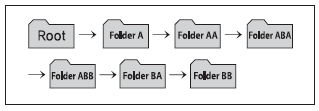
2. Playback order of folders:
❋ If there are no files in a folder, that folder is not displayed.
WARNING
- Do not look at the screen while driving. Looking at the screen for a long period of time may lead to a traffic accident.
- Do not disassemble, assemble, or modify the audio system. Such actions may lead to an accident, fire, or electric shock.
- Using a phone while driving may cause inattention to driving conditions and increase the likelihood of an accident. Use the phone function after parking the vehicle.
- Take care not to spill water or allow foreign objects to enter the device. Such actions may cause smoke, fire, or product malfunction.
- Please refrain from use if the screen is blank or no sound can be heard, as these signs may indicate a product malfunction. Continued use under such conditions may lead to accidents (fire, electric shock) or product malfunction.
- Do not touch the antenna during thunder or lightning, as such actions may result in lightning strike or induced electric shock.
- Do not stop or park in no-parking zones when operating the product. Such actions may lead to traffic accidents.
- Use the system with the vehicle ignition on. Prolonged use with the ignition off may cause battery discharge.
CAUTION
- Operating the device while driving may cause an accident due to lack of attention to the surrounding environment. Park the vehicle first before operating the device.
- Adjust the volume to a level that allows the driver to hear sounds outside the vehicle. Driving in a state where external sounds cannot be heard may lead to accidents.
- Pay attention to the volume setting when turning the device on. A sudden output of extreme volume when the device is turned on may cause hearing damage. (Adjust the volume to an appropriate level before turning the device off.)
- If you wish to change the installation position of the device, please contact your place of purchase or service center. Technical expertise is required to install or remove the device.
- Turn on the vehicle ignition before using this device. Do not operate the audio system for long periods with the ignition turned off, as such operation may cause battery discharge.
- Do not subject the device to strong impact or shock. Direct pressure on the front of the monitor may damage the LCD or touch screen.
- (continued) • When cleaning the device, always turn off the device and use a dry, smooth cloth. Never use hard materials, chemical cloths, or solvents (alcohol, benzene, thinners, etc.), as such materials may damage the device panel or cause discoloration/quality deterioration.
- Do not place drinks close to the audio system. Spilled drinks may cause system malfunction.
- In the event of a product malfunction, please contact your place of purchase or after-sales service center.
- Installing the audio system in an electromagnetic environment may cause noise interference.
✽ NOTICE - USB DEVICE USE
- To use an external USB device, make sure the device is not connected when starting the vehicle. Connect the device after starting the vehicle.
- If the engine is started while a USB device is connected, it may damage the USB device. (USB flash drives are very sensitive to electrical shock.)
- If the engine is started or turned off while an external USB device is connected, the external USB device may not operate.
- The system cannot play unsupported MP3 or WMA files.
1) It can play MP3 files only with a compression rate between 8 kbit/s and 320 kbit/s. 2) It can play WMA files only with a compression rate between 8 kbit/s and 320 kbit/s. - Take precautions against static electricity when connecting or disconnecting an external USB device.
- Encrypted MP3 players are not recognized.
- Depending on the condition of the external USB device, the connected external USB device may not be recognized.
- When the formatted byte/sector setting of the external USB device is not 512 BYTE or 2048 BYTE, the device will not be recognized.
- Use only a USB device formatted to FAT16, FAT32.
- USB devices without USB authentication interface may not be recognized.
- Make sure the USB terminal connection does not come into contact with the human body or other objects.
- If you repeatedly connect or disconnect a USB device within a short period of time, the device may be damaged.
- You may hear an unusual noise when connecting or disconnecting a USB device.
- If you disconnect an external USB device during playback in USB mode, the external USB device may be damaged or may malfunction. Therefore, disconnect the external USB device when the audio is off or in another mode (e.g., radio, CD).
- Depending on the type and capacity of the external USB device, or the type of files stored on the device, the time required for the device to be recognized may vary.
- Do not use the USB device for purposes other than playing music files.
- Video playback via USB is not supported.
- Using USB accessories, such as chargers or warmers, with the USB interface (I/F) may reduce performance or cause problems.
- If you use devices such as a separately purchased USB hub, the vehicle audio system may not recognize the USB device. In this case, connect the USB device directly to the vehicle's multimedia terminal.
- If the USB device is divided into logical drives, only the music files on the drive with the highest priority recognized by the car audio will be played.
- Devices such as MP3 players, mobile phones, and digital cameras may not be recognized if they do not conform to the USB interface standard.
- Charging via USB may not be supported on some mobile devices.
- USB HDDs or USB types that are prone to communication failures due to vehicle vibration are not supported. (Use the standard type.)
- Some non-standard USB devices (metal-cover USB type) may not be recognized.
- Some USB flash memory readers (e.g., CF, SD, microSD, etc.) or external hard disk devices may not be recognized.
- Music files protected by DRM (Digital Rights Management) are not recognized.
- Data on the USB storage device may be lost when using this audio system. Always back up important data to a personal storage device.
-
 Avoid using USB memory products that can be used as a key chain or mobile phone accessories, as they may damage the USB connector. Make sure to use only plug-type connection products.
✽ NOTICE - USING THE iPod® DEVICE
- Some iPod models may not support the communication protocol, and files may not play properly. Supported iPod models:
- iPhone 3GS/4
- iPod touch 1st–4th generation
- iPod nano 1st–6th generation
- iPod classic - The order of searching for or playing songs on the iPod may differ from the order found on the audio system.
- If the iPod disconnects due to its own malfunction, reset the iPod. (Reset: refer to the iPod manual.)
- The iPod may malfunction when the battery is low.
- Some iPod devices, such as iPhone, can be connected via the Bluetooth® wireless technology interface. The device must have Bluetooth® audio wireless technology capability (e.g., Bluetooth® wireless stereo headphones). The device may play, but it cannot be controlled by the audio system.
- To use iPod functions in the audio system, use the cable supplied with the iPod device.
- Skipping or incorrect operation may occur depending on the characteristics of your iPod/phone device.
- If your iPhone is connected to both Bluetooth® wireless technology and USB, the sound may be played incorrectly. On your iPhone, select Dock Connector or Bluetooth® wireless technology to change the audio output (source).
- When connecting the iPod to the iPod power cable, insert the connector fully into the multimedia terminal. If not fully inserted, the connection between the iPod and the audio system may be interrupted.
- When adjusting the sound effects of the iPod and the audio system, the sound effects of both devices will overlap and may reduce or distort sound quality.
- Deactivate (turn off) the iPod equalizer when adjusting the audio system volume, and turn off the audio system equalizer when using the iPod equalizer.
- If the iPod is not used with the car audio, disconnect the iPod cable from the iPod. Otherwise, the iPod may remain in auxiliary mode and may not operate properly.
- Apart from supporting a 1 m cable, when purchasing iPod/iPhone products, long cables are not recognized.
✽ CAUTION - USING Bluetooth® WIRELESS TECHNOLOGY MOBILE PHONE
- Do not use the mobile phone or perform Bluetooth® wireless technology settings (e.g., phone pairing) while driving.
- Some Bluetooth® wireless technology-enabled phones may not be recognized by the system or may not be fully compatible with the system.
- Before using the Bluetooth® wireless technology features of the audio system, refer to the phone's user manual for Bluetooth® wireless technology operation.
- The phone must be paired with the audio system to use Bluetooth® wireless technology-related functions.
- You will not be able to use the hands-free function when your phone (in the vehicle) is outside the cellular service area (e.g., in a tunnel, underground, or in mountainous areas, etc.).
- If the cellular signal is weak or the vehicle's interior noise is too loud, the caller's voice may be difficult to hear during a call.
- Do not place the phone near or inside metal objects, otherwise the connection with the Bluetooth® wireless technology system or the cellular network base station may be disrupted.
- While the phone is connected via Bluetooth® wireless technology, your phone battery may discharge faster than usual due to the additional Bluetooth® wireless technology operations.
- Some cellular phones or other devices may cause interference, noise, or malfunction of the audio system. In this case, storing the device in a different location may resolve the condition.
- Phone contact names should be saved in English, otherwise they may not be displayed correctly.
- If the ignition is set to ON/ACC, the Bluetooth® wireless technology phone will connect automatically. Even if you are outside the vehicle, the Bluetooth® wireless technology phone will connect automatically as soon as you are near the vehicle. If you do not want automatic Bluetooth® wireless technology connection, turn off the Bluetooth® wireless technology function.
- Hands-free call volume and quality may vary depending on the type of mobile phone.
- Bluetooth® wireless technology features can only be used after the mobile phone has been paired and connected to the system. For more information on pairing and connecting Bluetooth® wireless technology mobile phones, refer to "Phone Setup".
- When the Bluetooth® wireless technology mobile phone is connected, the (
 ) icon will appear at the top of the screen. If the ( ) icon does not appear, this means that the Bluetooth® wireless technology device has not been connected. You must connect the device before use. For more information on Bluetooth® wireless technology mobile phones, refer to "Phone Setup".
- Pairing and connecting a Bluetooth® wireless technology mobile phone will only work when the Bluetooth® wireless technology option on your mobile phone has been turned on. (The method for turning on the Bluetooth® wireless technology function may differ depending on the mobile phone.)
- On some mobile phones, starting the ignition during a Bluetooth® wireless technology hands-free call will cause the connection to be disconnected. (Switch the call back to your mobile phone when starting the ignition.)
- Some functions may not be supported by some Bluetooth® wireless technology mobile phones and devices.
- Bluetooth® wireless technology operation may be unstable depending on the communication conditions.
- Installing the audio system in an electromagnetic environment may cause noise interference.
✽ NOTICE - USING VOICE COMMANDS
- The voice recognition function of this product supports recognition of the commands listed in this owner's manual.
- When using voice recognition, operating the steering wheel remote control or the device will cancel voice recognition and allow you to manually control the desired functions.
- Position the microphone above the driver's seat headrest. For best performance, maintain a good posture when speaking voice commands.
- Voice recognition may not work properly due to external noise. The following conditions may affect voice recognition performance:
-When the windows and sunroof are open
-When the heating/cooling system is operating
-When driving through a tunnel
-When driving on rough or uneven roads - After downloading the Bluetooth® wireless technology phonebook, the system requires several moments to convert the phonebook into voice information. During this time, voice recognition may not work properly.
- After the phonebook is entered, special characters and numbers cannot be recognized by voice. For example, "# John Doe%&" will be recognized as "John Doe".
Test yourself
A quick Kia Cee'd quiz: every answer comes with an explanation and a link to the manual page.