Operating the Compact Disc Player
NOTE
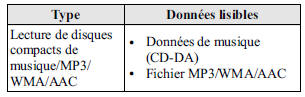
If a disc contains music data (CD-DA) and MP3/WMA/AAC files, playback of the two or three file types varies depending on the recording mode of the disc.
Loading the Compact Disc
Insert the compact disc, label side up, into the slot. The automatic loading mechanism will load the disc and start playback.
NOTE
There is a short delay before playback begins while the player reads the digital data on the disc.
Ejecting the Compact Disc
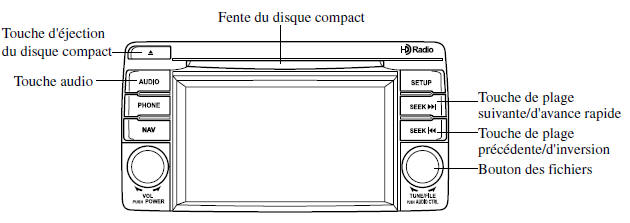
Press the compact disc eject button ( ) to eject the compact disc.
Playback
Press the audio key ( ) or the tab
 on the screen with a compact disc inserted.
Pause
To pause playback, briefly press the key on the screen.
Briefly press the button on the screen during pause to cancel it.
Fast Forward/Reverse
Operation using the audio panel
Press and hold the fast forward button ( ) and hold it to fast-forward through the track.
Press and hold the reverse button ( ) and hold it to fast-reverse through the track.
Operation on the screen
Press and hold the key on the screen to fast-forward through a track.
Press and hold the key on the screen to fast-reverse through a track.
Track Search
Operation using the audio panel
Press the next track button ( ) or turn the file knob clockwise once to skip to the start of the next track.
Press the previous track button ( ) or turn the file knob counterclockwise a few seconds after playback starts to go to the previous track.
Press the previous track button ( ) or turn the file knob counterclockwise after a few seconds to restart playback from the beginning of the current track.
Operation on the screen
Briefly press the key once on the screen to skip to the start of the next track.
Briefly press the button on the screen a few seconds after playback starts to go to the previous track.
Briefly press the button on the screen after a few seconds to restart playback from the beginning of the current track.
Displaying the file list
The list of desired files on the compact disc can be displayed.
During Music CD Playback
Briefly press the button on the screen to display the list of tracks on the compact disc.
During MP3/WMA/AAC CD Playback
(Displaying the file list in the desired folder)
- Briefly press the button
 on the screen to display the list of folders on the compact disc.
- Briefly press the folder you want to select.
(Displaying the file list in the current folder)
Briefly press the button on the screen.
Selecting a file/track
Select the file/track you want to play.
During Music CD Playback
- Briefly press the button
 on the screen to display the list of tracks on the compact disc.
- Briefly press the track you want to play.
During MP3/WMA/AAC CD Playback
NOTE
Press the  key on the screen on the file list screen to display the folder list.
(Selecting from all folders on the CD)
- Briefly press the button
 on the screen, the list of folders on the compact disc is displayed.
- Select the folder name from the displayed list.
- The files in the selected folder are displayed.
- Select the file you want to play.
(Select within the folder in which a track is currently playing)
- Briefly press the button
 on the screen to select the track list.
- Press the track you want to play.
Scan
During Music CD Playback
This function scans the tracks on a CD and plays 10 seconds of each track so you can find one you want to listen to.
- Briefly press the button
 on the screen during playback to play the first 10 seconds of each following track, starting with the next track.
- Briefly press the button
 on the screen during playback of the track you want to listen to, and continue playback from that point.
During MP3/WMA/AAC CD Playback
This function scans the tracks in a folder during playback and plays 10 seconds of each track so you can find one you want to listen to.
- Briefly press the button
 on the screen during playback to play the first 10 seconds of each following track, starting with the next track.
- Briefly press the buttonon the screen during playback of the track you want to listen to, and continue playback from that point.
NOTE
- If the unit is left in scan mode, normal playback will resume from the track where scanning started.
- If all tracks are scanned, the unit will return to normal playback.
Repeat Play
During Music CD Playback
Briefly press the button on the screen during playback to repeat the track currently playing. "
 " appears during playback.
Briefly press the button on the screen while "
 " is displayed to cancel.
During MP3/WMA/AAC CD Playback
(Track repeat) Briefly press the key on the screen to play the track repeatedly during playback. "
 " is displayed during playback.
Briefly press the button on the screen twice while "" is displayed to cancel.
(Folder repeat) Briefly press the key on the screen twice to repeat the tracks in the folder. "
 " is displayed during playback.
Briefly press the button on the screen while "
 " is displayed to cancel.
Random Play
During Music CD Playback
Briefly press the button on the screen during playback to play the tracks on the compact disc in random order. "
 " is displayed during playback.
Briefly press the button on the screen while "
 " is displayed to cancel.
During MP3/WMA/AAC CD Playback
(Folder random) Briefly press the key on the screen during playback to play the tracks in random order. "
 " is displayed during playback.
Briefly press the button on the screen twice while "
 " is displayed to cancel.
(CD random) Briefly press the key twice on the screen during playback to play the tracks on the compact disc in random order. "
 " is displayed during playback.
Briefly press the button on the screen while "
 " is displayed to cancel.
Scrolling the Display
If a full title cannot be displayed at once, briefly press the on the screen on the right side of the title. When the last character is displayed, briefly press the
 on the screen to display the first character of the title.
NOTE
- The
 key on the screen is only displayed if a complete title cannot be displayed at once.
- The information shown on the display is only the CD information (such as artist name and song title) that was recorded on the CD.
- This unit cannot display some characters. Characters that cannot be displayed are shown as an asterisk (
 ).
- The number of characters that can be displayed is limited.
Message Display
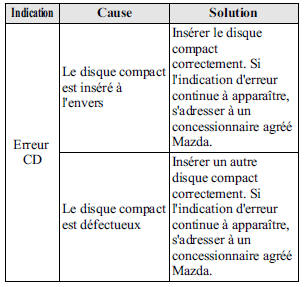
If "CD Error" is displayed, this indicates a compact disc malfunction. Check the disc for damage, dust or smudges, then reinsert it correctly. If the message still appears, take the unit to an authorized Mazda dealer for repair.
Using an AUX Jack/USB Port
You can listen to sound through the vehicle speakers by connecting a commercially available portable audio device to the auxiliary jack.
Use a commercially available 3.5 mm stereo mini-plug cable without resistance. See an authorized Mazda dealer for details.
You can also play sound from the vehicle audio system by connecting a USB device or iPod to the USB port.
See AUX/USB/iPod Mode on page 5-65.
Error Indications
If an error indication is displayed, refer to the following table to find the cause. If the error indication cannot be cleared, contact an authorized Mazda dealer.
Configuration
You can customize the settings on the setup screen as follows:
Display
Refer to Power/Volume/Display/Tone Controls on page 5-38.
Sound
Refer to Power/Volume/Display/Tone Controls on page 5-38.
Vehicle
- Door locks
- Lighting Controls
- Wiper Controls
- Press the setting button (
 ).
- Briefly press the
 on the screen to display the vehicle setup screen.
- Briefly press the desired setting item.
- Select the desired setting item from the list by pressing it.
- Briefly press the button
 on the screen.
Language
- Press the setting button (
 ).
- Briefly press the
 on the screen to display the language setup screen.
- Briefly press the desired language from the list.
- Briefly press the button
 on the screen.
NOTE
Only available languages are displayed.
Default (vehicle settings only)
- Press the setting button (
 ).
- Briefly press the
 on the screen.
- Briefly press the button
 on the screen.
- Briefly press the button
 on the screen.
- Briefly press the button
 on the screen.
NOTE
The display, sound and language settings cannot be initialized.
Test yourself
A quick Mazda 6 quiz: every answer comes with an explanation and a link to the manual page.