Connections. USB connection
This section describes the connection options of the BMW 5 Series (VII generation / G30 & G31), including Bluetooth, NFC and USB. It explains step by step how mobile devices are connected, managed and how their functions are used. A central guide for the seamless integration of smartphones, audio sources and internet services into the vehicle.
Connections
Principle
Mobile devices, e.g. mobile phones or laptops, can be connected to and used with the vehicle in different ways.
General
For the following connection types, a one-time registration with the vehicle is required:
- Bluetooth.
- Screen Mirroring.
- Internet hotspot.
- Apple CarPlay.
Registered devices are subsequently recognized automatically and connected to the vehicle.
The following functions are possible:
| Connection type | Function |
| Mobile phone via Bluetooth. | Telephoning. |
Office functions.
Perform software updates.
Export and import saved trips.
Play music.Safety information
WARNING Operating integrated information systems and communication devices while driving can distract you from traffic. Control of the vehicle may be lost. There is a risk of an accident.
Operate the systems or devices only when the traffic situation permits. If necessary, stop and operate the systems or devices with the vehicle stationary.
Display device list
All devices registered with or connected to the vehicle are shown in the device list.
Via iDrive:
- "My Vehicle"
- "iDrive settings"
- "Mobile devices"
A symbol indicates which function a device is being used for.
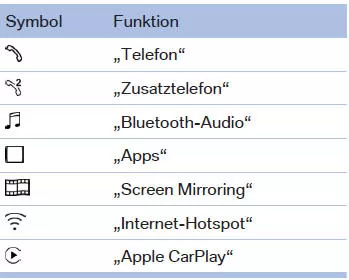
Bluetooth connection
Suitable devices
General
For detailed information on which mobile phones and mobile devices with Bluetooth interface are supported, visit www.bmw.com/bluetooth.
Malfunctions may occur with devices not listed or with deviating software versions.
Display vehicle identification number and software part number
To check which devices are supported, the vehicle identification number and the software part number are required.
The software version of the mobile phone may also be required.
Via iDrive:
- "My Vehicle"
- "iDrive settings"
- "Mobile devices"
- "Settings"
- "Bluetooth info"
- "System information"
A software update can be performed.
Prerequisites for operation
- Device is compatible.
- Device ready for operation.
- Bluetooth is switched on in the device and in the vehicle.
- Bluetooth presettings on the device may be required, e.g. visibility. See the device's operating instructions.
Switch on Bluetooth
Via iDrive:
- "My Vehicle"
- "iDrive settings"
- "Mobile devices"
- "Settings"
- "Bluetooth"
Activate/deactivate telephone functions
To use all supported functions of a mobile phone, the following functions must be activated before registering the mobile phone with the vehicle.
Via iDrive:
- "My Vehicle"
- "iDrive settings"
- "Mobile devices"
- "Settings"
- Select the desired setting:
- Activate the "Office" function to transfer text messages, emails, calendar, tasks, notes and reminders to the vehicle. Transferring all data to the vehicle may incur costs.
- Activate the "Contact pictures" function to display contact pictures.
- Tilt the controller to the left.
Register a mobile device with the vehicle
Via iDrive:
- "My Vehicle"
- "iDrive settings"
- "Mobile devices"
- "Connect new device"
- Select the functions for which the device is to be used:
 "Telephone"
 "Bluetooth audio"
 "Apps"
 "Apple CarPlay"
The Bluetooth name of the vehicle is shown on the Control Display.
- On the mobile device, search for Bluetooth devices in the vicinity.
The Bluetooth name of the vehicle is shown on the display of the mobile device.
Select the Bluetooth name of the vehicle.
- Compare the verification code displayed on the Control Display with the verification code on the device's display.
The device is connected and shown in the device list.
If logging in was not successful: frequently asked questions.
Near Field Communication, NFC
Principle
Near Field Communication, NFC, allows data to be transmitted over short distances using radio technology. This function reduces logging a mobile device into the vehicle to a single step.
Overview
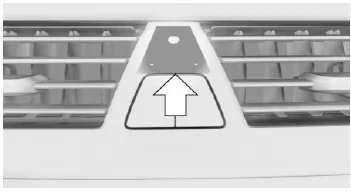
The NFC antenna is located in the instrument panel above the hazard warning button.
Prerequisites for operation
- Device is compatible.
- Device ready for operation.
- Bluetooth presettings on the device may be required, e.g. visibility. See the device's operating instructions.
Register a mobile device with the vehicle
- Activate the NFC function on the device, see the device owner's manual.
- Hold the device close to the NFC antenna.
- Depending on the mobile device, a verification number may be displayed.
- Compare the verification number on the Control Display with the verification number on the device display.
Depending on which functions are already assigned to other mobile devices, the device is connected for the telephone, additional telephone or music function.
If logging in was not successful: frequently asked questions.
USB connection
General
Mobile devices with a USB connector can be connected to the USB port.
- Mobile phones supported by the USB port.
The snap-in adapter has its own USB connector, which is connected automatically when a suitable mobile phone is inserted.
Common file systems are supported.
The FAT32 and exFAT formats are recommended.For information on suitable USB devices, go to www.bmw.com/bluetooth.
The following uses are possible:
- Exporting and importing driver profiles.
- Playing music files via USB audio.
- Playing video files via USB video.
- Loading software updates.
- Importing trips.
When connecting, note the following:
- Do not force the plug into the USB port.
- Use a flexible adapter cable.
- Protect the USB device from mechanical damage.
- Due to the large number of USB devices available on the market, operation via the vehicle cannot be guaranteed for every device.
- Do not expose USB devices to extreme ambient conditions, e.g. very high temperatures, see the device owner's manual.
- Due to the large number of different compression techniques, correct playback of media stored on the USB device cannot be guaranteed in every case.
- A connected USB device is supplied with charging current via the USB port if the device supports this. At higher temperatures, the USB device may reduce the charging current.
- To ensure correct transmission of the stored data, do not charge a USB device via the 12 V socket while it is connected to the USB port.
- Depending on how the USB device is to be used, settings on the USB device may be necessary, see the device owner's manual.
Unsuitable USB devices:
- USB hard drives.
- USB hubs.
- Multi-slot USB card readers.
- HFS-formatted USB devices.
- Devices such as fans or lamps.
Connect device
Connect the USB device with a suitable adapter cable with a USB port, see page 255.
The USB device is connected to the vehicle and shown in the device list.
The wide range of connection options in the BMW 5 G30/G31 provides maximum connectivity and comfort. Whether Bluetooth, USB or Apple CarPlay, all systems are designed to integrate mobile devices safely and easily.
The clear menu structure stands out in particular, making it easier to pair and manage devices. This keeps the driver well connected at all times without being distracted from driving.
The BMW 5 G30/G31 once again shows how modern technology and operating convenience go hand in hand.
Test yourself
A quick BMW 5 quiz: every answer comes with an explanation and a link to the manual page.