Navigation options
The following options with additional submenus are available:
Route criteria
Route calculation can be based on the following criteria:
Fastest
Shortest
Economic
Avoid freeways
Avoid toll roads
Avoid tunnels
Avoid ferries
Dynamic guidance to destination
Highlight and confirm the selection. When confirmed again, the Dynamic guidance (Interactive guidance) function is activated (a check mark appears in front of the menu line) or deactivated.
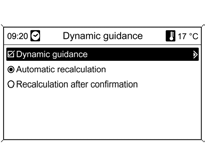
When guidance to destination is active, you can select whether a new route calculation is performed automatically if traffic disruptions occur, or only after the driver confirms the request.
Dynamic guidance (Interactive guidance)
Guidance to destination display
Several options are available for displaying the route guidance:
Map: the route is displayed on the map.
Arrow / Map:
the route is displayed on the map, and navigation arrows are also shown.
Arrow: the route is displayed only as navigation arrows.
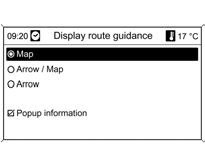
The Popup information option determines whether navigation guidance to the destination is shown in pop-up windows during other operating modes (for example, while listening to the radio).
After a certain time, or when the BACK button is pressed, the information is removed from the display.
Map options
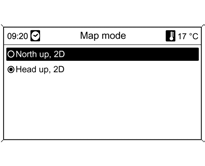
Map mode
Select the map orientation in the direction of travel (North up / Heading up) on the map screen.
Highlight and confirm the selection with the MENU knob.
Show POIs on map
Select whether points of interest (POI) are displayed on the map and, if so, which ones.
Using User defined, the user can specify the types of points of interest to be displayed, for example: restaurant, hotel, public places, etc.
Highlight and confirm the selection with the MENU knob.
Test yourself
A quick Chevrolet Cruze quiz: every answer comes with an explanation and a link to the manual page.