Entering a Destination
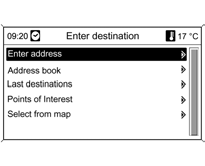
Press the DEST button; the following options are available in the Enter destination menu:
Enter address:
direct entry of the destination address, including country, city, street, and house number.
Address book:
opens an address already stored in the address book.
Last destinations: select from the list of recently selected destinations. Points of Interest:
select from a list of points of interest (restaurants, hotels, gas stations, etc.) near the current location, the destination, or other localities, or select on the map, or search by name.
Select from map: select the destination directly on the map using the crosshair.
Entering an Address
Press the DEST button, then select Enter address.
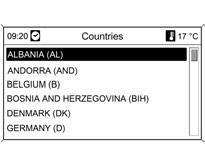
Direct address entry using the letter function:
Select the Country category. Highlight the desired country in the list and confirm the selection.
Select the City category.
Using the MENU knob, highlight the letters of the desired city in sequence and confirm.
The system automatically completes unambiguous letters.
When entering, the following characters can be selected from the bottom line.
The symbols mean:
 Lists of special characters appear on the bottom line.
 Highlight the previous/next letter.
 Delete the last character.
 Enter uppercase or lowercase letters.
 List function: after entering the first two letters, a list of all names with those letters is displayed. The more letters entered, the shorter the list.
OK: complete the entry or confirm the search target.
Press and hold the BACK button to delete all entered letters and characters in the corresponding line.
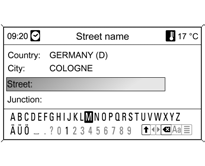
Repeat the process for the Street name and No.: or Junction categories.
After the address is fully entered, select Start navigation 3 40 or Store, or simulate the route in Demo mode.
Address book
Entering and Saving an Address in the Address Book
Press the DEST button, then select Enter address.
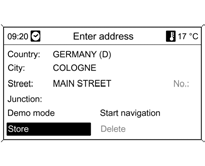
Enter the address as described in Direct Address Entry.
When Store is selected, the address is saved in the address book.
By default, the system suggests the destination address as the name. In Edit name, the destination can be saved under an individual name using the letter function.
Up to 100 destinations can be saved in the address book.
Selecting an Address from the Address Book
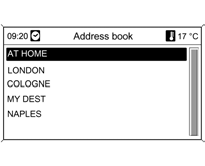
Press the DEST button, then select Address book.
Select the desired address name from the list and confirm; the address is used for route guidance.
Start navigation, or simulate Demo mode, or change Edit name, or delete the name from the list using Delete.
Test yourself
A quick Chevrolet Cruze quiz: every answer comes with an explanation and a link to the manual page.