Selecting a Point of Interest
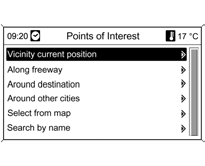
Press the DEST button, then select Points of Interest.
A page with several submenus appears, in which points of interest are divided into categories (e.g., automotive, leisure, restaurants).
Vicinity current position
Displays points of interest near the current location. For example, to find a restaurant.
Select the Restaurant category.
A search mask with additional criteria for restaurants appears. Make a selection and refine the search criteria.
Return to the search window by pressing the BACK button. The number of restaurants can be reduced by selecting the appropriate criteria.
Confirm Start search; a list of all restaurants in the area that meet the criteria is displayed, with distance information.
After a restaurant is selected, the destination guidance mask appears with the following options:
Extras: if available, the phone number and address of the selected restaurant are displayed.

Demo mode: simulates guidance to the destination.
Start navigation: the selected point of interest is transferred to the navigation system.
Store: the destination is saved in the address book.
Along motorway
Displays points of interest near the highway along the route (for example, fuel or service stations). Only displayed while driving on a highway.
Select the required category, then the name of the desired point of interest, see example in "Around destination".
Around destination
Displays points of interest near the specified destination.
For example, a fuel station is required.
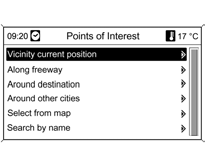
Select the Automotive category.
Confirm the selection Automotive, then Gas Station.
A list of all gas stations near the destination appears.
The number of gas stations can be reduced by selecting the name of a gas station brand.
After confirming Start search, all or only the selected gas stations near the destination are displayed together with their distance.
After selecting a gas station, the guidance screen to the destination appears with the following options:
Extras: if available, the phone number and address of the gas station are displayed.
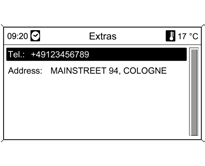
Demo mode: simulates guidance to the destination.
Start navigation: the selected point of interest is transferred to the navigation system.
Store: the destination is saved in the address book.
Around other cities
Displays points of interest in any locality.
For example, a shopping center is required.
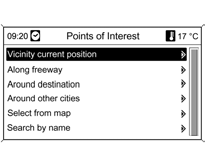
Select the required country from the country list.
Enter the name of the locality using the alphanumeric function 3 34.
Confirm the selection.
Select the Shopping category.
After confirming, select Shopping Centers.
After confirming Start search, a list of all shopping centers in the selected locality is displayed together with their distance.
After selecting a shopping center, the guidance screen to the destination appears with the following options:
Extras:
the address of the shopping center is displayed.
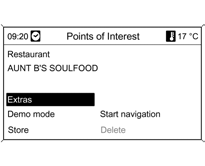
Demo mode: simulates guidance to the destination.
Start navigation: the selected point of interest is transferred to the navigation system.
Store: the destination is saved in the address book under its name.
Select from map
Use the eight-position switch to move the crosshair to the point of interest on the map.
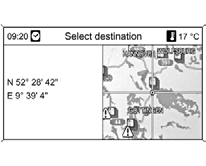
Change the map scale by turning the MENU knob.
After selecting the destination, Start navigation or Store
Search by name
Select the country and enter the name of the point of interest using the alphanumeric function. If the entry is unique, a selection list appears.
Alternatively, when selecting the list function, all names may be displayed in the input field. The search selection can be narrowed by entering several letters. The more letters entered, the shorter the list.
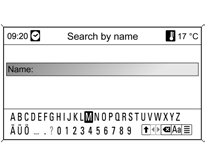
After selecting the destination, the guidance screen to the destination appears with the following options:
Extras: if available, the phone number and address of the destination are displayed.
Demo mode: simulates guidance to the destination.
Start navigation: the selected point of interest is transferred to the navigation system.
Store: the destination is saved in the address book; you can keep the suggested name or enter your own name using the alphanumeric function.
Selecting a destination on the map
Press the DEST button, then select Select from map.
Use the eight-position switch to move the crosshair to the destination on the map.

Change the map scale by turning the MENU knob.
After selecting the destination, Start navigation or Store.
Route guidance: after selecting the destination in the Enter address menu, the following options are available:
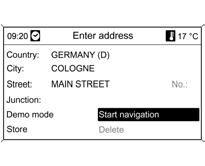
Demo mode: simulates route guidance to the entered destination.
Start navigation: starts route guidance to the entered destination.
Store: the entered destination is saved in the address book by entering its name.
Delete: the selected destination is deleted from the address book.
Test yourself
A quick Chevrolet Cruze quiz: every answer comes with an explanation and a link to the manual page.