Personalisation
 Press and hold the screen from one of the system's home pages.
Or
 Press the "Settings" application.
In the list, select the "Customization" tab.
Press the "Displays" field.
A page divided into 2 parts is displayed.
Press the HOME button at any time to leave this page.
Personalising the screen
 Press the pencil in the "Customize Touchscreen" part.
A representation of the organisation of the different home page (HOME) Widgets is displayed.
A Widget is a reduced window of an application or service.
Adding a Widget
 To add a Widget, press "Widget" on the left of the screen.
Or
 Press one of these buttons on the screen.
Select the desired Widget.
 Press the back arrow to return to the previous page.
Organising the Widgets on a home page (HOME)
To move a Widget, press and hold it, then drag it to the desired location.
Adding a page
 To add a page, press "Page" on the left of the screen.
 Press the back arrow to return to the previous page.
Deleting a Widget
 To move a Widget to the bin, press and hold it, then drag it to the bin.
Personalising the instrument panel
 Press the pencil in the "Customize Driver Information" part.
The modification of the organisation of the different Widget is displayed on the instrument panel in real time.
A Widget is a reduced window of an application or service.
Adding a Widget
 To add a Widget, press "Widget" on the left of the screen.
Or
 Press one of these buttons on the screen.
Select the desired Widget.
 Press the back arrow to return to the previous page.
Deleting a Widget
 To move a Widget to the bin, press and hold it, then drag it to the bin.
Personalising My shortcuts
(depending on equipment)
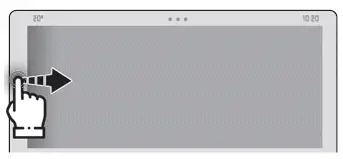
From the left or right edge of the screen, swipe right or left to display the shortcuts.
A representation of six shortcuts appears.
These shortcuts can be used to access an application (e.g. Media, Climate) or to launch an action (e.g. set the temperature to 21º, call a contact selected in their directory).
Briefly press a shortcut to be replaced, a panel is displayed with all eligible shortcuts. A notification also informs you of the next step to be applied.
Select the desired new shortcut. It will be duplicated in the My shortcuts page and will replace the originally selected one. A notification also informs you of this.
 To exit this function at any time, press this button or press the HOME main button.