Digital instrument cluster
This instrument cluster can be personalised.
The content and layout of the information vary depending on the selected display mode and the vehicle's equipment.
Example with the "DIALS" display mode:
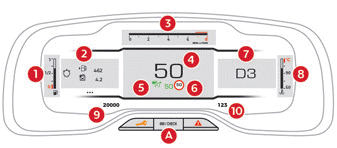
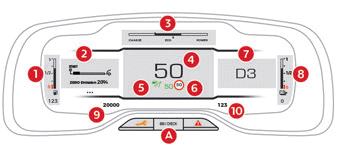
- Fuel gauge
Remaining fuel range (km or miles) (Plug-in hybrid) - Trip computer
- Tachometer (x 1000 rpm) (Petrol or Diesel)
Power meter (Plug-in hybrid) - Digital speedometer (km/h or mph)
- Cruise control or speed limiter setpoints
- Speed limit sign display
- Automatic gearbox selector position and gear
Gear shift indicator
Selected drive mode - Coolant temperature gauge (°C) (Petrol or Diesel)
Battery charge level and remaining range (km or miles) (Plug-in hybrid) - Odometer (km or miles)
- Daily trip odometer (km or miles)
Control button
- Short press: displays the alert log, recalls the temporary service information or the AdBlue and SCR system range (km), and displays the tyre pressure status information.
Long press: resets the service indicator or the daily trip odometer (depending on context).
Displays
Some indicator lamps have a fixed position, others have a variable position.
For certain functions that have both an operation indicator lamp and a deactivation indicator lamp, there is only one dedicated position.
Permanent information
In standard display, the instrument cluster shows:
- at fixed positions:
- Tachometer (Petrol or Diesel).
- Fuel level gauge.
- Coolant temperature gauge.
- Battery charge level and range gauge (Plug-in hybrid).
- Power meter (Plug-in hybrid).
- Odometers.
- at variable positions:
- Information related to the gearbox and the gear shift indicator.
- Digital speedometer.
- Status or warning messages displayed temporarily.
Optional information
Depending on the display mode selected and the equipment activated, additional information may be shown:
- Tachometer (Petrol or Diesel).
- Trip computer.
- Driving assistance functions.
- Speed limiter or cruise control.
- Media currently playing.
- Navigation instructions / guidance.
- Analogue speedometer.
- Engine oil level and temperature.
Instrument cluster personalisation
You can change the appearance of the instrument cluster by choosing:
- a display colour.
- a display mode.
Display language and units
These depend on the touchscreen settings.
When driving abroad, it is essential to display the speed in the official unit of the country you are driving in (km/h, or km or mph, miles).
For safety reasons, these settings must be made with the vehicle stationary.
Choosing the display colour
 ► Press "Settings" in the top bar of the touchscreen.
► Select "Themes".
► Select a display colour.
Choosing the display mode
Each mode corresponds to different types of information shown on the instrument cluster.
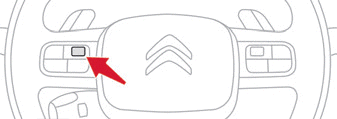
► Turn the wheel on the left-hand side of the steering wheel to display and scroll through the different modes on the left-hand side of the instrument cluster.
► Press the wheel to confirm the mode.
The new display mode is applied immediately.
If the wheel is not operated, the selected display mode is applied automatically after a few moments.
Display modes
- "Dials": standard display of the analogue and digital speedometers, odometer and:
- fuel gauge, engine coolant temperature gauge and rev counter (Petrol or Diesel).
- fuel gauge, battery charge level indicator and power indicator (Plug-in hybrid).
- "Navigation": specific display showing information related to the current navigation (map and instructions).
- "Driving": specific display showing information related to the driving assistance systems in use.
- "Minimal": reduced display with digital speedometer, odometer and:
- fuel gauge and engine coolant temperature gauge (Petrol or Diesel).
- fuel gauge and battery charge level indicator (Plug-in hybrid).
- "Personal": minimal display with the option to select optional information to show in the customisable left and right zones.
Setting up a "Personal" display mode
With CITROËN Connect Radio
 ► Press Settings in the touchscreen top bar.
 ► Select "Configuration".
 ► Select "Instrument cluster personalisation".
With CITROËN Connect Nav
 ► Press Settings in the touchscreen top bar.
► Select "OPTIONS".
► Select "Instrument cluster personalisation".
► For each of the customised display zones (left and right), select a type of information using the corresponding scroll arrows on the touchscreen:
- "Driving assistance".
- "Default" (empty).
- "G-meters" (depending on version).
- "Media".
- "Navigation".
- "Trip computer".
- "Hybrid flows" (depending on version).
- "Rev counter" (depending on version).
► Confirm to save and exit.
The information is shown immediately on the instrument cluster if the corresponding display mode is selected.
Test yourself
A quick Citroen C5 Aircross quiz: every answer comes with an explanation and a link to the manual page.