Switching the Display
Using the  button
Press the  (display) button to change the display.

Using the audio/information screen
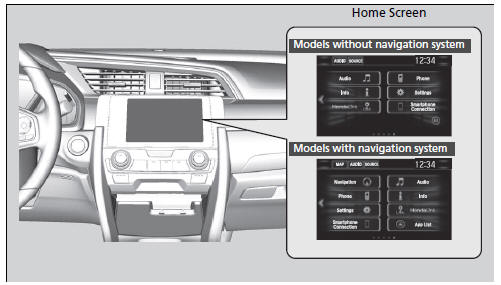
Select  to go to the home screen.
Select Phone, Info, Audio, Settings, Navigation*, HondaLink, Smartphone Connection (Apple CarPlay, Android Auto), App List, or Instrument Panel.
Phone
Displays the HFL information.
Bluetooth’ HandsFreeLink’
Using the audio/information screen
Touchscreen operation
- Use simple gestures - including touching, swiping and scrolling - to operate certain audio functions.
- Some items may be grayed out during driving to reduce the potential for distraction
- You can select them when the vehicle is stopped or use voice commands
- Wearing gloves may limit or prevent touchscreen response.
You can change the touchscreen sensitivity setting
Info
Displays Trip Computer or Clock/Wallpaper. Select  on the Info Menu screen to see all available options: Trip Computer, Voice Info, Clock/Wallpaper and System/Device Information.
Trip Computer:
- Current Drive tab: Displays the current trip information.
- History of Trip A tab: Displays information for the three previous drives. The information is stored every time you reset Trip A.
Voice Info: Displays the all commands list.
Clock/Wallpaper: Displays the clock and wallpaper.
System/Device Information:
- System Info: Displays the software version of the audio system.
- USB Info: Displays the memory usage of the USB device.
Audio
Displays the current audio information.
Settings
Enters the customizing menu screen.
Navigation*
Displays the navigation screen.
Refer to the Navigation System Manual
HondaLink
Connects with your smartphone*1 to play personalized music, information, and social media streams.
HondaLink’
Smartphone Connection
Connects with your smartphone*1 and allows some apps on your smartphone to be used on the audio system.
Apple CarPlay
Android Auto
App List
Adds or removes apps or widgets on the home screen.
Home Screen
Instrument Panel
Selects from three customizable settings for the driver information interface.
Test yourself
A quick Honda Civic quiz: every answer comes with an explanation and a link to the manual page.