Home Screen
To change to a next screen
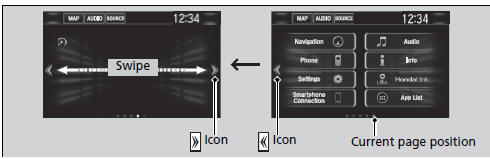
Selecting  or
 , or swiping the screen left or right changes to the next screen.
Home Screen
The home screen has 5 pages (fixed). You cannot add any more pages.
Select  to go directly back to the first page of the home screen from any page.
To use apps or widgets
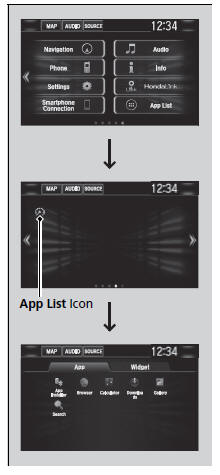
1. Select  .
2. Select  .
3. Select App List.
- The Apps screen appears.
4. Select the app or widget you want to use.
Preinstall app list:
- App Installer: Allows you to install apps.
- Browser: Displays the web browser utilized by smartphone and Wi-Fi connection.
- Calculator: Displays Calculator.
- Downloads: Displays the data downloaded from the web browser and so on.
- Gallery: Displays images.
- Search: Displays various retrieval screen.
To use apps or widgets
Select and hold a selected app or widget to add that app’s or widget’s shortcut on the home screen.
Pre-installed apps may not start up normally. If this occurs, you need to reset the system.
Defaulting All the Settings
If you perform Factory Data Reset, it may reset all the settings to their factory default.
Defaulting All the Settings
In case those apps still do not startup normally even after Factory Data Reset, contact your dealer.
There is a possibility that a browser is shut down in the situation of the use. In that situation, the screen will return to before the browser startup.
You can delete user installed apps by the following procedure.
1. Select  .
2. Select Settings.
3. Select System.
4. Select the Others tab.
5. Select Detail Information.
6. Select an app that you want to delete.
7. Select Delete.
Pre-installed apps cannot be deleted.
To add app or widget icons on the home screen
App or widget icons can be added on the home screen.

1. Select  .
2. Select  .
3. Select and hold empty space on the home screen.
- The pop-up menu appears on the screen.
4. Select Add App or Add Widget
- The App/Widget screen appears.

5. Select and hold an app or widget icon you want to add.
- The screen switches to the customization screen.
6. Drag and drop the icon to where you want it to be.
7. Select OK.
- The screen will return to the home screen.
To move icons on the home screen
You can change location on the home screen.
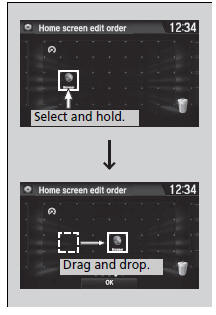
1. Select and hold an icon.
- The screen switches to the customization screen.
2. Drag and drop the icon to where you want it to be.
3. Select OK.
- The screen will return to the home screen.
To move icons on the home screen
You can also move the Phone, Info, Audio, Settings, Navigation*, HondaLink, Smartphone Connection, App List, and Instrument Panel icons in the same manner.
To remove icons on the home screen
You can delete the icons on the home screen.
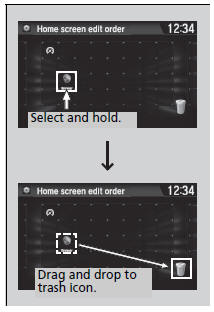
1. Select and hold an icon.
- The screen switches to the customization screen.
2. Drag and drop the icon you want to remove to the trash icon.
- The icon is removed from the home screen.
3. Select OK.
- The screen will return to the home screen.
To remove icons on the home screen
You cannot delete the Phone, Info, Audio, Settings, Navigation*, HondaLink, Smartphone Connection, App List, and Instrument Panel icons.
Apps or widgets will not be deleted by deleting the icon on the home screen.
Test yourself
A quick Honda Civic quiz: every answer comes with an explanation and a link to the manual page.