Wallpaper Setup
You can change, store, and delete the wallpaper on the audio/information screen.
Import wallpaper
You can import up to five images, one at a time, for wallpaper from a USB flash drive.
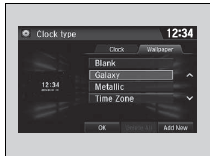
1. Connect the USB flash drive to the USB port.
2. Select Settings.
3. Select Clock.
4. Select Clock/Wallpaper Type, then open the Wallpaper tab.
5. Select Add New.
- The picture name is displayed on the list.
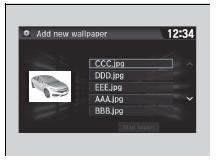
6. Select a desired picture.
- The preview is displayed on the left side on the screen.
7. Select Start Import to save the data.
- The display will return to the wallpaper list.
Wallpaper Setup
The wallpaper you set up on Clock/Wallpaper Type cannot be displayed on the driver information interface.
- When importing wallpaper files, the image must be in the USB flash drive’s root directory.
After changing the screen interface design, you can change the wallpaper by following procedure.
1. Select  .
2. Select and hold empty space on the home screen.
The pop-up menu appears on the screen.
3. Select Change Wallpaper.
4. Select Gallery, Live wallpapers, or Wallpapers.
Select wallpaper
1. Select Settings.
2. Select Clock.
3. Select Clock/Wallpaper Type, then open the Wallpaper tab.
- The screen changes to the wallpaper list.
4. Select a desired wallpaper.
- The preview is displayed on the left side on the screen.
- The pop-up menu appears on the screen.
5. Select Set.
- The display will return to the wallpaper list.
To view wallpaper once it is set
1. Select  .
2. Select Info.
3. Select  .
4. Select Clock/Wallpaper.
Delete wallpaper
1. Select Settings.
2. Select Clock.
3. Select Clock/Wallpaper Type, then open the Wallpaper tab.
- The screen changes to the wallpaper list.
4. Select a wallpaper that you want to delete.
- The preview is displayed on the left side on the screen.
- The pop-up menu appears on the screen.
5. Select Delete.
- A confirmation message appears on the screen.
6. Select Yes to delete completely.
The display will return to the wallpaper list.
Wallpaper Setup
From the pop-up menu, select Preview to see a preview at full-size screen.
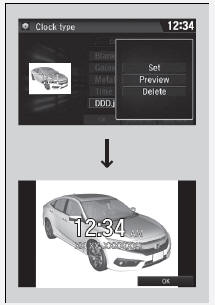
To go back to the previous screen, select OK, or select  .
When the file size is large, it takes a while to be previewed.
To delete all wallpapers you add, select Delete All, then Yes.
Test yourself
A quick Honda Civic quiz: every answer comes with an explanation and a link to the manual page.