Menu display
Applies to vehicles with driver information system
Introduction
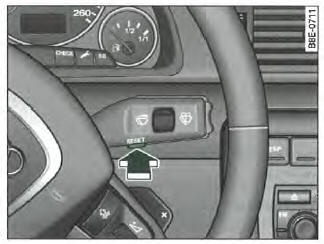
Fig. 25 Wiper lever: Reset button
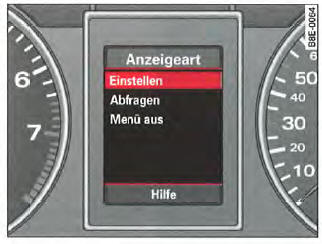
Fig. 26 Display: home menu
Certain functions of your vehicle can be set, activated and controlled via menus (for example, auxiliary heating and ventilation*). These menus also allow you to
define the information you want shown on the driver information system display. However, menus can only be displayed when the ignition is switched on. To access the different menus, press the button located on the
wiper lever => fig. 25.
The home menu shows the different display modes:
Settings
Info
Exit menu
Help
Applies to vehicles with driver information system
Menu selection
The and the toggle control
on the wiper lever are used to select menus, then to query and adjust these menus.
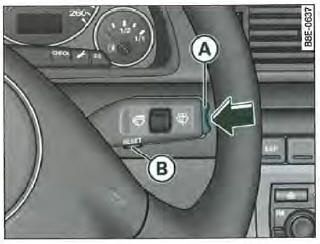
Fig. 27 Wiper lever: Reset button and toggle control
The functions of the Reset button
=> fig. 27 and the toggle control :
Selecting a menu
- Press the button
 until
the menu in fig. 26 is displayed.
Selection and adjustment
Press the toggle control to select a menu. The control (up/down) works in the same way as the display.
Entry and confirmation
Press the button .
The toggle control lets you select a menu or change certain settings. The selected values are then shown on a red background.
Press the Reset button to activate the corresponding selection or confirm a setting. Selected functions are ticked.
Applies to vehicles with driver information system
Display modes
The driver information system home menu offers four display modes.
The following functions are behind the 4 display modes of the home menu => fig. 26:
Settings
- Auxiliary heating/ventilation*
- Clock (time/date)
- Computer
- Tempo alarm (speed warning)
- Tire pressure warning
- Radio (on/off)
- Language
- Units (conversion of distance, consumption, time zone and temperature units)
Info
- Maintenance
Exit menu
All messages for vehicles without menu display appear on the screen.
Help
This function helps you choose the correct command in your navigation.
Applies to vehicles with driver information system
Using Help
The driver information system has a help function.
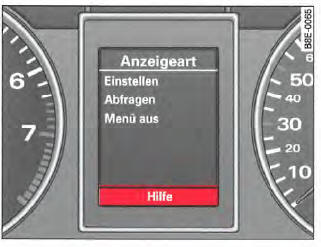
Fig. 28 Driver information system display: start menu, Help selected
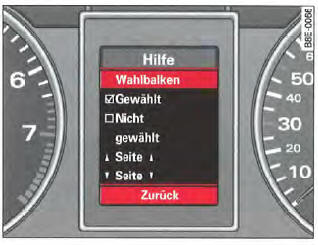
Fig. 29 Display: Help overview
Proceed as follows to call up Help:
- Press the button
 =>, fig. 27.
The start menu appears => , fig. 26. - Use the toggle control to select the Help function => , fig. 27.
- Activate the selection by pressing the
 .
- Press the button
 button to exit
the Help menu.
The Help menu provides information. This menu does not allow you to make any settings.
Meaning of the display symbols:
Test yourself
A quick Audi A4 quiz: every answer comes with an explanation and a link to the manual page.