Navigation - Route guidance
Insert and leave the navigation SD card in the front panel reader to use the navigation functions.
The data on the navigation SD card must not be modified.
Map data updates are available from a CITROËN dealer.1.  Press the NAV key.

 The list of the last 20 destinations
appears below the “Navigation” menu function.
2.  Press the
NAV key again or select the «Navigation» menu function and press the knob to confirm.


3.  Select the «Enter
destination» function and press the knob to confirm.


4.  Select the «Enter
new address» function and press the knob to confirm.


5.  Once the country is selected,
turn the knob and select the city function. Press the knob to confirm.

6.  Select the letters of the
city one by one, pressing the knob to confirm each time.

 A predefined list of towns in the selected country (by entering the first letters) is accessible from the LIST key on the virtual keyboard.
7.  Turn the knob and select
OK.
Press the knob to confirm.

 For faster entry, you can
enter the postcode directly after selecting the «Postcode» function.
8.  Repeat steps 5 to 7
for the «Street» and «Number» functions.

 Select the «Add
to address book» function to save the entered address in an address book entry. Press the knob to confirm the selection.
 During guidance, pressing
the end of the lighting control repeats the last guidance instruction.

9.  Then select «Start guidance»
and press the knob to confirm.


 Select the guidance criterion
: «Fastest route», «Shortest route» or «Optimised time / distance» and press the knob to confirm.

 Map settings
Zoom in or out on the map using the knob.
You can move the map or choose its orientation from the shortcut menu of the FULL SCREEN MAP.
Press MODE until the map is displayed in full screen.
Press the knob, then select «Map settings».
Select «Perspective» or «Flat map» and, in the latter case, select «Heading north» or «Vehicle heading».
To delete a destination: from steps 1 to 3, select «From last destinations».
A long press on one of the destinations displays a list of actions from which you can choose:
- Delete destination
- Clear last destinations
1.  Press the NAV key twice
to display the «Navigation» menu.


2.  Select «Enter destination»
and confirm. Then select «From address book» and confirm.


3.  Select «Address book menu»
and confirm. Then select «Search entry» and confirm.


4.  Select the home entry
and confirm. Then select «Edit entry» and confirm.


5.  Select «Assign to «my
home»» and confirm to save.


 To start guidance to «My
home», press NAV twice to display the «Navigation» menu, select «Enter destination» and press OK.
The route selected by the MyWay radio navigation system depends directly on the guidance options.
Changing these options may completely change the route.1.  Press the NAV key.

2.  Press the
NAV key again or select the «Navigation» menu function and press the knob to confirm.


3.  Select the «Guidance
options» function and press the knob to confirm.


4.  Select the «Guidance
criteria» function and press the knob to confirm. This function is used to change the guidance criteria.


5.  Select the «Traffic
consideration» function.
This function gives access to the «No deviation» or «With confirmation» options.


6.  Select the «Exclusion
criteria» function. This function gives access to the EXCLUDE options (motorways, tolls, ferries).


7.  Turn the knob and select
the «Recalculate route» function to take the selected guidance options into account. Press the knob to confirm.


ADD A STOP
1.  Press the NAV key.

2.  Press the
NAV key again or select the «Navigation» menu function and press the knob to confirm.


3.  Select the «Waypoints» function
and press the knob to confirm.


4.  Select the «Add
waypoint» function (5 waypoints maximum) and press the knob to confirm.


5.  Enter a new
address, for example.


6.  Once the new address is entered,
select «OK» and press the knob to confirm.


7.  Select «Recalculate route»
and press the knob to confirm.


 The stop must be reached or deleted for route guidance to continue to the next destination. Otherwise, the MyWay will always take you back to the previous stop. SEARCHING FOR POINTS OF INTEREST (POI)
Points of interest (POI) show all nearby services (hotels, various shops, airports, etc.).
1.  Press the NAV key.

2.  Press the
NAV key again or select the «Navigation» menu function and press the knob to confirm.


3.  Select the «Search
points of interest» function and press the knob to confirm.


4.  Select the «Nearby» function
to search for POIs around the vehicle.


5.  Select the «Near
destination» function to search for POIs near the route's end point.


6.  Select the «In a
city» function to search for POI in the desired city. Choose the country, then enter the city name using the virtual keyboard.


 A list of cities in the selected country is accessible from the LIST key on the virtual keyboard.
7.  Select the «In
a country» function to search for POIs in the desired country.


8.  Select the «Along
the route» function to search for POIs near the route.


 This icon appears when several
POIs are grouped in the same area. Zoom in on this icon to see the POIs in detail.
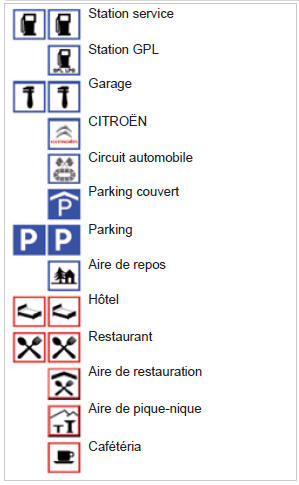
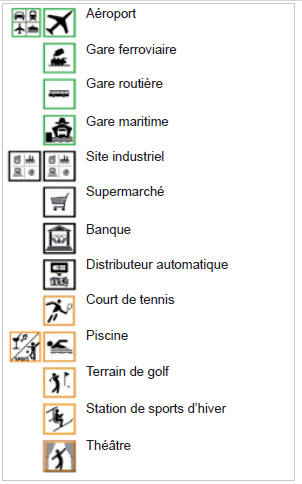

* Depending on country availability.
NAVIGATION SETTINGS ! To turn voice guidance on or off, when guidance is active and the map is displayed on the screen, press the wheel, then select or deselect "Voice message".
1.  Press the NAV key.

2.  Press the
NAV key again or select the «Navigation» menu function and press the knob to confirm.


3.  Select the «Settings» function
and press the knob to confirm.


4.  Select the «Voice
message volume» function and turn the knob to adjust the volume of each voice announcement (traffic information, alert messages, etc.).


 The volume of POI Danger Zone alerts can only be adjusted while the alert is being played.
5.  Select the «Points
of interest on map» function to select the POIs displayed on the map by default.


6.  Select «Set risk zone
alerts» to access the «Show on map», «Visual warning on approach» and «Audible warning on approach» functions.


! POI DANGER ZONE UPDATES
Contact the CITROËN network to find out the procedure for obtaining RISK ZONE POIs.
It requires an SDHC (High Capacity) compatible reader.Test yourself
A quick Citroen C5 quiz: every answer comes with an explanation and a link to the manual page.