Playing iPod Recordings
You can control playback of audio files recorded on an iPod using the same controls used for the CD player or CD changer. Connect the iPod cable to the USB connector of the auxiliary cable located in the upper glove box, then press the CD/AUX button. The ignition key must be in the ACCESSORY (I) or ON (II) position. With the ignition key in either of these positions, the iPod will be charged.
The audio system will read and play audio files recorded on the iPod.
The system does not recognize the iPod as a storage device.
The system plays only those tracks that were recorded on the iPod using iTunes.
iPod and iTunes are registered trademarks of Apple Inc.
The iPod models listed below are compatible with the audio system when using the USB connector cable.
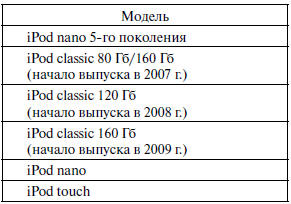
The system may not work with all software versions of these devices.
• Do not connect the iPod through a hub.
• Do not store the iPod in the vehicle. Direct sunlight and heat may damage it.
• When connecting the device, do not install an extension cable between the USB connector cable supplied with your vehicle and the iPod connector.
• We recommend backing up your data before using the device.
• Some devices do not receive power or charge through the USB port. In this case, use a special cable to connect the device to a power outlet.
Connecting an iPod Player
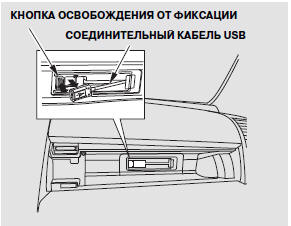
1. Open the upper glove box.
2. Press the release button to unlock the USB connection cable.
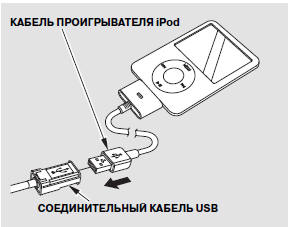
3. Connect the cable to the iPod player correctly and securely.
4. Connect the free end of the iPod player cable to the USB connector on the vehicle's cable assembly. Make sure the connection is secure.
Close the glove box before driving.
If the iPod indicator does not appear on the audio system display, check the connections and try connecting the iPod again several times.
If the system still does not recognize the device, the iPod may need to be reset. Refer to the iPod player owner's manual or visit www.apple.com/ for instructions.
Text Information Display Function
Each time the TITLE button is pressed, text information is shown on the display in the following order: album name, song title, artist name. Pressing this button again turns off the text information display.
Up to 16 characters of text information can be shown on the display at one time.
If the text information exceeds 16 characters, the display shows 15 characters and the > indicator. Press and hold the TITLE button until the next 16 characters appear on the display.
Changing or Selecting Files
To select or change a track during playback of iPod recordings, press the seek button.
NEXT TRACK OR START OF CURRENT TRACK – Each time the button is pressed and released, the player skips to the start of the next track. The player skips to the start of the next track.
Press and release the button to go to the start of the current track.
Press and release this button again to skip to the start of the previous track, and so on.
To fast forward through a track, press and hold the buttonor.
Selecting a File from the iPod Player Menu
Using the VOL/SELECT knob, you can also select a file from any of the following iPod player menus: playlists, artists, albums, and songs. Press the VOL/SELECT knob to switch the display to the player menu mode, then turn the knob to select the desired list.
Press the VOL/SELECT knob or the button to play the selected track.
The selected list will appear on the display.
Turn the VOL/SELECT knob to select the desired item from the list, then press the select knob or the buttonto play the selected track.
If you select the "ALL" item, the system will play all available files from the selected list.
Press the button to return to the previous screen. Press the TITLE button to cancel this mode.
Selecting Repeat and Random Playback Modes. You can select various repeat or random playback modes using the RPT and RDM buttons.
REPEAT PLAYBACK – When this mode is on, the system repeats the current file. To activate repeat playback, press the RPT button. The "RPT" indicator will appear on the display. To cancel, press the RPT button again.
RANDOM PLAYBACK OF ALL FILES – When this mode is on, all files from the selected list (playlist, artist list, album list, or song list) are played in random order. To activate random playback of all files, press the RDM button. The "RDM" indicator will appear on the display. To cancel this mode, press and hold the RDM button.
RANDOM PLAYBACK OF ALBUMS – When this mode is on, all albums from the selected list (playlist, artist list, album list, or song list) are played in random order. Files within each album are played in sequence, in the order they were recorded. To activate random album playback, press the RDM button. The "F-RDM" indicator will appear on the display. To cancel this mode, press and hold the RDM button.
Each time the RDM button is pressed, the system mode changes in the following order: random playback of all files, random playback of all albums, normal playback mode.
NOTE:
The available functions depend on the model and version of the iPod player. The vehicle audio system may not support some iPod functions.
Test yourself
A quick Honda CR-V quiz: every answer comes with an explanation and a link to the manual page.