CD Storage
- If the interior temperature of the vehicle becomes too high, open the windows to ventilate before using the system.
- It is illegal to copy and use MP3/WMA files without authorisation. Use only CDs created by legal means.
- Do not apply volatile agents such as benzene, thinners, detergents or anti-static sprays designed for analogue records to CDs.
- To prevent damage to the disc surface, handle CDs by the edges or only by the centre hole.
- Clean the disc surface with a soft cloth before playback (wipe from the centre outwards).
- Do not damage the disc surface or attach stickers or paper to it.
- Make sure that nothing other than CDs is inserted into the CD player (do not insert more than one CD at a time).
- After use, store CDs in their case to protect them from scratches and dirt.
- Depending on the type of CD-R/CD-RW, some discs may not play normally depending on the manufacturer and the methods used to create or record them.
Under some circumstances, continuous use may cause malfunctions of the audio system.
NOTE - Playback of an incompatible copy-protected audio CD
Some copy-protected CDs that do not comply with international audio CD standards (Red Book) may not work in the car audio. Note that failure to properly start a copy-protected CD may indicate that the CD is defective, not the CD player.
NOTE
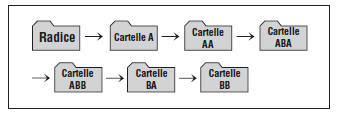
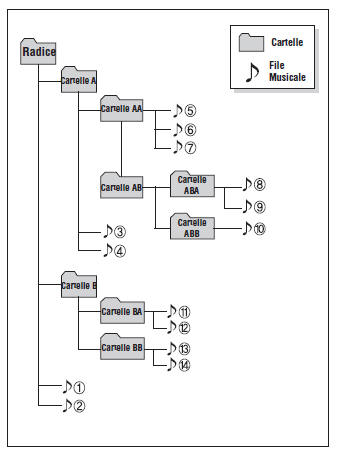
File playback order (folders):
1. Song playback order.
2. Folder playback order.
If no music file is contained in the folder, the folder is not displayed.
NOTE - ON THE USE OF USB DEVICES
- To use an external USB device, make sure that the device is not connected when the vehicle is started. Connect it only after starting.
- If the engine is started while the USB device is connected, you risk damaging it (USB flash drives are extremely sensitive to electric shock).
- If the engine is started or turned off while the external USB device is connected, the latter may not work.
- Non-authentic WMA or MP3 files cannot be played.
1) Only MP3 files with a compression rate of 8 Kbps to 320 Kbps can be played.
2) Only WMA music files with a compression rate of 8 Kbps to 320 Kbps can be played.
- Take precautions against static electricity when connecting or disconnecting the external USB device.
- Encrypted MP3 players are not recognized.
- Depending on the conditions, the external USB device may not be recognized.
- If the sector/byte setting VHAPTTL of the external USB device is neither 512 bytes nor 2048 bytes, the device will not be recognized.
- Use only equipment formatted as FAT 12/16/32.
- USB I/F devices without authentication on the USB interface may not be recognized.
- Make sure the USB connection terminal does not come into contact with the human body or other objects.
- If the USB device is connected and disconnected repeatedly within a short period of time, it may be damaged.
- A strange noise may be heard when connecting or disconnecting a USB device.
- The external USB device may be damaged or may not function properly if it is disconnected during playback in USB mode. Therefore, disconnect the external USB device when the audio is off or in another mode (e.g. Radio, CD).
- The time required to recognize the external USB device varies depending on the type and capacity of the device itself or the type of files stored on it.
- Do not use the USB device for purposes other than listening to music files.
- Video playback via USB is not supported.
- Using USB accessories, such as chargers or heaters that use the USB I/F (USB IMPLEMENTERS FORUM), may reduce performance or cause malfunctions.
- If devices such as a separately purchased USB adapter are used, the vehicle's audio system may not recognize the USB device. Connect the USB device directly to the vehicle's multimedia terminal.
- If the USB device is divided into logical drives, only the music files on the priority drive will be recognized by the vehicle's audio system.
- Devices such as MP3 players, mobile phones and digital cameras may not be recognized through the standard USB interface.
- Charging via USB may not be supported by some mobile devices.
- USB HDD or USB devices prone to connection errors due to vehicle vibration are not supported (i-stick type). - Some non-standard USB devices (USB WITH METAL CASING) may not be recognized.
- Some USB flash memory readers (such as Compact Flash, SD, micro SD, etc.) or external HDDs may not be recognized.
- Music files protected by DRM (DIGITAL RIGHTS MANAGEMENT) cannot be played.
- Data stored on the USB memory may be lost when using this audio system. Always back up important data to a storage device.
- Do not use USB memory products such as key chains or mobile phone accessories, as they may damage the USB port. Be sure to use only 'plug-in connector' type products.
NOTE - ON USE OF iPod DEVICES
- Some iPod models may not support the communication protocol, so files will not play.
Supported iPod models:
- iPod Mini - iPod from 4th (Photo) to 6th (Classic 6G) generation - iPod Nano from 1st to 4th generation - iPod Touch 1st and 2nd generation- The search or playback order of the tracks on the iPod may differ from the search order of the audio system.
- If the iPod freezes due to a malfunction, it must be reset (for the reset procedure, refer to the iPod manual).
- An iPod may not operate correctly if its battery is low.
- Some iPod devices, such as the iPhone, can be connected via Bluetooth Wireless Technology.
The device must support Bluetooth Wireless Technology audio (such as Bluetooth Wireless Technology headphones). The device will operate but cannot be controlled by the audio system.
- To use the iPod audio functions, use the cable supplied with the device.
- Interruptions or incorrect operation may occur depending on the characteristics of the iPod/iPhone device.
- If the iPhone is connected to both Bluetooth Wireless Technology and USB, audio may not work correctly. On the iPhone, select the Dock connector or Bluetooth Wireless Technology to change the audio output (source).
- When connecting the device with an iPod cable, fully insert the plug to avoid interference with communication. If it is not inserted correctly, communication between the iPod and the audio system may be interrupted.
- When adjusting the sound effects of an iPod and the audio system, the effects of both devices overlap and may reduce or distort sound quality.
- Turn off the iPod equalizer when adjusting the audio system volume, and turn off the audio system equalizer when using the iPod's.
- When the iPod is not used with the audio system, its cable must be disconnected from the device. The normal iPod screen may not be displayed.
CD player (for RDS model): AC100B9EE, AC110B9EE
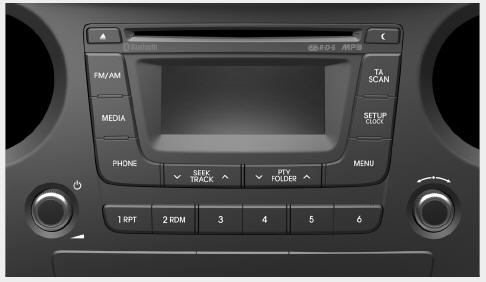
If the Bluetooth Wireless Technology function is not supported, no logo will be displayed.
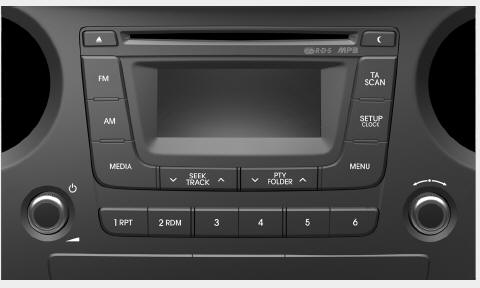
CD player: AC100B9GG, AC100B9GN, AC110B9GG, AC110B9GN
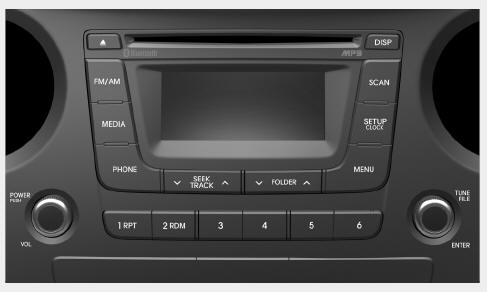
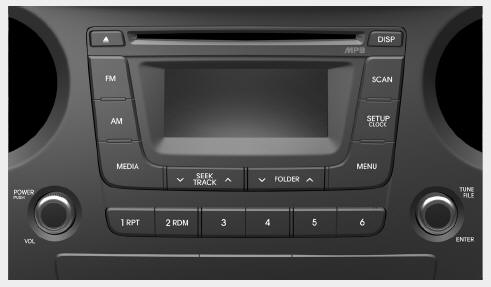
If the Bluetooth Wireless Technology function is not supported, nologo will be displayed.
If the Bluetooth Wireless Technology function is not supported, no logo will be displayed.
Test yourself
A quick Hyundai i10 quiz: every answer comes with an explanation and a link to the manual page.