Settings
- AC100B9GG, AC100B9GN, AC110B9GG, AC110B9GN
Display Settings
Press the button
 . Select [Display] using the TUNE knob or
 button. Select from the menu using the TUNE knob.
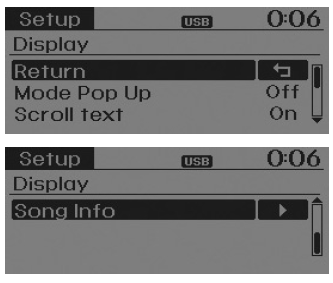
Pop-up Mode
[Pop-up Mode]. Changes .
Mode selection.
- With the system on, press the button or to display the mode change pop-up screen.
- When the pop-up screen appears, use the TUNE knob or the buttons
 to select the desired mode.
Text Scrolling
[Text Scrolling]. Set / .
-: Keeps scrolling.
-: Scrolls only once.
Track Info
When playing an MP3 file, select the information to display from 'Folder/File' or 'Album/Artist/Track'.

Sound Settings
Press the button. Select [Sound] using the TUNE knob or button. Select from the menu usingTUNE knob.
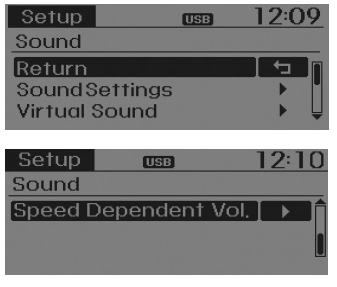
Sound Settings
This menu lets you set the 'Bass, Mid, Treble' as well as the fader and balance.
Select [Sound Settings]. Select from the menu using theTUNE knob. Turn theTUNE knob left/right to adjust.
- Bass, Mid, Treble: Adjusts the audio tone.
- Fader, Balance: Adjusts the front/rear fader and left/right balance.
- Default: Restores the default settings.
Return: While adjusting values, press theTUNE knob again to return to the main menu.

Virtual Sound
PowerTreble and Surround can be set.
Select [Virtual Sound]. Select from the menu using theTUNE knob. Set using the/toTUNE knob.
- PowerTreble: An audio system feature that provides a live concert-like vibration.
- Surround: An audio system feature that provides surround sound.

Speed Dependent Volume Control
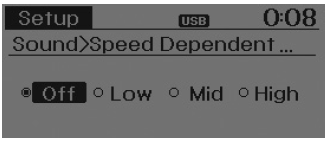
This function is used to automatically adjust the volume according to the vehicle speed.
Select [Speed Dependent Vol.].
Set to 4 levels [Off/Low/Mid/High] ofTUNE knob
Clock Settings
Press the button. Select [Clock] usingTUNE knob or button. Select from the menu using theTUNE knob.

Clock Settings
This menu is used to set the time.
Select [Clock Settings]. Set from the menu usingTUNE knob. Press theTUNE knob.

Adjust the currently selected number to set the [hour], and press the TUNE knob to set the [minutes].
Day Settings
This menu is used to set the date.
Select [Day Settings]. Set from the menu usingTUNE knob. Press theTUNE knob.

Adjust the currently selected number to make the setting, and press the TUNE knob to move to the next setting (Set in the order year/month/day.).
Time Format
This function is used to set the 12/24-hour time format of the audio system.
Select [Time Format]. Set 12Hr/24Hr usingTUNE knob.
Clock Display When Power Is Off
Select [Clock Disp.(Pwr Off). Set using the/ toTUNE knob.
-: Displays the time/date on the screen.
-: Turn off.
Phone Setup (if equipped)
Press the button. Select [Phone] (for RDS model).
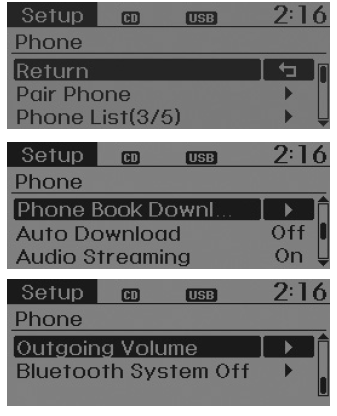
Pair Phone
WARNING: To pair a Bluetooth Wireless Technology device with a mobile phone, authentication and connection are required first. Therefore, the mobile phone cannot be paired while driving. Park the vehicle before use.Select [Pair Phone]. Set usingTUNE knob.
1. Search for the device names as they appear on the mobile phone and connect.
2. Enter the passkey shown on the screen (Passkey: 0000).
The device name and passkey are shown on the screen for up to 3 minutes. If pairing is not completed within 3 minutes, the mobile phone pairing process will be automatically cancelled.
3. Completion of pairing is displayed.
On some mobile phones, pairing is automatically followed by connection.
Up to five Bluetooth Wireless Technology-enabled mobile phones can be connected.
Phone List
The names of up to 5 paired mobile phones are displayed.

A [] appears in front of the connected mobile phone.
Select the desired name to set the selected mobile phone.
- Connecting a Phone
Select [Phone List]. Select the phone usingTUNE knob. Select [Connect Phone].
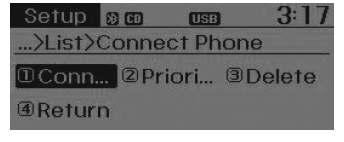
- Select a phone that is not currently connected.
- Connect the selected phone.
- Connection complete is displayed.
If a phone is already connected, disconnect the currently connected phone and select a new phone to connect.
- Disconnecting a Connected Phone
Select [Phone List]. Select the phone usingTUNE knob. Select [Disconnect Phone].

- Select the currently connected phone.
- Disconnect the selected phone.
- Disconnection complete is displayed.
- Changing the Connection Order (Priority)
Used to change the order (priority) of automatic connection for paired phones.
Select [Phone List]. Select [Priority] usingTUNE knob. Select the phone for priority no. 1.
- Select [Priority].
- From the paired phones, select the desired phone for priority no. 1.
- The changed priority order is displayed.
When the connection order (priority) is changed, the new phone for priority no. 1 will be connected.
- When priority no. 1 cannot be connected: Automatically attempts to connect to the last connected phone.
- When the last connected phone cannot be connected: Attempts to connect in the order in which the paired phones are listed.
- The connected phone is automatically changed to priority no. 1.
- Deleting
Select [Phone List]. Select the phone usingTUNE knob. Select [Delete].
- Select the desired phone.
- Delete the selected phone.
- Deletion complete is displayed.
When trying to delete a phone that is currently connected, disconnect the phone first.
WARNING: - When deleting a mobile phone, its contacts will also be deleted. - For stable Bluetooth Wireless Technology communication, delete the mobile phone from the audio system and also delete the audio system from your mobile phone.Phone Book Download (for RDS model)
This function is used to download the phone book and all call logs to the audio system.
Select [Phone book Download].
Set usingTUNE knob.
Auto Download
When a phone is connected, new contacts and all call logs can be downloaded automatically.
Select [Auto Download]. Set using the/toTUNE knob.
Audio Streaming
Tracks (files) saved on a phone with Bluetooth Wireless Technology enabled can be played through the audio system.
Select [Audio Streaming]. Set using the/toTUNE knob.
Outgoing Volume
This function is used to set the volume of the voice heard by the other party while a hands-free call is in progress over Bluetooth Wireless Technology.
Select [Outgoing Volume]. Set the volume usingTUNE knob.
During a call, the volume can be changed using the key .
Bluetooth Wireless Technology System Off
This function is used when you do not want to use the Bluetooth Wireless Technology system.
Select [Bluetooth System Off].
Set usingTUNE knob.
If a phone is already connected, disconnect the currently connected phone and turn off the Bluetooth Wireless Technology system.
Using the Bluetooth Wireless Technology System
When using Bluetooth Wireless Technology while the system is off, observe the following points.
- Turn on Bluetooth Wireless Technology using the key .
Press the button. Screen guide.
Allows you to go to the screen where you can use the Bluetooth Wireless Technology functions and display the guide.
- Turn on Bluetooth Wireless Technology using the key.
Press the button. Select [Phone].
- A screen appears asking whether to turn on Bluetooth Wireless Technology.
- On the screen, select to turn on Bluetooth Wireless Technology and display the guide.
If the Bluetooth Wireless Technology system is turned on, the system will automatically try to connect the last connected Bluetooth Wireless Technology phone.
WARNING: The Bluetooth Wireless Technology connection may be intermittent on some mobile phones. Follow these steps to try again. 1) Turn the mobile phone's Bluetooth Wireless Technology function off and on, and try to connect again. 2) Turn the mobile phone off and on, and try to connect again. 3) Fully remove the mobile phone's battery, restart, and then try to connect again. 4) Restart the audio system and try to connect again. 5) Delete all paired devices from the mobile phone and pair the audio system again before use.System Settings
Press the button. Select [System].

Memory Information (if equipped)
Displays the currently used memory and the total system memory.
Select [Memory Information].
OK.
The currently used memory is shown on the left side, while the total system memory is shown on the right side.

Language
This menu is used to set the display and voice recognition language.
Select [Language]. Set usingTUNE knob.

Test yourself
A quick Hyundai i10 quiz: every answer comes with an explanation and a link to the manual page.