Phone (if equipped)
Before using the Bluetooth Wireless Technology functions of the phone system.
- To use the Bluetooth Wireless Technology phone, the Bluetooth Wireless Technology mobile phone must be paired and connected.
- If the mobile phone is not paired or connected, Phone mode cannot be entered. When a phone is paired or connected, the driving screen will be displayed.
- If priority is set when the vehicle is switched on (IGN/ACC ON), the Bluetooth Wireless Technology phone will connect automatically.
Even if you are outside the vehicle, the Bluetooth Wireless Technology phone will connect automatically once you are nearby. If you do not want automatic Bluetooth Wireless Technology phone connection, set Bluetooth Wireless Technology power to OFF
How to make a call using the steering wheel remote control
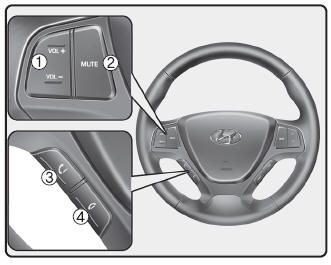
- VOLUME button: Raises or lowers the speaker volume.
- MUTE button: Turns off the microphone during a call.
 button: Makes and transfers calls.
 button: Ends calls or cancels functions.
 button: Activates voice recognition.
- Check call history and make a call
- Briefly press (less than 0.8 seconds) the keyon the steering wheel remote control.
- The call list will appear on the screen.
- Press theto connect a call to the selected number.
- Redialing the last number called
- Press and hold (more than 0.8 seconds) theon the steering wheel remote control.
- The last number called is redialed.
Phone MENU (for RDS model)
Press the button to display the three menus (Calls, Phonebook, Phone Setup).
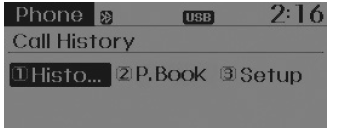
Call History
Press the button . Set [1 History] through the
 TUNE knob or the
 .
The call history is displayed and can be used to select a number and make a call.
If there is no call history, a screen appears asking whether to download the phonebook (the download function may not be supported on some mobile phones).
Phonebook
Press the button. Set [2 P. Book] through theTUNE knob or the .
The phonebook is displayed and can be used to select a number and make a call.
If more than one number is saved for a contact, a screen will show the mobile, home and office numbers. Select the desired number to make the call.
If the phone book does not exist, a screen appears asking whether to download the phone book. (The download function may not be supported on some phones.)
Phone Setup
Press the button. Set [3 Setup] usingTUNE knob or the .
The Bluetooth Wireless Technology setup screen of the phone is displayed. For more information, refer to "Phone Setup".
Phone MENU
Press the buttonto display the three menus (Calls, Contacts, Phone Setup).
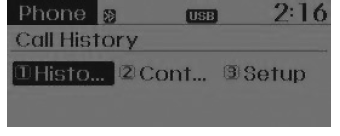
Call History
Press the button. Set [1 History] through theTUNE knob or the.
The call history is displayed and can be used to select a number and make a call.
If the call history does not exist, a screen appears asking whether to download the phone book. (The download function may not be supported on some phones.)
Contacts
Press the button. Set [2 Contacts] usingTUNE knob or the .
Contacts are displayed and can be used to select a number and make a call.
If more than one number is saved for a contact, a screen will show the mobile, home and office numbers. Select the desired number to make the call.
If there are no contacts, a screen appears asking whether to download the contacts. (The download function may not be supported on some phones.)
Phone Setup
Press the button. Set [3 Setup] usingTUNE knob or the .
The Bluetooth Wireless Technology setup screen of the phone is displayed. For more information, refer to "Phone Setup".
NOTE - ABOUT USING BLUETOOTH WIRELESS TECHNOLOGY PHONES
- Do not use the mobile phone or change the Bluetooth Wireless Technology settings (e.g. pairing a phone) while driving.
- Some phones with Bluetooth Wireless Technology may not be recognized by the system or may not be fully compatible with it.
- Before using the Bluetooth Wireless Technology functions of the audio system, check the phone's owner's manual to see how Bluetooth Wireless Technology works on the phone.
- To use the Bluetooth Wireless Technology functions, the phone must be paired with the audio system.
- The hands-free function cannot be used if the phone (inside the vehicle) is outside the mobile service coverage area (e.g. in a tunnel, underground, in mountainous areas, etc.).
- If the mobile signal is weak or the noise level inside the vehicle is too high, it may be difficult to hear the caller's voice during a call.
- Do not place the phone near or inside metal objects, as communication with the Bluetooth Wireless Technology system or mobile service base stations may be disturbed.
- While a phone is connected via Bluetooth Wireless Technology, its battery may discharge faster than usual due to Bluetooth Wireless Technology operation.
- Some mobile phones or other devices may cause interference noise or malfunction in the audio system. In this case, the problem may be resolved by moving the device to a different location.
- Phone contact names must be saved in English, or they will not be displayed correctly.
- If priority is set when the vehicle is switched on (IGN/ACC ON), the Bluetooth Wireless Technology phone will be connected automatically.
Even if you are outside the vehicle, the Bluetooth Wireless Technology phone will be connected automatically once you are near the vehicle.
- If you do not want automatic Bluetooth Wireless Technology connection, turn off the Bluetooth Wireless Technology function.
- The volume and quality of hands-free calls may vary depending on the mobile phone.
- Bluetooth Wireless Technology functions can only be used when the mobile phone has been paired and connected to the device. For more information on pairing and connecting Bluetooth Wireless Technology-enabled phones, refer to the "Phone Setup" section.
- When a mobile phone is connected via Bluetooth Wireless Technology, an icon (  ) appears at the top of the screen. If the icon ( ) does not appear, this indicates that the Bluetooth Wireless Technology-enabled device is not connected. The device must be connected before use. For more information on Bluetooth Wireless Technology phones, refer to the "Phone Setup" section.
- Pairing and connecting a Bluetooth Wireless Technology-enabled phone will only work when the Bluetooth Wireless Technology option on the phone has been turned on (the method for turning on Bluetooth Wireless Technology may differ depending on the phone).
- On some phones, turning on Bluetooth Wireless Technology during a hands-free call may cause the call to disconnect (transfer the call to the phone when the ignition is turned on).
- Some functions may not be supported on some phones and Bluetooth Wireless Technology devices.
- Bluetooth Wireless Technology operation may be unstable depending on the communication status.
- If the audio system is located in an electromagnetic environment, interference may occur.
NOTE - USING VOICE COMMAND
- The voice recognition function of this product supports recognition of the commands listed in this owner's manual.
- While using voice recognition, operating the steering wheel remote control or the device ends voice recognition and allows you to manually operate the desired functions.
- Position the microphone above the driver's seat headrest. For better performance, maintain good posture when speaking a voice command.
- Voice recognition may not work properly due to external noise. The following conditions may affect voice recognition performance:
- When the windows and sunroof are open - When the air conditioning/heating system is on - When driving through a tunnel - When driving on steep or rough roads- After downloading the Bluetooth Wireless Technology phone book, the system sometimes requires converting the phone book into voice information. During this time, voice recognition may not work properly.
- When entering your phone book, symbols and special characters cannot be recognized by voice. For example, "# John Doe%&" will be recognized as "John Doe".
Test yourself
A quick Hyundai i10 quiz: every answer comes with an explanation and a link to the manual page.