NISSAN Voice Recognition System (if so equipped)
The NISSAN Voice Recognition system allows hands-free operation of the systems equipped on this vehicle, such as the phone and navigation systems.
To operate NISSAN Voice Recognition, press the  button located on the steering wheel.
When prompted, speak the command for the system you wish to activate. The command given is picked up by the microphone and performed when it is properly recognized. NISSAN Voice Recognition will provide a voice response and a message in the center display to inform you of the command results.
Using the system
Initialization
When the ignition switch is in the ON position, NISSAN Voice Recognition is initialized, which takes a few seconds. When completed, the system is ready to accept voice commands. If the button is pressed before the initialization completes, the system will announce: "Voice Recognition System not ready. Please wait."
Giving voice commands
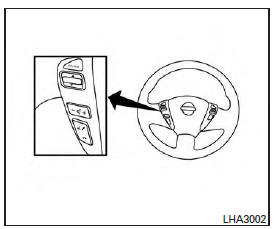
1. Press the button.
2. The system announces: "Please say a category like phone or a command like points of interest followed by a brand name". A list of available commands is then spoken by the system.
3. After the tone sounds and the face icon on the display changes, speak a command.
Available commands are discussed in this section.
4. Voice and display feedback are provided when the command is accepted.
- If the command is not recognized, the system announces: "Command not recognized".
Repeat the command in a clear voice.
- If you want to cancel the command or go back to the previous menu of commands, press the
 button. The system will announce: "Canceling voice recognition" or "Go back" depending on the current menu level.
- Press the BACK button on the control panel to move back through the menus displayed on the screen.
- If you want to adjust the volume of the voice feedback, use the volume control switches on the steering wheel or the volume knob on the control panel.
- The voice command screen can also be accessed using the control panel display:
1. Press the [  ] button.
2. Touch the "Voice Commands" key.
Operating tips
To get the best performance out of NISSAN Voice Recognition, observe the following:
- Keep the interior of the vehicle as quiet as possible. Close the windows to eliminate the surrounding noises (traffic noises, vibration sounds, etc.), which may prevent the system from recognizing the voice commands correctly.
- Wait until a tone sounds before speaking a command. Otherwise, the command will not be received properly.
- Start speaking a command within 3.5 seconds after the tone sounds.
- Speak in a natural voice without pausing between words.
System features
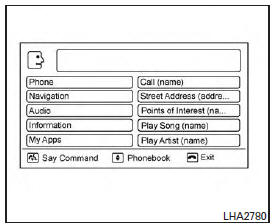
NISSAN Voice Recognition can activate the following systems:
- Bluetooth Hands-Free Phone System
- Navigation
- Audio
- Information
- My Apps
- Help
For additional information, refer to the separate Navigation System Owner's Manual.
How to say numbers
NISSAN Voice Recognition requires a certain way to speak numbers in voice commands. Refer to the following examples.
General rule: Either "zero" or "oh" can be used for "0".
Phone numbers
Speak phone numbers according to the following example. For 1-800-662-6200, say dial number and then speak the phone number in any of the following formats:
- "one eight oh oh six six two six two oh oh"
- "one eight hundred six six two six two oh oh"
- "one eight zero zero six six two six two oh oh"
For the best voice recognition phone dialing results, say phone numbers as single digits. Also, full numbers can only be spoken for "800". For example, you cannot say 555-6000 as "five five five six thousand".
Bluetooth Hands-Free Phone System voice commands
To access the Bluetooth Hands-Free Phone System voice commands: 1. Press the button.
2. Say "Call" and then a name in the vehicle phonebook to call that entry. Otherwise, say "Phone" to access various phone commands.
If the Bluetooth has been set to "Off", the system announces: "Bluetooth is off. Would you like to turn Bluetooth on?" If no phone is connected to the system and the vehicle is stationary, the system announces: "There is no phone connected.Would you like to connect a phone now?" Say "Yes" to connect a phone. All further Bluetooth Hands-Free Phone System voice commands are only available if a phone is connected.
If a phone is connected and Bluetooth is set to "On", the following voice commands are available:
- Call (a name).
Speak the name of the contact in which you are trying to call. System will confirm correct contact. Say "Dial" to initiate dialing.
- Dial Number
Allows for up to 24 digits to be dialed. After the number is entered, say "Dial" to initiate dialing. Say "Correction" to correct the number entered. Say "Go Back" to return to the main menu.
- List Phonebook
Starting with the first alphabetical entry in the vehicle phonebook, the system prompts for an additional command. Say "Dial" to call the number of the phonebook entry. Say "Send Text" to send a text message to the number of the phonebook entry. Say "Next Entry" to skip to the next alphabetical entry in the vehicle phonebook, where the same options will then be available.
- Recent Calls
The system prompts for an additional command.
Say "Missed Calls", "Incoming Calls" or "Outgoing Calls" to display a list of such calls on the screen.
Speak the number of the entry displayed on the screen to dial that number or say "Next Page" to view entries on the next page (if available).
- Redial
Redials the last called number.
- Read Text
Reads an incoming text message. For additional information, refer to "Bluetooth Hands-Free Phone System with Navigation System" in this section.
- Send Text
Sends a text message. For additional information, refer to "Bluetooth Hands-Free Phone System with Navigation System" in this section.
- Select Phone
The system replies "Please use manual controls to continue". Use manual controls to change the active phone from among the listed phones connected to the vehicle.
For additional information, refer to "Bluetooth Hands-Free Phone System with Navigation System" in this section.
Navigation System voice commands
The following voice commands are available for the Navigation System:
- Street Address (address)
- Points of Interest (name)
- POI by Category
- Home
- Address Book
- Previous Destinations
- Enter Address in Steps
- Cancel Route
For additional information, refer to the separate Navigation System Owner's Manual.
Audio system voice commands
To access the audio system voice commands:
1. Press the  button.
2. Say "Audio" 3. Speak a command from the following available commands:
- Play (AM, FM, etc.) Allows user to select radio band
- Tune AM (number) Allows user to tune directly to a desired AM frequency
- Tune FM (number) Allows user to tune directly to a desired FM frequency
- SXM channel (number) Allows user to tune directly to a desired SXM station (if so equipped)
- CD Track (number) Allows user to select track to be played
- Play Song (name) Allows user to select song name to be played
- Play Artist (name) Allows user to select artist to be played
- Play Album (name) Allows user to select album name to be played
For additional information, refer to "Audio system" in this section.
Information voice commands
The following voice commands are available for the information functions of the Navigation System:
- Traffic
- Fuel Prices
- Stocks
- Movie Listings
- Current Weather
- Weather Map
- 5 - day Forecast
- 6 - hour Forecast
For additional information, refer to the Navigation System Owner's Manual.
My Apps Voice Commands
The following voice commands are available for My Apps if compatible smartphone is connected to the vehicle.
- Bloomberg.
Opens Bloomberg application
- Facebook.
Opens Facebook application
Help voice commands
The following voice commands can be spoken to have the system provide instructions and tips for using the NISSAN Voice Recognition System.
- List Commands
- What Can I Say?
- General Help
- Quit
- Exit
Troubleshooting guide
The system should respond correctly to all voice commands without difficulty. If problems are encountered, follow the solutions given in this guide for the appropriate error. Where the solutions are listed by number, try each solution in turn, starting with number one, until the problem is resolved.
| Symptom/error message | Solution |
| The system responds "Command Not Recognized" or the system fails to recognize the command correctly. | 1. Ensure that the command format is valid. Use the "List Commands" or "What Can I Say?" command under the "Help" menu. 2. Speak clearly without pausing between words and at a level appropriate to the ambient noise level. 3. Ensure that the ambient noise level is not excessive (for example, with the windows open or the defroster on). NOTE: If it is too noisy to use the phone, it is likely that voice commands will not be recognized. 4. If optional words of the command have been omitted, then the command should be tried with these in place. |