Playing audio CDs and MP3/WMA discs
Using the CD player
Insert a disc, then press the "MEDIA" button (Type A) or "MODE" button (Type B) to start playing a CD.
Type A
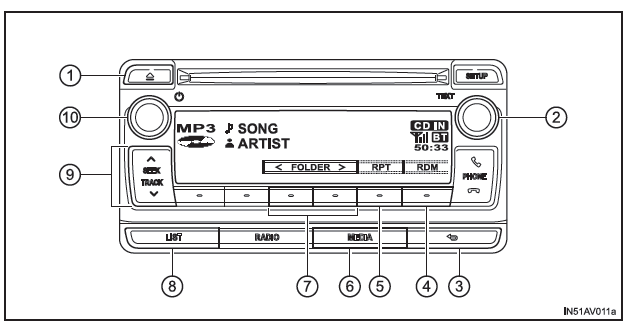
- Ejecting the disc
- Tuning/scroll knob
Track/file selection or text message display - BACK button
- Random playback
- Repeat playback
- Audio source selection/ playback
- Folder selection (MP3/WMA discs only)
- Displaying the track/folder list
- Track/file selection, fast forward or reverse
- Power/volume knob
Press: Turns the audio system on and off
Turn: Adjusts the volume
Type B
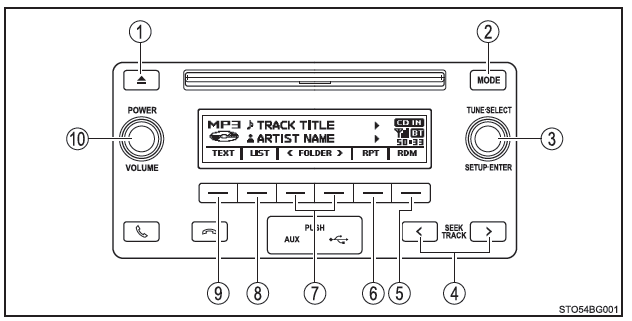
- Ejecting the disc
- Audio source selection/ playback
- Tuning/scroll knob
Track/file selection - Track/file selection, fast forward or reverse
- Random playback or return button
- Repeat playback
- Folder selection (MP3/WMA discs only)
- Displaying the track/folder list
- Displaying a text message
- Power/volume knob
Press: Turns the audio system on and off
Turn: Adjusts the volume
Loading CDs or MP3 and WMA discs
Insert a disc.
Ejecting CDs or MP3 and WMA discs
Press the eject button and remove the disc.
Using the CD player
■ Selecting a track Turn the tuning/scroll knob or press or to
 the "SEEK TRACK" button (Type A), or the button
 or "SEEK TRACK" (Type B) to move up or down until the desired track number is displayed.
■ Selecting a track from a list
1. Press the "LIST" button (Type A) or ("LIST") (Type B).
The track list is displayed.
2. Turn the tuning/scroll knob, then press it to select a track.
To return to the previous screen, press the "LIST" button or the return button (Type A), or ("BACK") (Type B).
■ Fast forward and reverse within tracks Press and hold or to
 the "SEEK TRACK" button (Type A), or the button
 or "SEEK TRACK" (Type B).
■ Random playback Press ("RDM").
To cancel, press the button again.
■ Repeat playback Press ("RPT").
To cancel, press the button again.
■ Display selection
Type A
Press the tuning/scroll knob.
The display shows the track title, artist name and album title.
To return to the previous screen, press the selector or the back button.
Type B
Press ("TEXT") to show or hide the album title.
If the text continues, is displayed.
Press and hold the button to display the rest of the text.
Playing MP3 and WMA Discs
■ Selecting one folder at a time Press ("<FOLDER") or
 ("FOLDER>") to select the desired folder.
■ Selecting a folder and a file from the folder list
1. Press the "LIST" button (Type A) or ("LIST") (Type B).
The folder list is displayed.
2. Turn the tune/scroll selector, then press it to select a folder and a file.
To return to the previous screen, press the back button (Type A) or ("BACK") (Type B).
To exit, press the "LIST" button (Type A) or ("BACK") (Type B).
■ Returning to the root folder Press and hold ("<FOLDER") until a beep confirms.
■ Selecting files Turn the tune/scroll selector or press and hold or the "SEEK TRACK" button (Type A), or the
 or
 of the "SEEK TRACK" button (Type B) to select the desired file.
■ Fast forward and fast reverse within files To fast forward or fast reverse, press and hold or to
 the "SEEK TRACK" button (Type A), or the button
 or "SEEK TRACK" (Type B).
■ Random playback Press ("RDM") to display the modes in this order: Random folder→Random disc→Off
■ Repeat playback Press ("RPT") to display the modes in this order: Repeat file→Repeat folder*→Off
*: Available except when RDM (random playback) is selected
■ Display selection
Type A
Press the tuning/scroll knob.
The display shows the track title, artist name and album title (MP3 only).
To return to the previous screen, press the selector or the back button.
Type B
Press ("TEXT") to show or hide the album title.
If the text continues, is displayed.
Press and hold the button to display the rest of the text.
■ Display Depending on the recorded content, characters may not display correctly, or may not display at all.
■ Error messages If an error message is displayed, refer to the following tables and take the appropriate action. If the problem persists, take the vehicle to a Toyota dealer, a Toyota-approved repairer, or any reliable repairer.
| Message | Cause | Corrective actions |
| "CD CHECK" |
|
|
| "ERROR" | The system is malfunctioning. | Eject the disc. |
| "WAIT" | Operation is suspended because the temperature inside the player is excessive. | Wait a few minutes, then press the "MEDIA" button (Type A) or "MODE" button (Type B). Contact a Toyota dealer, a Toyota-approved repairer, or any reliable repairer if the CD continues to have playback problems. |
| "NO SUPPORT" | The CD does not contain any MP3/WMA files. | Eject the disc. |
■ Compatible discs Discs bearing the following logos are all compatible.
Depending on its recording format, technical characteristics or condition (scratches, cleanliness, damage), some discs may be unreadable.
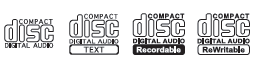
Copy-protected CDs may not play correctly.
■ CD player protection function To protect the internal components of the CD player while it is operating, playback is automatically stopped when a problem is detected.
■ If a CD is left in the CD player or in the ejected position for a long time The CD may become damaged and unreadable.
■ Optical cleaning products Do not use optical cleaning products. They may damage the CD player.
■ MP3 and WMA files The MP3 format (MPEG Audio LAYER3) is a widely used audio compression format.
MP3 compression can reduce audio file sizes to 1/10 of their original size.
The WMA format (Windows Media Audio) is an audio compression format developed by Microsoft.
This format compresses audio data to a smaller size than the MP3 format.
There are limitations on the MP3 and WMA file standards and on the media and recording formats that can be used.
MP3 File Compatibility
Compatible standards
MP3 (MPEG1 LAYER3, MPEG2 LSF LAYER3)Compatible sampling frequencies
MPEG1 LAYER3: 32, 44.1, 48 (kHz)
MPEG2 LSF LAYER3: 16, 22.05, 24 (kHz)Compatible bit rates (VBR compatible)
Type A
MPEG1 LAYER3: 64-320 (kbits/s)MPEG2 LSF LAYER3: 64-160 (kbits/s)
Type B
MPEG1 LAYER3: 32-320 (kbits/s)MPEG2 LSF LAYER3: 8-160 (kbits/s) Compatible playback modes: mono, stereo, joint stereo, dual channel
WMA File Compatibility
Compatible standards
WMA v.7, 8, 9Compatible sampling frequencies
32, 44.1, 48 (kHz)Compatible bit rates (2-channel playback only)
Type A
V.7, 8: CBR 48-192 (kbits/s)V.9: CBR 48-320 (kbits/s)
Type B
V.7, 8: CBR 48-192 (kbits/s)V.9: CBR 48-320 (kbits/s)
- Compatible Media
- Compatible disc formats
You can use the following disc formats.- Disc formats: CD-ROM Mode 1 and Mode 2 / CD-ROM XA Mode 2, Form 1 and Form 2
- File formats: ISO9660 Level 1, Level 2, (Romeo, Joliet)
MP3 and WMA files recorded in any format other than those listed may have playback problems, and their file and folder names may not display correctly.
- File Names
- Multi-session Recording
- ID3 and WMA Tags
The system is compatible with ID3 tags v.1.0, 1.1, and with ID3 tags v.2.2, 2.3, 2.4 (Type B). (For the number of characters, compatibility is based on ID3 formats v.1.0 and 1.1.)
WMA files can include WMA tags, which allow (as with ID3 tags) the track title and artist name to be recorded.
- Playing MP3 and WMA Files
- File extensions
- Playback
- For constant sound quality when playing MP3 files, it is recommended to use a (constant) bit rate of 128 kbps and a sampling frequency of 44.1 kHz.
- Depending on the characteristics of the disc used, playback may not be possible, particularly for a CD-R or CD-RW.
- A wide variety of free and paid software for encoding MP3 and WMA files is available. Depending on the encoding settings and the format chosen, playback may cause problems at the start (poor sound quality, noise, etc.). In some cases, playback may not be possible at all.
- If the disc was recorded with files in formats other than MP3 or WMA, the system may take longer to recognize it. In some cases, playback may not be possible at all.
- Microsoft, Windows and Windows Media are registered trademarks of Microsoft Corporation in the United States and other countries.
■ CD player certification
CAUTION: THIS DEVICE IS A CLASS 1 LASER PRODUCT. USE OF CONTROLS, ADJUSTMENTS OR PROCEDURES OTHER THAN THOSE SPECIFIED HEREIN MAY RESULT IN HAZARDOUS RADIATION EXPOSURE. DO NOT OPEN THE COVERS AND DO NOT REPAIR YOURSELF. REFER SERVICING TO QUALIFIED PERSONNEL.
NOTE■ Incompatible discs and adapters Do not use the following types of discs.
Also, do not use 8 cm (3 in.) disc adapters, DualDisc format discs or printable discs.
Doing so may damage the player and/or the disc loading/ejection function.
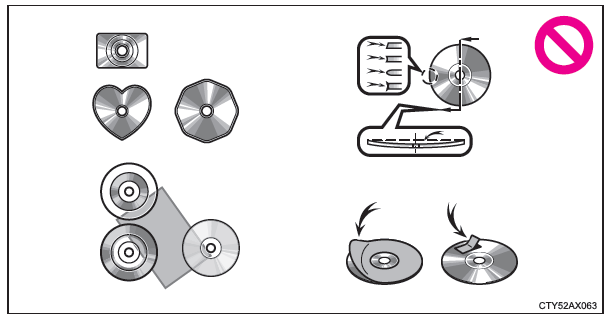
Discs with a diameter other than 12 cm (4.7 in.).
Poor-quality or warped discs.
Discs with a transparent or translucent recording surface.
Discs with tape, a sticker or a CD-R label attached, or discs whose label is peeling off.
■ Player precautions Failure to observe the precautions below may seriously damage the discs or the player itself.
Do not load anything other than discs into the player.
Do not lubricate any part of the player.
Store discs away from direct sunlight.
Never attempt to disassemble any part of the player.