Touchscreen operation. Touchpad. Split screen view. Status information
This section describes the versatile operating options of the BMW 5 Series (VII generation / G30 & G31), model years 2017–2024, via touchscreen and touchpad. Users receive detailed instructions for navigating through menus, for the split-screen view and for the efficient use of input functions. Individual settings and status information are also covered in detail. An essential aid for everyone who wants to use the full range of the infotainment system.
Touchscreen operation
General
The Control Display is equipped with a touchscreen.
Touch the touchscreen with your fingers. Do not use objects.
Open main menu
 Tap the symbol.
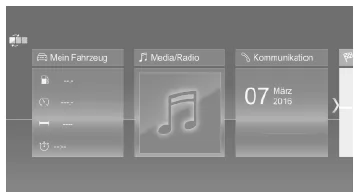
All iDrive functions can be accessed via the main menu.
Customizing the main menu
 Tap the symbol.
Selecting a menu item
Tap the desired menu item.
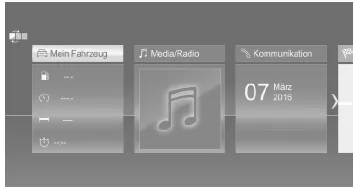
Menu items in the Owner's Manual
In this Owner's Manual, menu items that can be selected are shown in quotation marks, e.g. "iDrive Settings".
Switching between tiles
After selecting a menu item, a new tile is displayed.
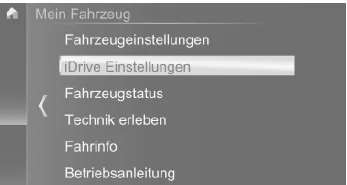
The arrow indicates that further tiles can be called up.
- Swipe to the left.
- Tap the symbol.
A new tile opens.
Making settings
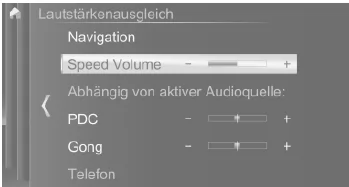
Settings, such as the volume, can be made via the touchscreen.
- Slide to the right or left until the desired setting is displayed.
 Tap the symbol.
Activating/deactivating functions
Some menu items have a check box in front of them.
The check box indicates whether the function is activated or deactivated. Selecting the menu item activates or deactivates the function.
 Function is activated.
 Function is deactivated.
Entering letters and numbers
General
Letters and numbers can be entered using the controller or the touchscreen.
The keyboard display changes automatically.
| Symbol | Function |
 |
Tap the symbol: delete letter or number |
 |
Tap and hold the symbol: delete all letters or numbers |
Switching between upper/lower case, numbers and special characters
| Symbol | Function |
 |
Enter letters. |
 |
Enter numbers. |
 |
Switch between upper and lower case. |
Operating the navigation map
The navigation map can be moved using the touchscreen.
| Function | Operation |
| Zoom in/out of the map | Pinch or spread with your fingers |
| Rotate the map | Move two fingers in a circle. |
Touchpad
General
Some iDrive functions can be operated using the touchpad of the controller.
Selecting functions
- "My Vehicle"
- "iDrive settings"
- "Touchpad"
- Select the desired setting.
- "Character input": enter upper-case letters and numbers.
- "Map": Operate the map.
- "Browser": Enter internet addresses.
- "Search fields": Enter letters without selecting the list field.
- "Audible feedback": The entered letters and digits are read out.
Entering letters and numbers
Entering letters requires some practice at first. When entering, observe the following:
- The system recognizes upper- and lowercase letters and digits. For entry, it may be necessary to switch between upper/lowercase, digits and special characters.
- Enter characters as they are shown on the Control Display.
- Always enter associated characters, e.g. accents or dots, so that the letter is recognized clearly. The available input options depend on the selected language. If necessary, enter special characters using the controller.
Enter special characters
| Entry | Operation |
| Delete characters | Swipe left on the touchpad. |
| Enter a space. | Swipe right in the middle of the touchpad. |
| Enter a hyphen. | Swipe right in the upper area of the touchpad. |
| Enter an underscore. | Swipe right in the lower area of the touchpad. |
Operating the map and internet
The navigation system map and internet pages can be moved using the touchpad.
| Function | Operation |
| Moving the map or internet pages | Swipe in the corresponding direction. |
| Zooming the map or internet pages in/out | Pinch in or spread out with two fingers on the touchpad. |
| Display the menu or open a link on the internet. | Tap once. |
Split screen view, Splitscreen
General
In the right part of the split screen, additional information can be displayed in some menus, e.g. trip computer information.
This information remains visible in the split screen view, known as Splitscreen, even when switching to another menu.
Switching split screen view on/off
 Press the button.
- "Splitscreen"
Selecting display
The display can be selected in the menus in which split screen view is possible.
- Tilt the controller to the right until Splitscreen is selected.
- Press the controller.
- Select the desired setting.
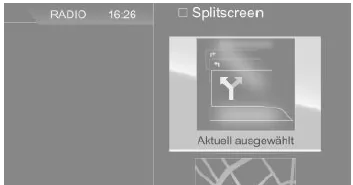
Setting the display selection
The selection of displays can be set.
- Tilt the controller to the right until Splitscreen is selected.
- Press the controller.
- "Customize menu"
- Select the desired setting.
- Tilt the controller to the left.
Status information
General
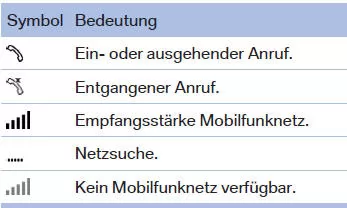
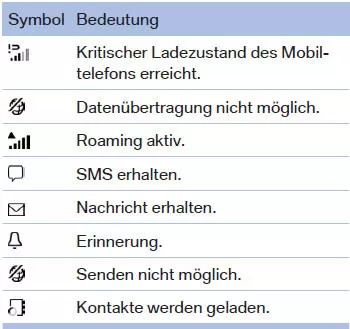
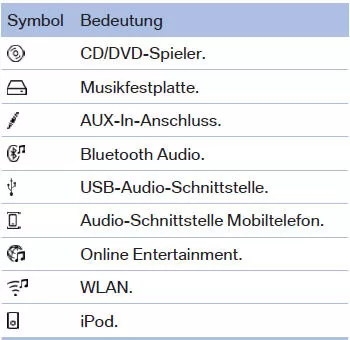
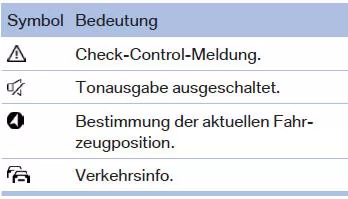
The status bar is located in the upper area of the Control Display. Status information is shown in the form of symbols.
Status bar symbols
Telephone
Entertainment
More
Operating the BMW 5 G30/G31 via touchscreen and touchpad offers a high degree of flexibility and convenience. Intuitive gestures and clear symbols allow settings to be made quickly and functions to be activated safely.
The split screen ensures that important information remains in view without the driver losing focus. Status information and individually adjustable views underline the premium character of this model.
This makes every journey in the BMW 5 G30/G31 a genuine experience that combines functionality and modern technology perfectly.
Test yourself
A quick BMW 5 quiz: every answer comes with an explanation and a link to the manual page.