Vehicle status
In the "Vehicle status" chapter, drivers of the BMW 5 Series (7th generation) receive a central overview of technical states such as tire pressure, engine oil level and Check Control messages. All information is retrieved via iDrive and enables proactive maintenance. The section is supplemented by a comprehensive introduction to the Head-Up Display, which projects important driving data into the field of view. Settings such as brightness, height and rotation can be adjusted individually. The special windshield prevents double images, reflecting the high technical standard. For those who want comfort and safety at a glance, this system offers a noticeable added value.
General
For some systems, the status can be displayed or actions can be carried out.
Call up vehicle status
Via iDrive:
- "My Vehicle"
- "Vehicle status"
Overview of information
 "Flat Tire Monitor": Status of the Flat Tire Monitor.
 "Tire Pressure Control (RDC)": Status of the Tire Pressure Control.
- Reset the Tire Pressure Control.
 "Engine oil level": Electronic oil level control.
 "AdBlue": BMW diesel with BluePerformance.
 "Check Control": Check Control messages are stored in the background and can be displayed on the Control Display. Displaying stored Check Control messages 128.
 "Service requirements": Display of service requirements.
 "Teleservice Call": Teleservice Call.
Head-Up Display
Principle
The system projects important information into the driver's field of view, e.g. the speed.
The driver can take in information without looking away from the road.
General
Observe the information on cleaning the Head-Up Display 346.
Overview
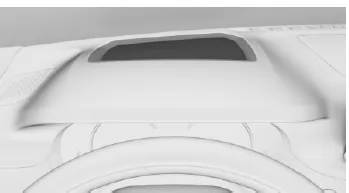
Switching on/off
Via iDrive:
- "My Vehicle"
- "iDrive settings"
- "Displays"
- "Head-Up Display"
- "Head-Up Display"
Display
Overview
The following information is shown in the Head-Up Display:
- Speed.
- Navigation system.
- Check Control messages.
- Selection list in the instrument cluster.
- Driver assistance systems.
Some of this information is only displayed briefly when required.
Select displays in the Head-Up Display
Via iDrive:
- "My Vehicle"
- "iDrive settings"
- "Displays"
- "Head-Up Display"
- Select the desired setting.
The setting is saved for the currently used driver profile.
View
Three different views are available for the Head-Up Display. Via iDrive:
- "My Vehicle"
- "iDrive settings"
- "Displays"
- "Head-Up Display"
- Select the desired setting.
- "STANDARD": All displays in the Head-Up Display are active.
- "CALM": The displays in the Head-Up Display are reduced to the essentials.
- "INDIVIDUAL": All displays in the Head-Up Display are active. Individual displays, such as Check Control messages, can be configured individually.
The setting is saved for the currently used driver profile.
Adjust brightness
The brightness is adjusted automatically to the ambient light level.
The basic setting can be adjusted.
Via iDrive:
- "My Vehicle"
- "iDrive settings"
- "Displays"
- "Head-Up Display"
- "Brightness"
- Turn the controller until the desired brightness is reached.
- Press the controller.
When the low beams are switched on, the brightness of the Head-Up Display can also be affected via the instrument lighting.
Adjusting height
Via iDrive:
- "My Vehicle"
- "iDrive settings"
- "Displays"
- "Head-Up Display"
- "Height"
- Turn the controller until the desired height is reached.
- Press the controller.
The setting is saved for the currently used driver profile.
The height of the Head-Up Display can also be saved with the memory function 92.
Adjust rotation
The image of the Head-Up Display can be rotated about its own axis.
Via iDrive:
- "My Vehicle"
- "iDrive settings"
- "Displays"
- "Head-Up Display"
- "Rotation"
- Turn the controller until the desired setting is reached.
- Press the controller.
Visibility of the display
The visibility of the displays in the Head-Up Display is affected by the following factors:
- Certain seating positions.
- Objects on the cover of the Head-Up Display.
- Sunglasses with certain polarizing filters.
- Wet road surface.
- Unfavorable lighting conditions.
If the image is distorted, have the basic settings checked by a service partner of the manufacturer, another qualified service partner or a specialist workshop.
Special windshield
The windshield is part of the system.
The shape of the windshield allows precise image projection.
A film in the windshield prevents the formation of double images.
For this reason, it is strongly recommended that the special windshield be replaced if necessary by a manufacturer service partner, another qualified service partner, or a specialist workshop.
The vehicle status in the BMW 5 Series (G30/G31) gives the driver a quick overview of important vehicle parameters. From tire pressure and engine oil level to Check Control messages, all information can be accessed centrally. This keeps the driver informed at all times and allows timely response to any irregularities.
The Head-Up Display completes the concept by projecting the most important information directly into the field of view. Speed, navigation instructions, or warning messages can be read without taking your eyes off the road. Extensive setting options allow precise adaptation to personal preferences.
FAQQuestion 1: Can I deactivate individual displays in the Head-Up Display?
Answer: Yes, in INDIVIDUAL mode, content can be shown or hidden as required.
Question 2: Is the brightness of the Head-Up Display adjusted automatically?
Answer: Yes, the brightness is adjusted to the ambient light level, but it can also be adjusted manually.
Test yourself
A quick BMW 5 quiz: every answer comes with an explanation and a link to the manual page.