Music media players
CD, CD MP3 / WMA, SD CARD MP3 / WMA / USB PLAYER
INFORMATION AND ADVICE
! MP3, short for MPEG 1, 2 & 2.5 Audio Layer 3, and WMA, short for Windows Media Audio and a Microsoft property, are audio compression standards that allow dozens of music files to be stored on a single disc.
! Connecting an iPod: To play MP3 files, connect the iPod using the USB socket (limited functions).
To play iTunes files, connect the iPod using the auxiliary socket (AUX).
 To be able to play a recorded CD-R or CD-RW, select the ISO 9660 level 1 or 2 or Joliet standards when burning, preferably.
If the disc is burned in another format, playback may not work correctly.
On the same disc, it is recommended to always use the same burning standard, at the lowest possible speed (4x maximum) for optimum sound quality.
For a multi-session CD, the Joliet standard is recommended.
 To be played, a USB key must be formatted FAT 32.
 The radio only plays audio files with the “.mp3” extension at a bit rate from 8 Kbps to 320 Kbps, and with the “.wma” extension at a bit rate from 5 Kbps to 384 Kbps.
It also supports VBR (Variable Bit Rate) mode.
Any other file type (.mp4, .m3u...) cannot be played.
 It is advised to name files with fewer than 20 characters, excluding special characters (e.g. « » ? ; ù), to avoid any playback or display problems.
 During playback, exit the “SD-Card” or “USB” source before removing the SD card or USB device from its player.
! To prevent any risk of theft, remove the SD card or USB device when you leave your vehicle with the roof open.
SELECT / PLAY CD, CD MP3 / WMA, SD CARD MP3 / WMA / USB PLAYER
1. Insert the audio or MP3 CD into the player, the SD card into the card reader or the USB device into the USB player. Playback starts automatically.

! The list of tracks or MP3/WMA files appears below the “Media” menu.
2.  Press this key.

3.  When the “MEDIA” screen is displayed, turn the ring up or down to select the previous or next compatible source.

4.  Press the MEDIA key.

5. 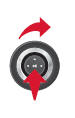 Press the MEDIA key again or select the “Media” menu function and press OK to confirm.


6.  Select the “Choose source” function and press OK to confirm.


7.  Select the desired music source. Press OK to confirm. Playback starts.

! Reading and displaying an MP3/WMA compilation may depend on the burning software and/or the settings used. We recommend using the ISO 9660 burning standard.
JUKEBOX
COPYING A CD TO THE HARD DRIVE, A USB STICK, AN SD CARD
1.  Insert an audio CD / MP3 CD, a USB key or an SD card.

! Check that the active MEDIA source matches the medium in use (CD, USB or SD card).
2.  Press the MEDIA button.
Press the MEDIA button again or select the "Media" menu and press OK to confirm.

3.  Select “Jukebox management”, then “Copy”, and press OK at each step to confirm.


4.  Select, for example, “Copy from MP3 CD” and press OK to confirm.


5.  Select the desired tracks, then “Copy selection”, or select all tracks with “Copy all”.

6.  Select “[New folder]” to create a new folder, or select an existing folder (created beforehand).


7.  “Enter file names?”: choose “Yes” to edit them or “No”.


8.  For copying an MP3 CD, then select “Copy with listening”, “Fast copy” / “High quality (192 kbit/s)” or “Normal quality (128 kbit/s)”, then select “Start copy”.

9.  Confirm the warning message by pressing “OK” to start the copy.


JUKEBOX RENAMING OR DELETING AN ALBUM
! Check that the active audio source is different from the Jukebox in order to rename or delete a track / folder.
1. Activate playback of a source other than Jukebox (CD, radio, etc.).
2.  Press the MEDIA button.

3.  Press the MEDIA button again or select the "Media" menu and press OK to confirm.

4.  Select “Jukebox management” and press OK to confirm.


5.  Select “Delete / rename” and press OK to confirm.


PLAYING THE JUKEBOX
1.  Press the MEDIA button.
Press the MEDIA button again or select the "Media" menu and press OK to confirm.

2.  Select “Jukebox management” and press OK to confirm.

3.  Select “Playback mode” and press OK to confirm.
Choose "Folders & files" or "Playlists", then press OK to confirm.

 Press the ESC key to return to the top level of files.
It is possible to create playlists in the Jukebox.
"Media" menu > Jukebox management > Create playlist. Add the desired tracks one by one, then save the change.
Then select the “Playlists” playback mode.
PLAYING A DVD VIDEO
1. Insert the DVD into the player. Playback starts automatically.

2.  If the DVD does not appear on screen, press the MODE key to access the “MEDIA” screen, which displays the DVD screen.

3.  Press the MEDIA key at any time to access the “DVD menu”, or the functions of the “Media” menu for video adjustment (brightness/contrast, picture format...).

 The 4-way selector and the chrome ring are used to move the DVD selection pointer. Change chapter by pressing the
 or
 key.
! Select the desired video source (“DVD-Video”, “Auxiliary input (video)”). Press OK to confirm. Playback starts.
USING THE AUXILIARY (AUX) AUDIO / VIDEO INPUT / RCA CABLE NOT SUPPLIED
1. Connect the portable device (MP3 player, camcorder, camera...) to the RCA sockets (white and red for audio; red and yellow for video) located in the glovebox, using a JACK/RCA audio cable.
2.  Press the MEDIA key and press it again, or select the “Media” menu function, then press OK to confirm.

! If the auxiliary input is not enabled, select “Auxiliary input (Aux) management” to enable it.
3.  Select “Choose source”, then “Auxiliary input (video)” and press OK to activate it.


4.  Select the AUX music source and press OK to confirm. Playback starts automatically.

! The display and control of functions is done via the portable device.
Test yourself
A quick Citroen C5 Aircross quiz: every answer comes with an explanation and a link to the manual page.