Navigation
 Select the navigation option on the function bar.
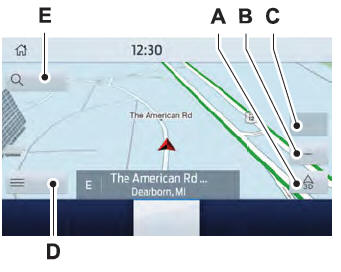
- Map view menu.
- Zoom out.
- Zoom in.
- Route guidance menu.
- Destination entry menu.
Setting a Destination
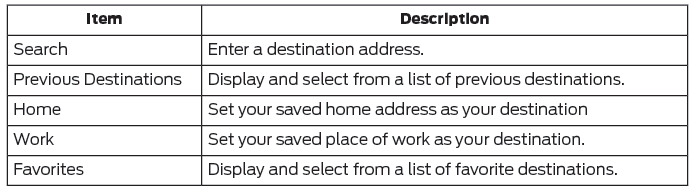
Destination Entry Menu
Setting a Destination Using the Text Entry Screen
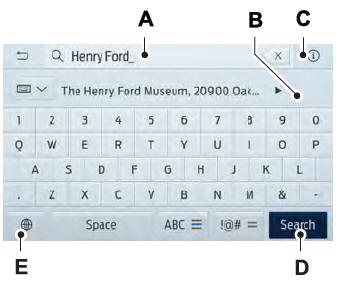
- Text entry field.
- Automatic suggestions based on the text you enter.
- Information icon.
- Search.
- Keyboard settings.
You can search by entering all or part of a destination, such as an address, POI category or name, intersection, city, latitude/longitude, etc. Tips: If you do not enter a location, the system uses the current location of the vehicle. You can specify a locality by address, city, state or postal code. For additional search support, please visit: support.ford.com.
Setting a Destination Using the Map Screen
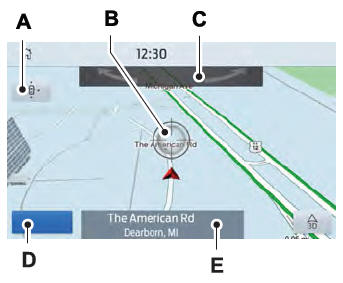
- Re-center the map.
- Selected location.
- Rotate the 3D map. Swipe left or right.
- Start route guidance.
- Destination name.
Select a location on the map.
Select Go to start route guidance.
Changing the Map View
Display the map in one of the following views:
- Two-dimensional map with the direction you are traveling toward the top of the screen.
- Two-dimensional map with north toward the top of the screen.
- Three-dimensional map with the direction you are traveling toward the front.
Zoom
Display more or less detail on the map.
Route Guidance
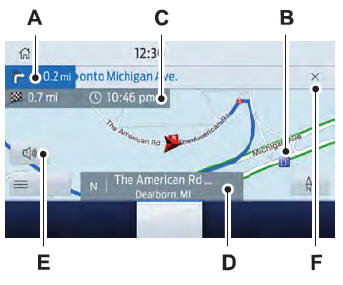
- Turn indicator. Select to hear the last voice prompt.
- Point of interest.
- Estimated time of arrival, distance to the destination or time to the destination.
- Current road.
- Turn off prompts.
- Cancel route guidance.
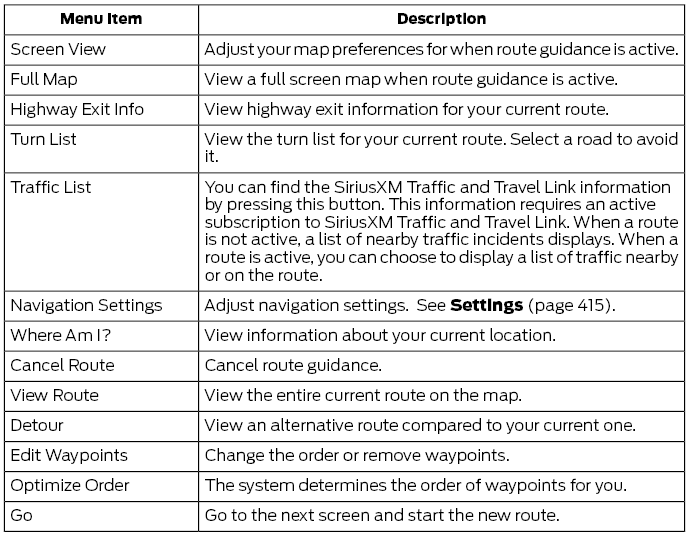
Route Guidance Navigation Menu
Adjusting Navigation Prompt Volume
Turn the volume knob while a guidance prompt is playing to adjust the volume.
Turning Off Prompts
 Select the mute option on the screen to turn off guidance prompts.
Adding Waypoints
You can add a waypoint to the navigation route as a destination on your route. You can add up to five waypoints.
- Select a search option on the map.
- Set a destination.
- Select Add Waypoint.
- Select Go.
Canceling Route Guidance
 Select the route guidance menu option on the active guidance screen.
Select Cancel Route.
City seeker (if equipped)

City seeker, when available, is a service that provides additional information about certain points of interest, such as restaurants, hotels and attractions.
When you select a point of interest, location and information appear, such as address, phone number and star rating.
Press More Info to view photos, reviews, a list of services and amenities, average room or meal prices, and the internet address. This screen displays the point of interest icon.
For restaurants, city seeker may provide information such as star rating, average cost, overview, wheelchair accessibility, operating hours and website address.
For hotels, city seeker may provide information such as star rating, price category, overview, check-in and check-out times, hotel service icons and website address. Hotel service icons include:
- Restaurant
- Business center
- Wheelchair accessible
- Laundry
- Refrigerator
- 24-hour room service
- Fitness center
- Internet access
- Pool
- Wi-Fi
Attractions include nearby landmarks, amusement parks, historic buildings and more. City seeker can provide information such as star rating, reviews, operating and admission costs and hours.
SiriusXM Traffic and Travel Link (if equipped)
SiriusXM Traffic and Travel Link is available on vehicles equipped with navigation and in select markets only. You must activate and subscribe to SiriusXM Traffic and Travel Link information. It helps you find the best gas prices, find movie listings, receive real-time traffic alerts, view weather maps, get accurate ski conditions, and see current sports scores.
The system calculates a reasonable, efficient route based on available speed limits, traffic, and road conditions. You may know a local shortcut that is more efficient at a given time than the route provided by SYNC 3, but expect a small difference in minutes or miles from the SYNC 3 route.
Michelin Guide (if equipped)
The Michelin Guide is a service that provides additional information about certain points of interest, such as restaurants, hotels, and tourist attractions. Points of interest that have the Michelin Guide show an information display button to show you additional information. Press the button to view additional information. If you have a phone paired with the system, you can press the phone button to directly connect to the selected point of interest.
Navigation Map Accuracy and Updates
HERE is the digital map data provider for the navigation application. If you find map data errors, you can report them directly to HERE by visiting www.here.com. HERE evaluates all map error reports and responds with the results of its investigation by email.
Navigation system map data may contain inaccurate or incomplete information due to elapsed time, changing circumstances, sources used, and the nature of collecting comprehensive geographic data, any of which may result in incorrect results. Incorrect speed limit information, turn restrictions, and other road attributes may affect certain routes and related guidance.
Annual navigation map updates are available for purchase through your dealership. Depending on your purchase agreement, you may be eligible for a free map update. You can download the map data update to a USB, order a USB, or use Wi-Fi for automatic delivery of the update. To update map data via Wi-Fi, your vehicle must be connected to a Wi-Fi hotspot. Map data files are large, so it is strongly recommended to perform the update when free Wi-Fi is available, otherwise high data transfer charges may apply. For USB updates, free map update eligibility, and other details, contact your dealer at 1-866-462-8837 in the United States and Canada or 01-800-557-5539 in Mexico, or visit our local website for more information.
Test yourself
A quick Ford Fusion quiz: every answer comes with an explanation and a link to the manual page.